
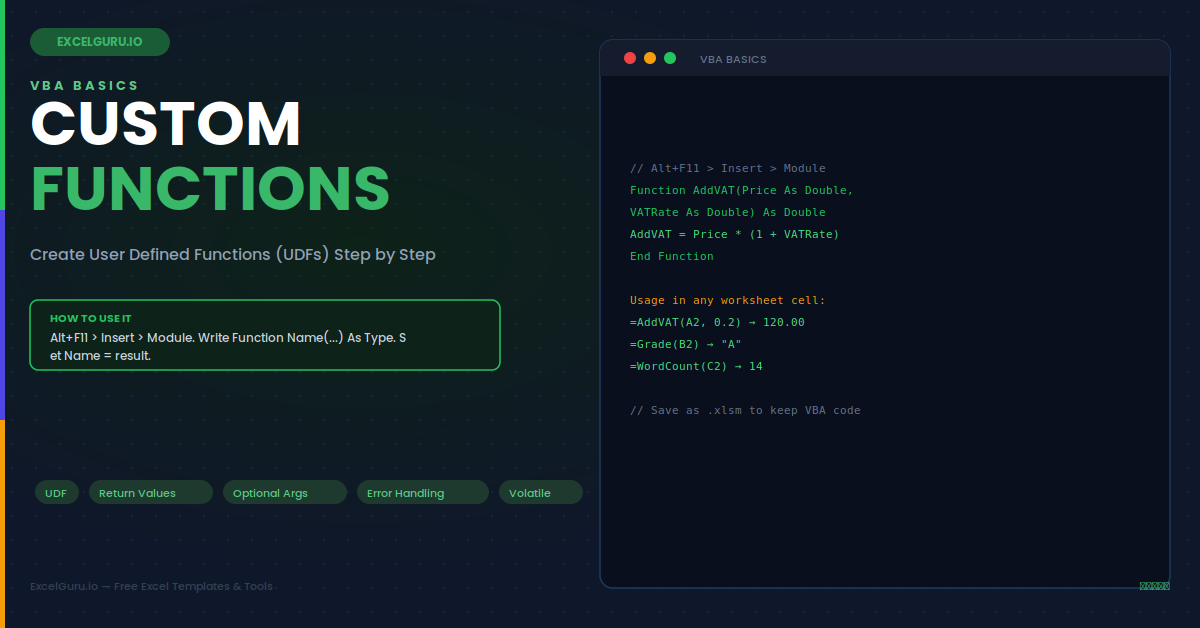
Excel's built-in functions cover most analytical tasks, but they cannot read your company's pricing logic, apply industry-specific calculations, or enforce formulas that change based on internal business rules. A User Defined Function (UDF) solves this. You write the logic once in VBA, and it becomes a worksheet function — callable like SUM or VLOOKUP, recalculating automatically when inputs change, fully documentable with IntelliSense hints, and shareable across any workbook that loads the containing file. This guide covers every step from opening the VBA editor to writing, testing, and deploying your first UDF, with six progressively complex examples and every common troubleshooting scenario.
What Makes a Function a UDF — Not a Sub
VBA has two procedure types: Sub and Function. Subs perform actions — they click buttons, format cells, open files. Functions return a value and can therefore be called from a worksheet cell just like any built-in function. A UDF is simply a VBA Function procedure placed in a standard module (not a Sheet module or ThisWorkbook). That placement is critical — functions in Sheet modules are not callable from worksheet cells.
Setting Up the VBA Editor — Step by Step
The VBA editor is built into every version of Excel. It requires no download or installation. The Developer tab gives the fastest access, though the keyboard shortcut Alt+F11 works in every version regardless of whether the Developer tab is visible.
=YourFunctionName() in any cell to test it.Example 1: VAT Calculator — Simple Two-Argument Function
This is the simplest possible UDF — two numeric arguments, one arithmetic operation, one return value. It demonstrates the complete structure every UDF follows. Specifically, the function name is what appears in the worksheet, the argument names become the IntelliSense hints users see while typing the formula, and the As Double declarations ensure Excel passes the correct data type.
Example 2: Grade Classifier — IF Logic Returning Text
UDFs are not limited to arithmetic — they can return any data type including text. A grade classifier converts a numeric score to a letter grade using Select Case, which is cleaner and faster than nested IFs for multi-branch logic. Consequently, the worksheet formula is simply =Grade(B2) rather than a deeply nested IF statement that takes minutes to write and seconds to misread.
Example 3: Count Words — Working with String Manipulation
Excel has no built-in WORDCOUNT function. This UDF fills that gap by trimming excess whitespace and counting the number of space-delimited words in a text string. It also demonstrates how to handle edge cases — empty cells and single-word strings — that a naive formula approach would get wrong. Furthermore, the Trim function removes multiple consecutive spaces before counting, ensuring accuracy on imported text with inconsistent spacing.
Example 4: Range-Accepting UDF — Sum If Colour
UDFs can accept a Range as an argument, letting them iterate over multiple cells just like SUMIF or COUNTIF. This example sums cells that have a specific background colour — something no built-in function can do. Note that this UDF requires a manual recalculate (Ctrl+Alt+F9) after changing cell colours because Excel does not trigger recalculation for formatting changes. For this reason, colour-based calculations are appropriate for static reports but not live dashboards.
Example 5: Error Handling — Return Custom Errors Gracefully
A UDF that divides by zero or receives an unexpected input type will return a VBA runtime error, which displays as #VALUE! in the cell with no useful information. Adding proper error handling makes UDFs production-safe — they return meaningful error values or empty strings instead of cryptic error codes. The CVErr function returns Excel-compatible error constants that display exactly like native Excel errors, preserving compatibility with IFERROR wrappers in the calling formula.
Example 6: Application.Volatile — Force Recalculation
By default, Excel only recalculates a UDF when one of its argument cells changes. A UDF that reads the current date, system time, or any non-cell value — such as an environment variable or a named range not in its arguments — needs Application.Volatile to recalculate every time Excel recalculates the workbook. Adding this line as the first statement in the function ensures the result stays current. However, volatile functions recalculate on every calculation cycle, which slows workbooks significantly when many volatile UDFs are present.
Troubleshooting UDFs
All three issues below are the most common UDF problems. Each has a specific cause and a quick fix that takes under two minutes to apply.
The UDF returns #NAME? in the cell
#NAME? means Excel cannot find the function. Four causes are most common. First, the function is in a Sheet module (Sheet1, Sheet2) or ThisWorkbook instead of a standard Module — move it to Insert > Module. Second, the workbook is saved as .xlsx rather than .xlsm — macros are stripped from .xlsx files on save. Third, macros are disabled — click Enable Content in the security bar when opening the workbook. Fourth, there is a typo between the function name in VBA and the formula in the cell — names are not case-sensitive but must be spelled identically.
The UDF returns #VALUE! unexpectedly
#VALUE! from a UDF almost always means the function received a data type it did not expect. A function declared As Double will fail if a cell contains text or is empty. Fix this by declaring the argument As Variant, then using IsEmpty() and IsNumeric() checks at the start of the function before performing any arithmetic. Alternatively, wrap the entire function body in On Error GoTo ErrorHandler and return CVErr(xlErrValue) from the handler — this prevents unhandled runtime errors from reaching the cell as generic #VALUE! results.
The UDF result does not update when the input changes
If the UDF reads data that is not in its arguments — a global variable, a named range not passed as a parameter, or an external source — Excel does not know to recalculate the UDF when that data changes. Add Application.Volatile as the first line in the function. This forces recalculation on every workbook recalculation cycle, keeping the result current. If the UDF only reads its declared arguments, however, check that the argument cells actually contain the values you expect and that no intermediate error is silently blocking the recalculation.
Frequently Asked Questions
- How do I create a custom function (UDF) in Excel VBA?+Press Alt+F11 to open the VBA editor. Right-click your workbook in the Project Explorer and choose Insert > Module. In the module, type a Function procedure: Function MyFunc(arg As Double) As Double, then MyFunc = arg * 2, then End Function. Return to Excel and type =MyFunc(10) in any cell — it returns 20. Save the workbook as .xlsm to preserve the VBA code. The function name you choose becomes the worksheet function name and appears in the AutoComplete dropdown as users type it.
- Can a UDF modify other cells in the worksheet?+No. UDFs called from worksheet cells are not permitted to modify other cells, change formatting, open files, or alter workbook structure. Attempting to do so causes a runtime error or silently fails. This restriction exists because Excel's recalculation engine calls UDFs in an unpredictable order, and allowing cell modifications would make recalculation results non-deterministic. If you need a function that modifies other cells, use a Sub procedure triggered by a button, a keyboard shortcut, or an event handler — not a worksheet UDF.
- How do I make my UDF appear in the Function Wizard with a description?+Use the MacroOptions method in the Workbook_Open event to register a description and category. Add this to the ThisWorkbook module: Private Sub Workbook_Open() followed by Application.MacroOptions Macro:="AddVAT", Description:="Returns the gross price including VAT", Category:=1, ArgumentDescriptions:=Array("Net price", "VAT rate as decimal"). End Sub. The function then appears in the User Defined category of the Insert Function dialog with the description and argument hints you specified.
- How do I share a UDF with other workbooks or colleagues?+Three approaches work depending on your needs. First, save the workbook as a Personal Macro Workbook (PERSONAL.XLSB) — it opens automatically with Excel and makes all its UDFs available in every workbook on that machine. Second, save the file as an Excel Add-in (.xlam) and share it — recipients install it via File > Options > Add-ins > Browse. Third, copy the module directly — in the VBA editor, drag the module from one project to another, or export the module as a .bas file and import it into any other workbook's VBA project.