
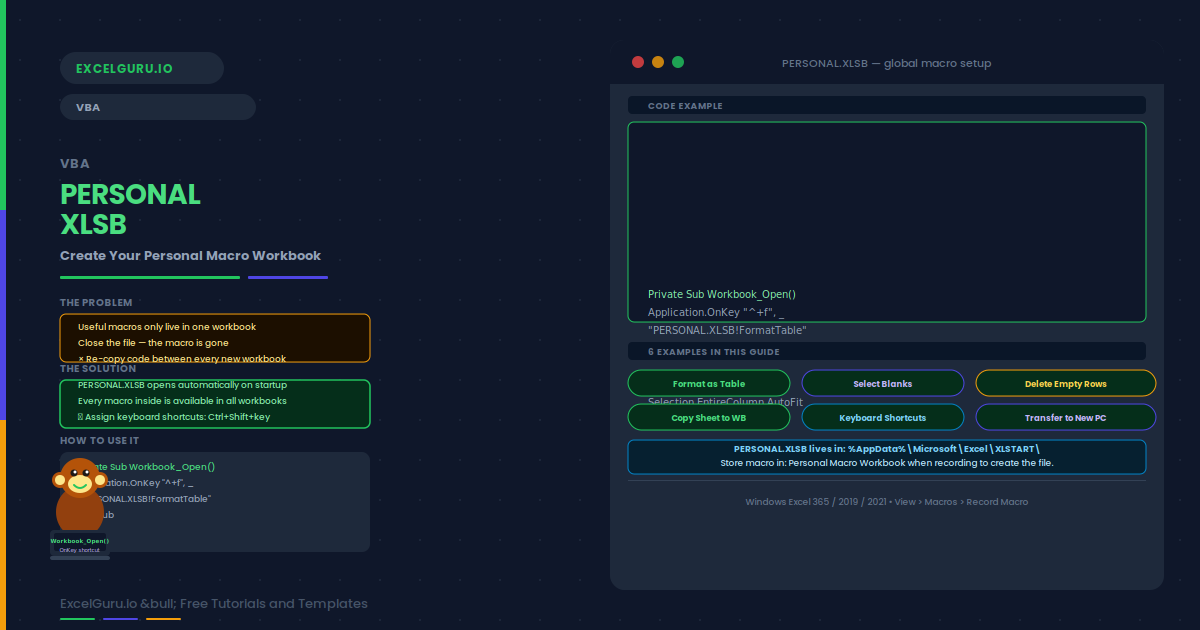
Every useful macro you record in Excel lives only in that workbook. Close the file and the macro is gone. PERSONAL.XLSB solves this. It is a hidden workbook that Excel opens automatically on every startup. Any macro stored there is available in every workbook you open — without copying code between files.
This guide explains what PERSONAL.XLSB is, how to create it, and six practical examples. These include your first personal macro, formatting shortcuts, reusable utility subs, keyboard shortcuts, long-term management, and moving the file between machines.
C:\Users\[Name]\AppData\Roaming\Microsoft\Excel\XLSTART\. Excel auto-opens every file in XLSTART at startup. PERSONAL.XLSB is hidden by default so it does not appear as an open workbook tab.How to Create PERSONAL.XLSB
PERSONAL.XLSB does not exist until you create it. The easiest method uses the macro recorder. Record any macro and choose Personal Macro Workbook as the destination. Excel creates the file automatically. You can then open the VBA Editor to add more code directly.
Examples 1–4: Useful Personal Macros
A formatting macro applies consistent styles to any selected range. Store it in PERSONAL.XLSB and it works in every workbook. This eliminates repetitive manual formatting and ensures visual consistency across all reports.
A common task is selecting all blank cells in a range before filling or colouring them. This macro uses SpecialCells to select every blank in the current selection. It is particularly useful when cleaning imported data with sporadic empty rows.
Imported data often contains empty rows. This macro loops backward through the selected range and deletes rows where column A is blank. Looping backward prevents row-shift errors from skipping rows during deletion.
This macro copies the active sheet into a new blank workbook, then prompts the user to save it. It is a quick way to share one sheet without exposing other sheets in the source workbook. The original file stays unchanged.
Examples 5–6: Keyboard Shortcuts and Cross-Machine Transfer
Any macro in PERSONAL.XLSB can have a keyboard shortcut. You can assign one through the Macro dialog, or set it programmatically in the PERSONAL.XLSB Workbook_Open event. Once set, the shortcut works across all open workbooks.
To share your personal macros with a new computer, copy the file from the XLSTART folder on the source machine and paste it into the same folder on the target. Excel loads it automatically on the next startup. This is the fastest way to migrate your macro toolkit to a new work PC.
Common Issues and How to Fix Them
PERSONAL.XLSB is not visible in the VBA Editor project list
PERSONAL.XLSB is hidden by default. Go to View > Unhide in Excel and select PERSONAL.XLSB to make it temporarily visible. Alternatively, open the VBA Editor with Alt + F11 and expand the PERSONAL.XLSB project in the Project Explorer. It is always visible there even when the workbook itself is hidden.
Excel does not prompt to save PERSONAL.XLSB on exit
Excel only prompts to save PERSONAL.XLSB if it was modified in the current session. If the prompt does not appear, go to the VBA Editor and save manually with File > Save PERSONAL.XLSB or Ctrl + S. Alternatively, unhide the workbook via View > Unhide, then save it from the Excel File menu.
Frequently Asked Questions
-
What is PERSONAL.XLSB in Excel?+PERSONAL.XLSB is a hidden workbook that Excel opens automatically every time it starts. Any macro stored there is available in all open workbooks without copying code. Excel creates the file when you first record a macro with Personal Macro Workbook selected as the destination. It lives in the XLSTART folder in your user profile.
-
How do I create PERSONAL.XLSB?+Go to View > Macros > Record Macro. In the Store macro in dropdown, select Personal Macro Workbook. Click OK, press any key, then stop recording. PERSONAL.XLSB is created automatically in your XLSTART folder. Open the VBA Editor with Alt + F11 to add your own code to the file.
-
Can I add a PERSONAL.XLSB macro to the Excel ribbon?+Yes. Go to File > Options > Customize Ribbon. Create a new group, then click Add a Macro. The list shows all macros from PERSONAL.XLSB. Drag the macro to your custom group. The button appears in every workbook and runs the personal macro from anywhere.
-
How do I delete a macro from PERSONAL.XLSB?+Open the VBA Editor with Alt + F11. In the Project Explorer, expand PERSONAL.XLSB and open the module containing the macro. Select the Sub procedure and delete it. Save PERSONAL.XLSB with Ctrl + S. Alternatively, use View > Macros, select the macro from PERSONAL.XLSB, and click Delete.