
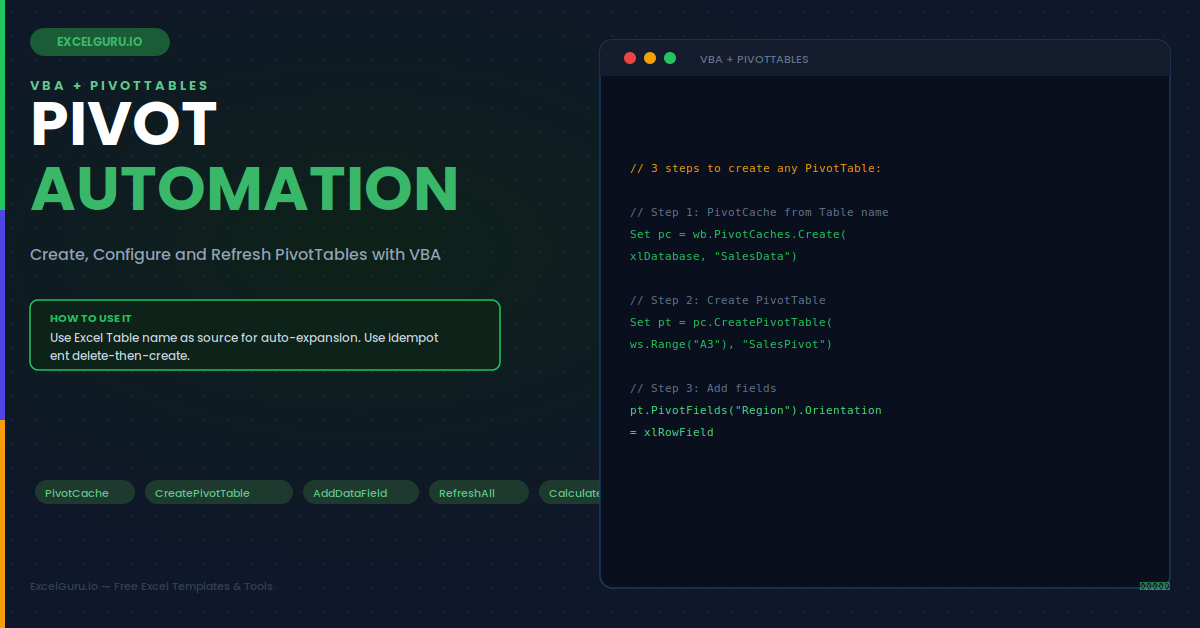
Building a PivotTable through the Excel interface requires 15–20 clicks and produces a static result that must be rebuilt whenever the data structure changes. VBA PivotTable automation reduces this to a single macro call that creates the PivotTable, configures all fields, applies formatting, and refreshes the data — every time, identically, in under a second. This guide covers the full PivotTable object model, creating and refreshing PivotTables via VBA, controlling every field placement option, and six practical automation scenarios including dynamic source ranges and multi-PivotTable refresh.
The PivotTable Object Model — Five Key Objects
PivotTables in VBA are controlled through a hierarchy of five objects. Understanding the hierarchy prevents the most common errors — particularly confusing PivotCache (the data source) with PivotTable (the display), and confusing PivotField (the column definition) with PivotItem (an individual value within that column).
Creating a PivotTable from Scratch — Step by Step
Creating a PivotTable programmatically requires three steps: create the cache from the source range, create the PivotTable from the cache, then add and configure fields. The source can be an Excel Table name (recommended for auto-expanding ranges), a fixed range address, or an external data connection.
Example 1: Create a Basic PivotTable — Region × Product Revenue
This is the complete template for creating any PivotTable from scratch. The source is an Excel Table named "SalesData", which auto-expands as new rows are added — meaning the PivotTable always covers the full dataset without any manual range adjustment. The PivotTable is placed on a dedicated "Pivot" sheet, replacing any existing PivotTable of the same name.
Example 2: Refresh All PivotTables — One-Click Update
When source data changes, PivotTables must be refreshed to reflect the update. Refreshing manually (right-click > Refresh) works for one PivotTable at a time. However, a workbook with 10 PivotTables across 5 sheets requires 10 separate refreshes. The VBA approach refreshes all caches in one call — or refreshes specific caches to avoid refreshing slow external-source PivotTables alongside fast worksheet-source ones.
Example 3: Dynamic Source Range — Auto-Extend on Refresh
A PivotTable built with a fixed range like "$A$1:$F$1000" will miss rows 1001+ when data grows. The correct approach uses a dynamic source that always covers all data. Using an Excel Table name as the source is the simplest method — Tables expand automatically. Alternatively, the PivotCache SourceData can be updated programmatically before each refresh to point to the current last row.
Example 4: Filter a PivotTable — Show Only Specific Items
Filtering a PivotTable via VBA is faster and more reliable than using slicers for macro-driven dashboards. Setting individual PivotItem Visible properties controls which rows or columns appear. For a filter field (page field), setting the CurrentPage property selects a single value — the equivalent of choosing from the filter dropdown at the top of the PivotTable.
Example 5: Add Calculated Fields — Formulas Inside a PivotTable
A calculated field adds a virtual column to the PivotTable that is computed from the values of other fields. It exists only inside the PivotTable — no new column is added to the source data. Calculated fields are specifically useful for ratios and percentages that cannot be expressed as a source column formula, such as Margin% = Profit / Revenue, which must be computed from two value fields rather than from source row data.
Example 6: Delete and Rebuild — Idempotent PivotTable Creation
Running a PivotTable creation macro twice without deleting the existing PivotTable causes an error — VBA cannot create a second PivotTable with the same name at the same destination. The idempotent pattern deletes the existing PivotTable before creating a new one, making the macro safe to run repeatedly. Furthermore, this approach is essential for automated report generation where the macro must run on a schedule without manual cleanup between runs.
Troubleshooting PivotTable VBA
All three issues below are the most common PivotTable VBA errors. Each has a clear cause and a specific fix.
Run-time error 1004 — cannot place PivotTable at this destination
This error occurs when the destination cell overlaps with an existing PivotTable, another object, or a merged cell region. The most common cause is running the creation macro twice without clearing the previous PivotTable first. Use the idempotent pattern shown in Example 6 — iterate through existing PivotTables, find the one with the matching name, call TableRange2.Clear, then create the new one. Also ensure the destination cell is on a sheet different from the source data sheet when possible, as overlapping source and PivotTable regions cause this error.
PivotField not found — run-time error 1004 on PivotFields("FieldName")
This error means the field name does not match any column header in the source data exactly — including leading/trailing spaces, capitalisation, or special characters. Add a debug loop to print all available field names to the Immediate Window: For Each pf In pt.PivotFields : Debug.Print pf.Name : Next pf. Compare the output against the name you are using in code. Also verify that the PivotCache was created after the most recent addition of the column to the source data — an old cache does not reflect new source columns until it is refreshed or recreated.
The PivotTable refresh does not pick up new rows
If the PivotCache was created with a fixed range address (e.g. "$A$1:$F$500"), new rows beyond the original range boundary are not included in the refresh even after calling Refresh. The fix is to update the SourceData property before refreshing: set it to a dynamic range string that includes the current last row, or switch the source to an Excel Table name which auto-expands. Alternatively, call ChangePivotCache with a newly created cache pointing to the updated range, then call RefreshTable on the PivotTable.
Frequently Asked Questions
- How do I create a PivotTable using VBA in Excel?+First, create a PivotCache using ActiveWorkbook.PivotCaches.Create(xlDatabase, sourceRange). Then create the PivotTable from the cache using pivotCache.CreatePivotTable(destinationCell, "TableName"). Finally, configure fields by setting each PivotField's Orientation property to xlRowField, xlColumnField, xlPageField, or xlDataField, and add value fields with pt.AddDataField. Save the workbook as .xlsm — PivotTable VBA requires a macro-enabled format. The full pattern with error handling is shown in Example 1 of this guide.
- How do I refresh all PivotTables in a workbook with VBA?+The simplest approach is ActiveWorkbook.RefreshAll — one line that refreshes all PivotTables, data connections, and Power Query queries in the workbook. For finer control, loop through ActiveWorkbook.PivotCaches and call Refresh on each one. To refresh only PivotTables with worksheet sources (skipping slower external connections), check that pc.SourceType = xlDatabase before calling Refresh. To refresh only the PivotTables on a specific sheet, loop through Sheets("SheetName").PivotTables and call RefreshTable on each.
- How do I filter a PivotTable field using VBA?+To filter a report filter (page field) to a single value, use pt.PivotFields("FieldName").CurrentPage = "Value". To show or hide specific items in a row or column field, set each PivotItem's Visible property — for example, pt.PivotFields("Region").PivotItems("North").Visible = False. To reset all items to visible (clear the filter), loop through all PivotItems and set Visible = True for each one. Note that all PivotItems must have at least one Visible = True — setting all items to False raises a runtime error.
- How do I add a calculated field to a PivotTable in VBA?+Use pt.CalculatedFields.Add "FieldName", "=Formula" where the formula references other field names in single quotes. For example, pt.CalculatedFields.Add "Margin%", "='Profit'/'Revenue'" creates a calculated field that divides the Profit field by the Revenue field. Then add it to the Values area with pt.AddDataField pt.PivotFields("Margin%"), "Display Name", xlSum. Calculated fields use the Sum of each referenced field in their formula — they do not operate on individual source rows, which can cause unexpected results for average-based calculations.