
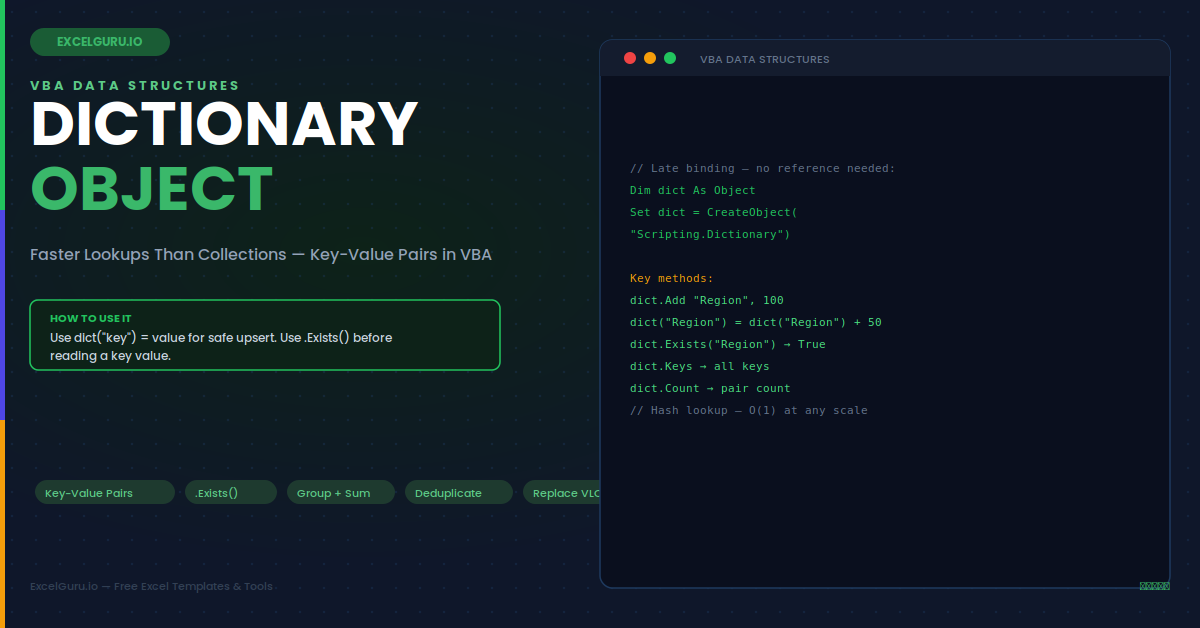
VBA's built-in Collection object stores values by key, but it cannot check whether a key already exists without triggering an error, it does not expose all keys as a list, and it performs linear searches that slow down as the collection grows. The Dictionary object (from Microsoft Scripting Runtime) solves all three problems. It stores key-value pairs, exposes an Exists method for safe key lookups, provides Keys and Items arrays for iteration, and uses hash-based lookups that stay fast regardless of the number of entries. This guide covers declaration, all key methods, and six practical scenarios where a Dictionary outperforms both Collections and repeated VLOOKUP calls.
Dictionary vs Collection vs Array — When to Use Each
Choosing the right data structure prevents significant performance and correctness problems. Specifically, using an array when a Dictionary is needed results in slow nested loops. Using a Collection when Exists checks are needed results in fragile error-trapping code. The table below shows the practical decision criteria.
Declaring and Creating a Dictionary
The Dictionary object requires the Microsoft Scripting Runtime reference (or late binding). Early binding gives IntelliSense and is slightly faster. Late binding requires no reference and makes code more portable across machines where Scripting Runtime may not be registered. Both approaches produce functionally identical Dictionary objects.
Example 1: Group and Sum — Revenue by Region
The most common Dictionary use case: accumulating values by a grouping key. Reading a 50,000-row transaction table and summing revenue by region using a Dictionary is dramatically faster than any worksheet formula approach and faster than nested loop array methods. The Exists check prevents errors on the first occurrence of each region, and the Items array provides all totals for bulk output after the loop completes.
Example 2: Deduplicate a List — Remove Duplicates Fast
Dictionary keys are inherently unique — adding an existing key either raises an error (using .Add) or silently updates (using dict(key) = value assignment). This behaviour makes de-duplication trivial: iterate the list, attempt to add each value as a key, and use Exists to skip duplicates. The resulting Keys array contains exactly one occurrence of each unique value, which is then written back to the sheet in one operation.
Example 3: Faster Lookup — Replace VLOOKUP in a Loop
Calling VLOOKUP inside a VBA loop (via Application.WorksheetFunction.VLookup) performs a separate linear search for every iteration. On 10,000 rows against a 5,000-row lookup table, this results in up to 50 million comparisons. Loading the lookup table into a Dictionary first reduces the lookup to a hash operation — O(1) per lookup regardless of the lookup table size. The total processing time drops from minutes to milliseconds on large datasets.
Example 4: Counting Occurrences — Frequency Distribution
A frequency distribution counts how many times each distinct value appears in a list. The Dictionary approach processes this in a single pass through the data — no sorting required, no COUNTIF called for each unique value. Furthermore, the result keys are naturally ordered by first occurrence rather than alphabetically, which is useful for preserving the order items first appeared in an ordered log or timeline.
Example 5: Collect Grouped Items — Store a List per Key
A Dictionary value can be any VBA object — including another Collection or array. This enables grouping: for each key, store a Collection of associated values rather than a single number. After the loop, each key maps to a list of items — for example, each CustomerID maps to all their Order IDs, or each Department maps to all employee names. This is the VBA equivalent of a SQL GROUP BY returning multiple rows per group.
Example 6: Two-Pass Deduplication with Original Order Preserved
Excel's built-in Remove Duplicates sorts or rearranges results unpredictably. The Dictionary approach preserves insertion order — keys are returned in the order they were first added. This makes it the correct tool when the output must retain the same order as the source data with duplicates removed. Furthermore, the approach works on any column, any data type, and any combination of values without modifying the source range or sorting the data at any point.
Troubleshooting the Dictionary Object
All three issues below are the most common Dictionary problems. Each has a quick diagnosis and specific fix.
User-defined type not defined — or "Object required" on CreateObject
Early binding using Dim dict As Scripting.Dictionary requires the "Microsoft Scripting Runtime" reference. Go to Tools > References in the VBA editor and check the box for "Microsoft Scripting Runtime". If it is missing from the list, browse to the scrrun.dll file in the Windows\System32 folder and add it manually. Alternatively, switch to late binding — Dim dict As Object: Set dict = CreateObject("Scripting.Dictionary") — which requires no reference and works on any Windows machine without additional setup.
Key already exists — Run-time error 457
Error 457 appears when you call dict.Add with a key that already exists. The .Add method strictly requires unique keys and throws an error on any duplicate. Use the assignment syntax instead of .Add for safe upsert behaviour: dict(key) = value adds the key if it does not exist and updates the value if it does, without raising any error. Only use .Add when duplicate keys represent a genuine data integrity problem that should be flagged as an error rather than silently handled.
Dictionary lookups are case-sensitive when they should not be
The Dictionary's default CompareMode is vbBinaryCompare (case-sensitive) — "East" and "east" are treated as different keys. If your keys should be case-insensitive, set dict.CompareMode = vbTextCompare before adding any keys. This setting cannot be changed after keys have been added — attempting to do so raises a runtime error. For consistency, always set CompareMode immediately after creating the Dictionary object and before any Add or assignment operations.
Frequently Asked Questions
- How do I create a Dictionary in Excel VBA?+Use late binding, which requires no reference: Dim dict As Object followed by Set dict = CreateObject("Scripting.Dictionary"). Alternatively, use early binding for IntelliSense: go to Tools > References, check "Microsoft Scripting Runtime", then declare Dim dict As New Scripting.Dictionary. Add entries with dict.Add "key", value or dict("key") = value. Check for a key with dict.Exists("key"). Get all keys as an array with dict.Keys. Remove an entry with dict.Remove "key".
- What is the difference between dict.Add and dict(key) = value?+dict.Add "key", value raises a runtime error (457) if the key already exists — use it when duplicate keys represent a data error that should be caught. dict("key") = value is a safe upsert: it adds the key if it does not exist and silently updates the value if it does, with no error in either case. For accumulation patterns (summing values per key), always use the assignment form: dict("key") = dict("key") + amount — this works correctly whether the key already exists or is new to the dictionary.
- How do I iterate over all keys and values in a VBA Dictionary?+Use dict.Keys to get a Variant array of all keys and dict.Items to get a Variant array of all values, both in insertion order. Loop with: Dim keys As Variant: keys = dict.Keys, then For i = 0 To dict.Count - 1: Debug.Print keys(i), dict(keys(i)): Next i. Alternatively, loop with For Each key In dict.Keys, then access the value with dict(key). Note that Keys and Items arrays are 0-based — the first key is at index 0, not 1.
- Is the VBA Dictionary available in all versions of Excel?+The Scripting.Dictionary object is part of the Microsoft Scripting Runtime (scrrun.dll), which ships with Windows as part of the VBScript runtime. It is available in all versions of Excel on Windows from Excel 97 through Microsoft 365. It is not available on Excel for Mac, because Scripting Runtime is a Windows-only COM library. For cross-platform VBA code that must run on both Windows and Mac, implement a Dictionary-like structure using a custom class module with an underlying Collection, or use a sorted array with binary search for lookups.