
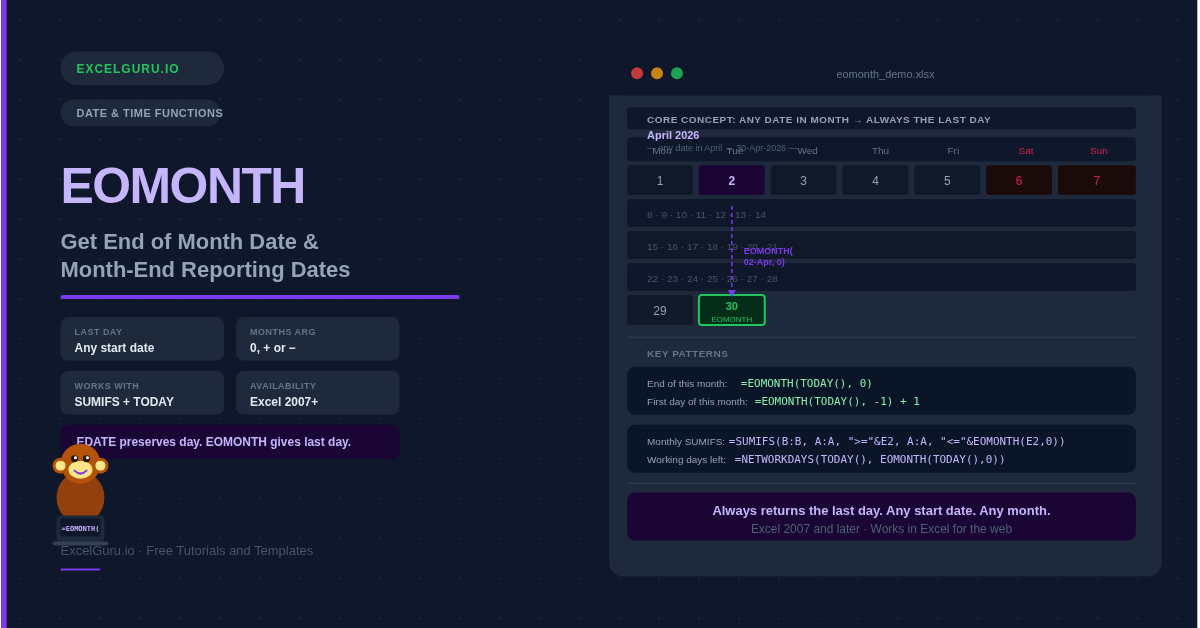
The EOMONTH function returns the last day of a month. You tell it a start date and how many months to move forward or backward. It always lands on the final day of the target month. For example, EOMONTH on 15 March with 1 month gives 30 April. The day of the start date does not matter. EOMONTH ignores it and snaps straight to the month-end. This makes it the right tool for billing cut-offs, period-end reports, and financial statement dates.
What Is the EOMONTH Syntax?
The function takes just two arguments. Both are required.
| Argument | Required? | What it does |
|---|---|---|
| start_date | Required | Any valid date in the same month you want to work with. The specific day does not affect the result. Use a cell reference, DATE(), or TODAY(). Avoid typing dates as plain text, as Excel may misread them. |
| months | Required | How many months to move from start_date. Use 0 to get the end of the same month. Use a positive number to move forward. Use a negative number to move backward. Decimals are truncated. |
=TEXT(EOMONTH(A2,0),"DD-MMM-YYYY").
Why Use 0 as the Months Argument?
Passing 0 returns the last day of the same month as the start date. This is one of the most common uses. For example, EOMONTH(TODAY(), 0) always gives you the last day of the current month. The result updates automatically every day. You do not need to change the formula at the start of each new month.
Adding 1 to an EOMONTH result is a reliable way to find the first day of a month. The last day of March plus 1 is always the first day of April — no matter which year it is. This trick works for any month, including those with 28, 29, 30, or 31 days.
Example 1: Month-End Reporting Periods
Financial reports often need a start date and an end date for each period. EOMONTH generates both from a single anchor date. You can build an entire year of reporting periods in one column without typing a single date manually.
Example 2: Invoice and Payment Due Dates
Many businesses set payment terms at the end of the month following the invoice date. For example, "end of next month" means the last day of the month after the invoice is issued. EOMONTH calculates this in one formula. It also handles varying month lengths correctly, so you never land on a non-existent date.
Example 3: Quarterly and Annual Period Ends
EOMONTH is ideal for building financial model headers. You can generate quarter-end dates, year-end dates, or fiscal period ends from a single anchor date. This approach keeps your model dynamic. Change one date and the entire column of headers updates.
$A$1 when referring to the anchor date in quarterly or annual formulas. Without the dollar signs, copying formulas across columns shifts the reference and breaks the date sequence.
Example 4: SUMIFS with EOMONTH for Monthly Totals
EOMONTH works well inside SUMIFS to sum all transactions within a calendar month. You use it to define the upper boundary of the date range. This approach works even when transactions are spread across a full data table with irregular dates.
Example 5: Working Days Remaining in the Month
Combine EOMONTH with NETWORKDAYS to find how many working days remain in the current month. This is useful for capacity planning, sprint tracking, and daily sales targets. The result updates automatically every day.
Example 6: EOMONTH vs EDATE — Which One Should You Use?
EOMONTH and EDATE both move a date by a number of months. However, they return different results. EDATE preserves the original day of the month. EOMONTH always lands on the last day of the target month. The choice depends on your business rule.
How to Fix Common EOMONTH Errors
Result shows a number instead of a date
EOMONTH returns a serial number. Press Ctrl+1 and choose Date from the Number tab. Alternatively, use =TEXT(EOMONTH(A2,0), "DD-MMM-YYYY") to display the result as formatted text.
#VALUE! error
The start_date argument is not a valid date. Dates entered as plain text often cause this error. Check the cell with =ISNUMBER(A2). Real dates return TRUE. If A2 returns FALSE, the cell holds text. Re-enter the date properly, or use DATEVALUE() to convert a text date to a real one.
#NUM! error
The months argument produces a date that is out of Excel's valid date range (before 1 January 1900 or beyond 31 December 9999). Check the months value and confirm it produces a valid calendar date.
Frequently Asked Questions About EOMONTH
-
What does the EOMONTH function do in Excel?+EOMONTH returns the last day of a month. You provide a start date and a number of months to move forward or backward. The function always returns the final day of the target month, regardless of what day the start date falls on. Use it for billing cut-offs, period-end dates, financial model headers, and any calculation that must land on the last day of a month.
-
What does EOMONTH with 0 months return?+EOMONTH(A2, 0) returns the last day of the same month as the date in A2. For example, EOMONTH on any date in March 2026 with 0 months returns 31-Mar-2026. Use 0 when you want the end of the current month rather than a future or past month. Combined with TODAY(), it gives you a dynamic last-day-of-this-month value that updates automatically.
-
How do I get the first day of a month with EOMONTH?+Add 1 to the end of the previous month: =EOMONTH(A2, -1) + 1. This gives the first day of the same month as A2. For example, if A2 is any date in March 2026, the formula returns 01-Mar-2026. This is more reliable than DATE(YEAR(A2), MONTH(A2), 1) for dynamic date ranges because it handles year rollovers cleanly.
-
What is the difference between EOMONTH and EDATE?+Both functions move a date by a number of months. EDATE preserves the original day of the month — adding 1 month to the 15th returns the 15th of the next month. EOMONTH always returns the last day of the target month regardless of the start day. Use EDATE for renewals and subscriptions. Use EOMONTH for billing periods and financial reporting.
-
How do I use EOMONTH to sum values in a month?+Use EOMONTH inside a SUMIFS formula to define the upper date boundary. Set the first condition to >= the first day of the month, and the second to <= EOMONTH(anchor_date, 0). This captures all transactions within that calendar month without hardcoding month-end dates. The same pattern works for COUNTIFS and AVERAGEIFS.
-
Which Excel versions support EOMONTH?+EOMONTH works in all Excel versions from Excel 2007 onwards. This includes Excel 2010, 2013, 2016, 2019, 2021, 2024, and Microsoft 365 on both Windows and Mac. It is also available in Excel for the web. In Excel 2003 and earlier, EOMONTH required the Analysis ToolPak add-in to be enabled first.