
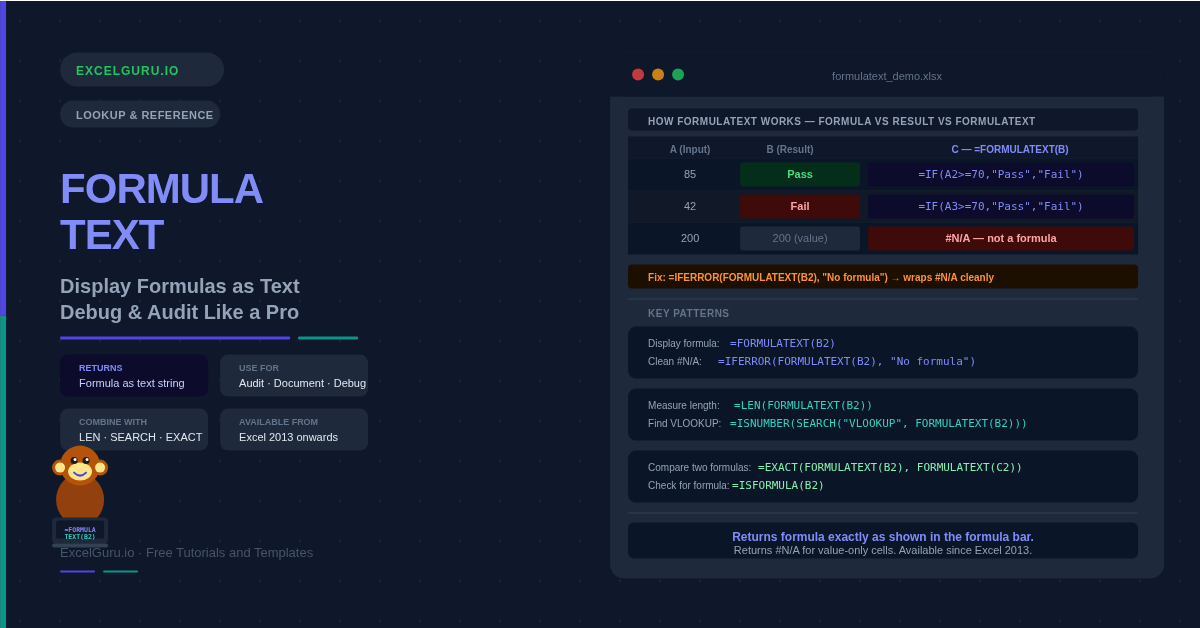
Clicking into every cell one by one to check what formula it contains is slow and error-prone. It also provides no permanent record. The FORMULATEXT function fixes this — it reads the formula from any cell and displays it as a text string, right there in the worksheet. You can see it, copy it, search it, and compare it alongside the result. Consequently, it transforms how you audit, document, and hand over complex workbooks.
The returned text is identical to what appears in the formula bar. Additionally, it updates automatically whenever the source formula changes. This makes FORMULATEXT the foundation of any living documentation system for Excel.
What Is the FORMULATEXT Syntax?
FORMULATEXT takes a single argument — the cell you want to inspect.
| Argument | Required? | What it does |
|---|---|---|
| reference | Required | The cell whose formula you want to display as text. Must be a single cell or a named range. If you pass a multi-cell range, FORMULATEXT returns the formula from the upper-left cell only (in Excel 2013–2021). In Excel 365, passing a range spills the formula from every cell in that range. |
What Does FORMULATEXT Return?
The function returns the formula exactly as it was entered — equal sign, function name, arguments, and all. The result is a plain text string. Consequently, all standard text functions work on its output. Use LEN to measure its length, SEARCH to find specific function names, or EXACT to compare two formulas character by character.
Importantly, FORMULATEXT does not trigger a circular reference warning if you reference the same cell it lives in. For instance, typing =FORMULATEXT(A1) in cell A1 returns the formula as text. Excel does not report a circular reference error. This is an exception to the usual circular reference rule.
Example 1: Display a Formula as Text Alongside Its Result
The most immediate use is placing a FORMULATEXT column next to a formula column. You see the value in one cell and the logic that produced it immediately to its right. This approach turns any spreadsheet into a self-documenting reference — no switching to formula view, no clicking around.
Example 2: Handle #N/A with IFERROR and ISFORMULA
A column you audit will often contain formulas, plain values, and blanks. FORMULATEXT returns #N/A for anything that is not a formula. However, mixing formula text and #N/A errors in the same column looks unprofessional in a report. Two approaches handle this cleanly — IFERROR for speed, and ISFORMULA for precision.
Example 3: Measure Formula Complexity with LEN
FORMULATEXT returns plain text — which means all standard text functions work on its output. LEN is particularly useful for measuring formula complexity by character count. Long formulas are often harder to maintain. Flagging cells where the formula exceeds a threshold helps you identify candidates for simplification or refactoring.
Example 4: Build a Formula Audit Sheet
A formula audit sheet lists every formula in a workbook alongside its cell address, length, and formula text. This creates a permanent, searchable inventory. Colleagues taking over a file can scan it quickly instead of clicking through every cell. Furthermore, it is easy to share or print without revealing source data.
Setting Up an Audit Column
Place FORMULATEXT in a column adjacent to the data. Combine it with ISFORMULA to flag cells, and LEN to measure complexity. Additionally, add =CELL("address", B2) to capture the cell address. This produces a full row-by-row audit trail.
Example 5: Compare Formulas in Two Columns with EXACT
EXACT compares two text strings and returns TRUE only when they are identical — every character, including case and spaces, must match. Combining EXACT with FORMULATEXT lets you verify whether two columns use identical formulas, or highlight rows where formulas differ unexpectedly.
Example 6: Search for a Specific Function Inside Any Formula
Because FORMULATEXT outputs plain text, SEARCH and ISNUMBER work on it directly. This lets you scan a whole column and identify every cell that uses a particular function. For instance, find every cell calling VLOOKUP so you can upgrade it to XLOOKUP, or flag formulas with hardcoded values.
=SUMPRODUCT(--ISNUMBER(SEARCH("VLOOKUP", IFERROR(FORMULATEXT(B:B),"")))) on any column. The result tells you exactly how many cells still use VLOOKUP. Prioritise sheets with the highest counts for modernisation first.
How to Fix Common FORMULATEXT Errors
#N/A — cell does not contain a formula
FORMULATEXT only works on cells with formulas. A cell containing a number, text string, or blank produces #N/A. The fix is to wrap in IFERROR: =IFERROR(FORMULATEXT(A2), ""). Alternatively, check first with ISFORMULA: =IF(ISFORMULA(A2), FORMULATEXT(A2), "—"). Both approaches produce clean output across mixed columns.
#N/A — referencing a closed external workbook
FORMULATEXT also returns #N/A when the referenced cell is in another workbook that is not currently open. Open the external workbook first, then run the formula. Alternatively, open the workbook first, copy the formula text, and paste it as a static value in your audit sheet.
#N/A — formula is longer than 8,192 characters
Excel's maximum formula length is 8,192 characters. Formulas exceeding this limit — which is unusual but possible with deeply nested arrays — produce #N/A from FORMULATEXT. Consequently, this is also a sign the formula should be refactored into shorter, named components.
Frequently Asked Questions
-
What does the FORMULATEXT function do in Excel?+FORMULATEXT reads the formula from a specified cell and returns it as a text string. The result is exactly what you would see in the formula bar if you clicked that cell. Consequently, the formula is visible alongside the result in the worksheet — useful for documentation, teaching, and auditing. If the referenced cell contains a value rather than a formula, FORMULATEXT returns #N/A.
-
Why does FORMULATEXT return #N/A?+There are four common causes. First, the referenced cell contains a value, not a formula. Second, the referenced workbook is not open. Third, the worksheet is protected with formula hiding enabled. Fourth, the formula exceeds 8,192 characters. The fix for the most common case (value-only cells) is to wrap in IFERROR: =IFERROR(FORMULATEXT(A2), "No formula"). To prevent confusion in mixed columns, use this pattern consistently across all rows.
-
Can I use FORMULATEXT to find all VLOOKUP formulas in a sheet?+Yes. Combine FORMULATEXT with SEARCH and ISNUMBER: =ISNUMBER(SEARCH("VLOOKUP", IFERROR(FORMULATEXT(B2), ""))). This returns TRUE for any cell in column B that contains VLOOKUP in its formula. To count all occurrences across a range, wrap in SUMPRODUCT: =SUMPRODUCT(--ISNUMBER(SEARCH("VLOOKUP", IFERROR(FORMULATEXT(B2:B100), "")))). The IFERROR handles rows that contain values rather than formulas.
More Questions About FORMULATEXT
-
What is the difference between FORMULATEXT and Ctrl + ` (backtick)?+Ctrl + ` (backtick) toggles formula view for the entire active sheet — all cells switch between showing results and showing formulas simultaneously. This is a temporary display mode. FORMULATEXT, by contrast, is a permanent formula that extracts specific formula text into a cell. It lets you display both the formula and its result in adjacent columns simultaneously. This makes it ideal for documentation and audit sheets, not just quick inspections.
-
Does FORMULATEXT update automatically when the source formula changes?+Yes. FORMULATEXT is volatile — it recalculates whenever the workbook recalculates. If you edit the formula in the referenced cell, the FORMULATEXT result updates immediately to reflect the new formula text. This makes it suitable for living documentation that stays current without manual updates. However, creating a static snapshot for version control requires copying the FORMULATEXT results and pasting them as values at a fixed point in time.
-
Which Excel versions support FORMULATEXT?+FORMULATEXT is available in Excel 2013 and all later versions, including Microsoft 365, Excel 2024, 2021, 2019, and 2016. It also works in Excel for the web. It is not available in Excel 2010 or earlier. In Excel 365, passing a range to FORMULATEXT spills the formula text for every cell automatically. This is a significant improvement over earlier versions, where only the upper-left cell's formula was returned.