
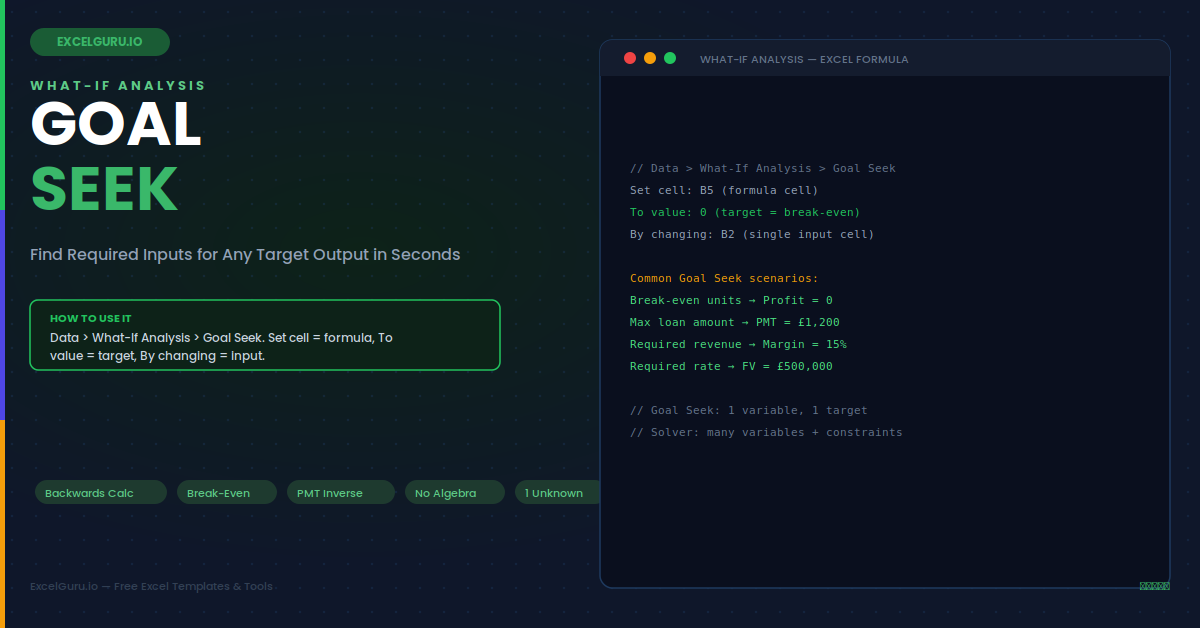
Most Excel formulas work forwards: you supply the inputs and the formula calculates the output. Goal Seek reverses this completely. You specify the output you want — a target profit, a break-even unit count, a specific loan payment — and Goal Seek works backwards to find the single input value that produces it. It is built into every version of Excel, requires no formulas beyond the ones already in your model, and runs in under a second on most problems. This guide covers the Goal Seek dialog in full, six practical backwards-calculation scenarios across finance, sales, and operations, every important limitation, and all common troubleshooting steps.
Goal Seek vs Solver — When to Use Each
Goal Seek and Solver both find input values that produce a desired output. They target completely different problem types, however, and choosing the wrong tool means either getting an error or not finding the true optimum. Understanding the distinction takes under a minute and prevents significant frustration.
The Goal Seek Dialog — Three Fields
Goal Seek has exactly three fields. Filling them correctly is the entire setup process — there are no options, no method choices, and no additional settings. The dialog opens via Data > What-If Analysis > Goal Seek and closes in under 30 seconds from open to result.
Example 1: Break-Even Analysis — Units Required to Cover Fixed Costs
A business has fixed monthly costs of £12,000 and earns a contribution margin of £8 per unit sold. The break-even point is the number of units where total profit equals exactly zero. Instead of rearranging the break-even formula manually, Goal Seek finds the answer directly from the model. Set cell B5 (profit formula) to 0, changing cell B2 (units sold). Goal Seek calculates 1,500 units in under one second — immediately visible in B2 without writing any algebra.
Example 2: Loan Payment Backwards — Required Principal for a Target Payment
The PMT function calculates a monthly payment given principal, rate, and term. Goal Seek inverts this: given a maximum affordable monthly payment, it finds the maximum loan amount you can borrow. This is the exact calculation a mortgage broker performs to determine borrowing capacity. Set cell B5 (PMT formula) to the target payment, changing cell B2 (loan principal). Goal Seek finds the answer without rearranging the PMT formula — which has no simple algebraic inverse.
Example 3: Sales Target — Required Revenue to Hit a Profit Margin
A business model calculates net profit margin as a percentage of revenue. Operating costs are partly fixed and partly variable, so the margin formula is non-linear relative to revenue. The question is: what revenue level produces exactly a 15% net margin? Goal Seek solves this in one step — set the margin formula cell to 0.15, changing the revenue cell. The result accounts for all cost structures in the model without any simplifying assumptions.
Example 4: Interest Rate — What Rate Makes an Investment Hit a Target Value
The FV (future value) function calculates how much an investment grows to at a given rate. Goal Seek inverts this: given a target final value, it finds the required annual return rate. This is useful for investment planning, pension modelling, and savings goal calculations where you know the destination and need to discover the required rate of return to get there. The approach works for any compound interest or annuity model without needing to solve exponential equations manually.
Example 5: Price Optimisation — Unit Price for a Target Gross Profit
A product manager needs to set the selling price to achieve a specific gross profit amount, given fixed unit costs and a known sales volume forecast. The gross profit formula contains the price as a simple multiplier, but using Goal Seek is faster than mental arithmetic and eliminates rounding errors. Furthermore, the same approach works for more complex pricing models where discounts, tiered costs, or rebates make manual calculation error-prone.
Example 6: Headcount Planning — Staff Required to Meet a Service Level
A call centre model calculates average wait time as a function of call volume, average handle time, and number of agents. The wait time formula is non-linear — reducing agents from 12 to 11 increases wait time by more than reducing from 13 to 12, because the relationship follows an Erlang-C curve shape. Goal Seek navigates this non-linearity automatically. Set the wait time formula cell to the target (e.g. 60 seconds), changing the agent count cell, and Goal Seek finds the minimum staffing needed to meet the service level target.
Troubleshooting Goal Seek
All three issues below are straightforward to diagnose. Each has a specific fix that takes under two minutes to identify and apply.
Goal Seek reports "may not have found a solution"
This warning appears when Goal Seek's iteration process approaches but does not reach the target value within its maximum iteration count. Two things cause this. First, the target value may be genuinely unreachable — for example, asking for a negative revenue or a profit margin above 100%. Check whether the target is mathematically possible given the model's constraints. Second, the model may require more iterations than Goal Seek's default of 100. Go to File > Options > Formulas and increase "Maximum Iterations" to 1,000. Also reduce "Maximum Change" from 0.001 to 0.0001 for more precise convergence on targets requiring many decimal places of accuracy.
Goal Seek finds the wrong answer — a result that does not satisfy the target
This happens when the relationship between the changing cell and the Set cell is not monotonic — the output goes up and then back down (or vice versa) as the input increases, creating multiple possible solutions. Goal Seek uses a gradient-based search that finds the nearest local solution from the starting value, not necessarily the global solution. Fix this by starting from a different value in the changing cell before running Goal Seek — manually type a value closer to the expected answer range, then run Goal Seek again. The starting value in the changing cell determines which solution Goal Seek converges on when multiple solutions exist.
Goal Seek changes the wrong cell — the Set cell value changes but the Changing cell does not update
This means the Set cell formula does not reference the Changing cell — either directly or through a chain of intermediate formulas. Goal Seek can only affect the Set cell's value by modifying the Changing cell. If there is no formula connection between them, changing the Changing cell has no effect on the Set cell and Goal Seek cannot make progress. Use Formulas > Trace Precedents on the Set cell to confirm a visible arrow chain leads back to the Changing cell. If no chain exists, the model structure needs to be corrected before Goal Seek will work.
Frequently Asked Questions
- How do I use Goal Seek in Excel?+Go to Data > What-If Analysis > Goal Seek. In the dialog, set three values: Set cell (the formula cell containing your output), To value (the target number you want to reach), and By changing cell (the single input cell Goal Seek can modify). Click OK. Goal Seek iterates through input values until it finds one that produces the target output, then writes that value into the Changing cell. The result appears immediately — press OK to keep it or Cancel to restore the original value.
- What is the difference between Goal Seek and Solver in Excel?+Goal Seek changes exactly one cell to reach one specific target value — it has no constraints and cannot maximise or minimise. Solver changes up to 200 cells simultaneously, can maximise or minimise the objective instead of hitting a fixed target, and supports any number of constraints on the variable and other cells. Use Goal Seek for simple backwards calculations with one unknown. Use Solver for optimisation problems with multiple decision variables, resource constraints, or integer requirements. Solver requires enabling as an Add-in; Goal Seek is always available with no setup.
- Can Goal Seek handle non-linear formulas?+Yes. Goal Seek works on any formula regardless of whether the relationship between input and output is linear or non-linear. It uses an iterative numerical approach rather than algebraic manipulation, so it finds the answer for polynomial, exponential, logarithmic, and trigonometric relationships without needing an analytical inverse formula. The only limitation is that the relationship must be continuous and the target must be mathematically reachable. For relationships with multiple solutions (non-monotonic curves), Goal Seek finds the solution nearest to the starting value in the changing cell.
- How do I perform multiple Goal Seek calculations at once?+Goal Seek itself processes only one calculation per run — it cannot iterate across multiple target scenarios simultaneously. For multiple scenarios, use Data Tables (Data > What-If Analysis > Data Table) instead: a one-variable data table shows the output for a range of input values and is much faster than running Goal Seek repeatedly. Alternatively, use VBA to automate multiple Goal Seek calls in sequence. A simple loop can run Goal Seek for each row in a scenario table and write the results to adjacent cells, effectively replicating Goal Seek across many targets at once.