
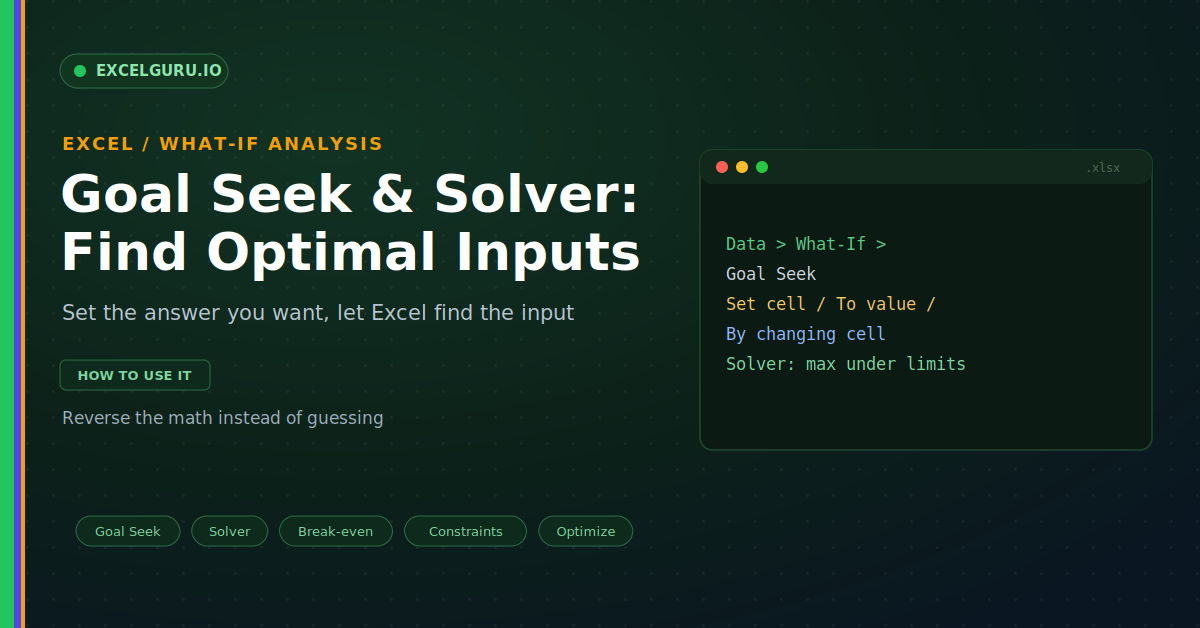
Most spreadsheets run one way. You feed in the numbers, and a formula returns the result. But real questions often run the other way. What price hits a profit of five thousand? How many units cover your costs? What product mix earns the most within your limits? Guessing wastes hours. Goal Seek and Solver work backwards for you, finding the input that lands your target.
This guide shows how to reverse the math with confidence. First, it explains the idea of working backwards. Then it covers Goal Seek, Solver, and worked examples. A comparison and a full troubleshooting section follow. By the end, you will let Excel find the answer for you.
Working Backwards
Normally you know the input and want the output. These tools flip that around. You state the output you need, and Excel finds the input. So the calculation runs in reverse, as below.
This saves endless trial and error. You no longer nudge a number and check the result. Instead, you name the goal once. Then Excel adjusts the input until it fits.
Goal Seek: One Input, One Target
Goal Seek is the simpler of the two. It changes one input to hit one target. You point it at a formula cell and a value. Then it adjusts a single cell until they match, as below.
Example: Find the Break-Even Point
Break-even is a classic Goal Seek job. You want the profit cell to equal zero. Goal Seek then finds the units that get you there. So you learn exactly how many you must sell.
Solver: Many Inputs and Constraints
Solver handles far bigger problems than Goal Seek. It can change several inputs at once. It also respects limits you set, called constraints. Then it maximises or minimises a goal, as below.
Example: Maximize Product Profit
Picture three products competing for the same resources. You want the mix that earns the most profit. Yet labour and materials are limited. Solver finds the best mix within those limits.
Goal Seek Versus Solver
The choice comes down to complexity. Goal Seek suits one input and one target. Solver suits many inputs with rules and a goal. So you scale up only when you must.
Troubleshooting Goal Seek and Solver
All three problems below are the most common. Each has a clear cause and a quick fix.
Goal Seek cannot find a solution
Sometimes no input can reach your target. The goal may simply be impossible for the model. First, sanity-check the target against the formula. Ask whether any value could produce it. Then confirm the changing cell truly feeds the formula. A broken link means Goal Seek has nothing to adjust. Also try a closer starting value in the input cell. That often helps Goal Seek converge.
Solver is missing from the ribbon
Solver ships with Excel but starts switched off. So the Data tab shows no Solver button. First, go to File, then Options, then Add-ins. Next, choose Excel Add-ins and click Go. Then tick Solver Add-in and click OK. After that, Solver appears in the Analyze group. It sits on the Data tab, ready to use.
Solver returns a poor or no result
Bad constraints often confuse Solver. A missing limit can send values to extremes. First, review every constraint for gaps. Add a non-negative rule so units cannot go below zero. Then pick the right solving method for your model. Use Simplex LP for linear problems. Use GRG Nonlinear when the math curves. The right method usually fixes a strange result.
Frequently Asked Questions
- What is the difference between Goal Seek and Solver?+Goal Seek changes one input to hit one target. Solver changes many inputs at once. It also respects constraints and finds an optimum. So Solver handles far bigger problems.
- How do I use Goal Seek for break-even?+Set the profit cell as the target. Set it to a value of zero. Then choose units sold as the changing cell. Excel finds the quantity that breaks even.
- Why can I not see Solver in Excel?+Because Solver is an add-in that starts off. So enable it under File, Options, Add-ins. Choose Excel Add-ins and tick Solver Add-in. Then it appears on the Data tab.
- Can Goal Seek change more than one cell?+No, Goal Seek adjusts only one cell. It also aims at a single target. For several inputs, use Solver instead. So Solver covers multi-variable problems.