
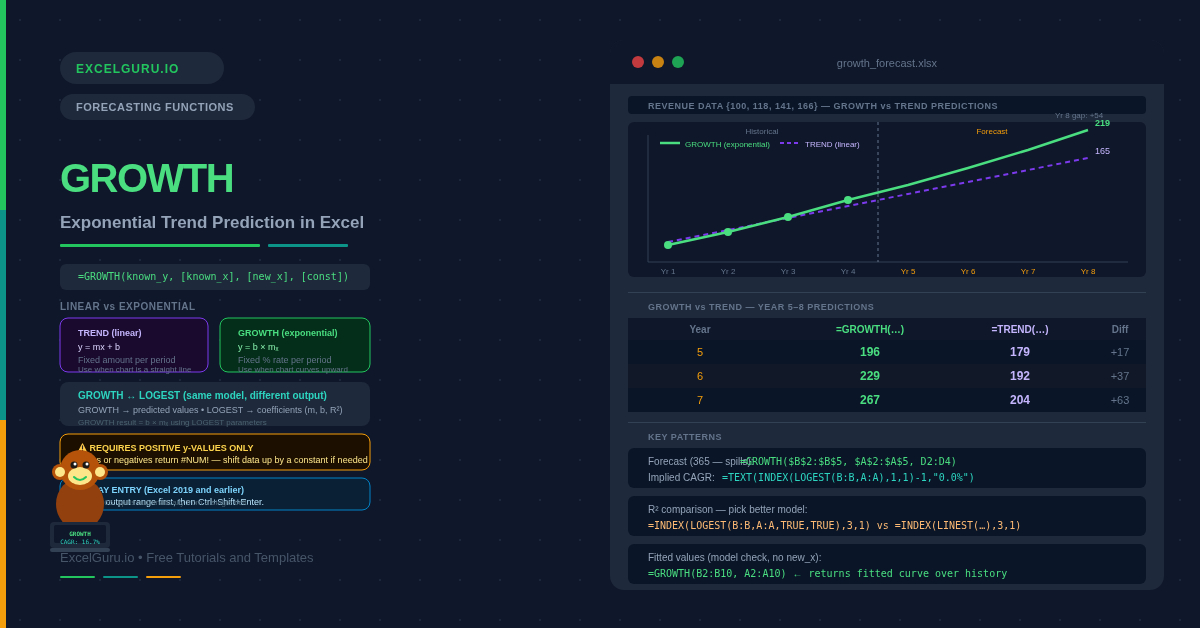
Linear trends add a fixed amount each period. Exponential trends multiply by a fixed rate. User counts that double every six months, revenue compounding at 15% per year, bacteria populations tripling every hour — none of these follow a straight line. The GROWTH function fits a curved exponential trend to your data and uses it to predict future values. It is the exponential counterpart to TREND, and the right choice whenever percentage-rate growth is the underlying pattern.
This guide covers the full syntax, the relationship between GROWTH and LOGEST, and six practical examples including compound revenue forecasting, user growth modelling, comparing exponential to linear predictions, and fitting a multi-variable exponential curve. Along the way, you will learn when GROWTH fits better than FORECAST.LINEAR and how to diagnose a poor fit.
What Is Exponential Growth?
Exponential growth occurs when a value increases by a constant percentage each period, not a constant amount. The mathematical form is y = b × mₓ, where b is the starting value, m is the growth factor per period, and x is the time step. For example, a growth factor of 1.15 means 15% increase per period. A factor of 2 means the value doubles each period.
Crucially, exponential growth curves upward more steeply over time. Early periods show modest absolute changes. Later periods show dramatic jumps — even though the percentage rate stays constant. Specifically, this shape is the hallmark of compound interest, viral adoption curves, and biological population growth. GROWTH fits this curve to historical data and extrapolates it forward.
What Is the GROWTH Function Syntax?
| Argument | Required? | What it does |
|---|---|---|
| known_y | Required | The historical y-values (your outcome variable — sales, users, revenue). Must be positive numbers. GROWTH cannot fit a curve to negative or zero values. |
| known_x | Optional | The x-values corresponding to known_y. If omitted, Excel uses {1, 2, 3, ...} automatically. Can be a single column (simple) or multiple columns (multiple regression). |
| new_x | Optional | The x-values for which you want predictions. If omitted, GROWTH returns fitted values for the historical x range (useful for checking model fit). |
| const | Optional | TRUE (default) = fit both b and m normally. FALSE = force b = 1, fitting only the growth rate m. Use FALSE only for theoretical models where the baseline must be exactly 1. |
How Does GROWTH Compare to TREND and LOGEST?
Three functions work together in Excel’s trend family, and understanding all three helps you choose correctly. First, TREND fits and predicts from a linear model. Second, GROWTH fits and predicts from an exponential model. LOGEST, by contrast, returns the exponential model coefficients (b and m) rather than predictions — the exponential equivalent of LINEST. Understanding how they relate helps you choose the right tool for each task.
| Function | Model type | Returns | Use when |
|---|---|---|---|
| TREND | Linear: y = mx + b | Predicted y-values | Data grows by a fixed amount per period |
| GROWTH | Exponential: y = b×mₓ | Predicted y-values | Data grows by a fixed percentage per period |
| LINEST | Linear | Model coefficients (slope, intercept, R², etc.) | You need the model parameters, not predictions |
| LOGEST | Exponential | Model coefficients (m, b, R², etc.) | You need the growth rate and base, not predictions |
Examples 1–4: Core GROWTH Patterns
The fundamental use is passing known_y (historical values) and new_x (future periods) to get predictions. GROWTH then fits the exponential curve to the history and evaluates it at the future x-positions. In Excel 365, entering with an array of new_x values spills the full forecast column automatically.
Omitting new_x from GROWTH returns the fitted values for the historical x range. Comparing fitted values to actuals shows how well the curve describes the data. Large residuals indicate a poor fit. This is the first diagnostic step before committing to exponential forecasting.
LOGEST additionally returns the exponential model coefficients. The first value is the growth factor m, which is the multiplier applied each period. Subtracting 1 converts it to a percentage growth rate. This rate is the core business insight: the average compound growth rate implied by the historical data.
SaaS products, mobile apps, and social networks often grow exponentially in early stages. Specifically, each new user can refer others, creating a compounding effect. GROWTH captures this pattern and also helps project the inflection point where growth begins to slow. Early-stage modelling with GROWTH helps set realistic targets and identify when linear capacity planning will underestimate demand.
Examples 5 and 6: Applied Growth Scenarios
Compound Financial Projections and Model Comparison
Financial models frequently assume compound growth rates. GROWTH translates that assumption directly into projected values — no need to manually chain percentage increases. Additionally, combining GROWTH with LOGEST lets you build a self-updating model where the implied growth rate adjusts automatically as new actual data is added to the history.
Choosing between GROWTH and TREND should be based on data, not assumption. The right approach is therefore to compare R² from both models and inspect the residuals. A higher R² indicates better fit. Specifically, systematically curved residuals indicate the wrong model type was chosen.
Common Issues and How to Fix Them
#NUM! error from GROWTH
GROWTH returns #NUM! when the known_y values contain zeros or negatives. The exponential model requires strictly positive values because it uses logarithms internally. To fix this, check the data for zeros caused by missing entries and replace them with interpolated estimates. If negative values are genuine — for example, profit/loss figures that swing below zero — switch to TREND, which handles any sign. Alternatively, shift all values up by a constant to make them positive, then subtract that constant from the predictions.
GROWTH predictions grow unrealistically fast
Exponential models are particularly sensitive to the training data. A short history with unusually strong recent growth produces a very steep implied growth rate, and projections quickly become implausible. Consequently, the further you project, the less reliable the result. As a practical rule, treat GROWTH forecasts beyond two to three times the length of the historical data with caution. Sense-check the implied growth rate from LOGEST against known market constraints.
Results differ from what TREND returns for the same data
GROWTH and TREND are fundamentally different models. They always produce different results unless the data is perfectly linear. That difference is not an error — it is the whole point. Compare R² from LOGEST and LINEST to determine which model fits better. Also note that GROWTH in Excel 2019 and earlier requires Ctrl+Shift+Enter for multiple predictions. Entering normally with a single-cell formula returns only one value regardless of the new_x array size.
Frequently Asked Questions
-
What is the difference between GROWTH and TREND?+TREND fits a straight line (y = mx + b) to your data. GROWTH fits an exponential curve (y = b×mₓ). Use TREND when values increase by a roughly constant absolute amount each period. Use GROWTH when values increase by a roughly constant percentage each period. The easiest check is to plot the data — a straight-line chart means TREND; an upward-curving chart with accelerating slope means GROWTH. You can also compare R² values from LINEST and LOGEST to see which model fits better.
-
How do I use GROWTH in Excel 2019 and earlier?+In Excel 2019 and earlier, GROWTH is an array function when new_x contains multiple values. To produce a forecast for several future periods, select the output range first (e.g. E2:E6 for five forecasts), type the formula, and press Ctrl+Shift+Enter instead of Enter. Curly braces appear in the formula bar to confirm array entry. In Excel 365 and Excel 2021, GROWTH spills automatically — enter in a single cell with a multi-value new_x and the results fill as many rows as needed without any special entry.
-
What does the const argument do in GROWTH?+The const argument controls whether the model includes a free intercept (b). When const = TRUE (the default), GROWTH fits both b and m, finding the best-fitting starting value and growth factor for your data. When const = FALSE, GROWTH forces b = 1 and fits only the growth rate m. The FALSE option is mainly for theoretical models where the process must start at exactly 1 — for example, an index normalised to 1 at time zero. For almost all business and financial applications, use the default TRUE.
More Questions About GROWTH
-
What is the relationship between GROWTH and LOGEST?+GROWTH and LOGEST fit the same exponential model. The difference is in what they return. GROWTH uses the fitted model to generate predicted y-values for given x-values. LOGEST returns the model coefficients themselves — the growth factor m and the intercept b — along with statistics such as R² and standard errors when called with stats = TRUE. Use GROWTH when you want predictions. Use LOGEST when you need to understand the model or extract the implied growth rate. You can verify they are consistent: GROWTH(y, x, n) always equals INDEX(LOGEST(y,x),1,2) × INDEX(LOGEST(y,x),1,1)ₓ.
-
Can GROWTH handle multiple x-variables?+Yes. GROWTH supports multiple predictor variables by passing a multi-column known_x range. For example, if growth depends on both time and a marketing spend variable, you can pass a two-column array as known_x. Excel fits an exponential model of the form y = b × m1ₓ¹ × m2ₓ², where each column has its own growth factor. This is less commonly used than the single-variable form, but it is useful for models where growth is driven by multiple measurable factors simultaneously.
-
How far into the future can I forecast with GROWTH?+There is no technical limit. GROWTH will compute a prediction for any x-value you provide. However, the practical reliability of exponential forecasts deteriorates quickly with distance from the last observation. A good rule of thumb is to limit forecasts to roughly the same length as the historical dataset. For a 3-year history, forecasts beyond 3 years become increasingly speculative. Always accompany long-range exponential forecasts with explicit uncertainty acknowledgement and sense-check the implied values against known market size or physical constraints.