
Key takeaways
- Excel's built-in find & replace works on one workbook at a time — this tool does a whole folder at once.
- Excel Find & Replace is free and open-source (MIT), built in Python.
- It supports plain-text or regex, case-insensitive, and whole-cell matching.
- You can limit changes to specific columns with
--columns. - It never overwrites your originals and reports the replacement count per file.
To find and replace across multiple Excel files, run a free tool called Excel Find & Replace, which applies a search-and-replace to every spreadsheet in a folder in one command. It supports plain-text or regex matching, case-insensitive search, whole-cell matching, and can limit changes to specific columns — then reports how many replacements it made in each file.
Why bulk find & replace is a real gap
Excel's Find & Replace is handy — but only inside the workbook you have open. When the same fix needs to happen across 20 or 40 files (a renamed product, a corrected country name, a status label that changed), you're stuck opening each file, running the replace, and saving — over and over.
A folder-wide tool does the whole batch in one command, consistently, and tells you exactly how many changes it made so nothing slips through.
How to install the tool (2 minutes)
You need Python 3.9 or newer. Clone the repository and install its dependencies:
git clone https://github.com/Synth88Labs/excel-tool-findreplace.git
cd excel-tool-findreplace
pip install -r requirements.txt
Get Excel Find & Replace on GitHub (free)
How to find and replace across files — step by step
Step 1 — Replace across a whole folder
Point the tool at a folder and give it what to find and what to replace it with:
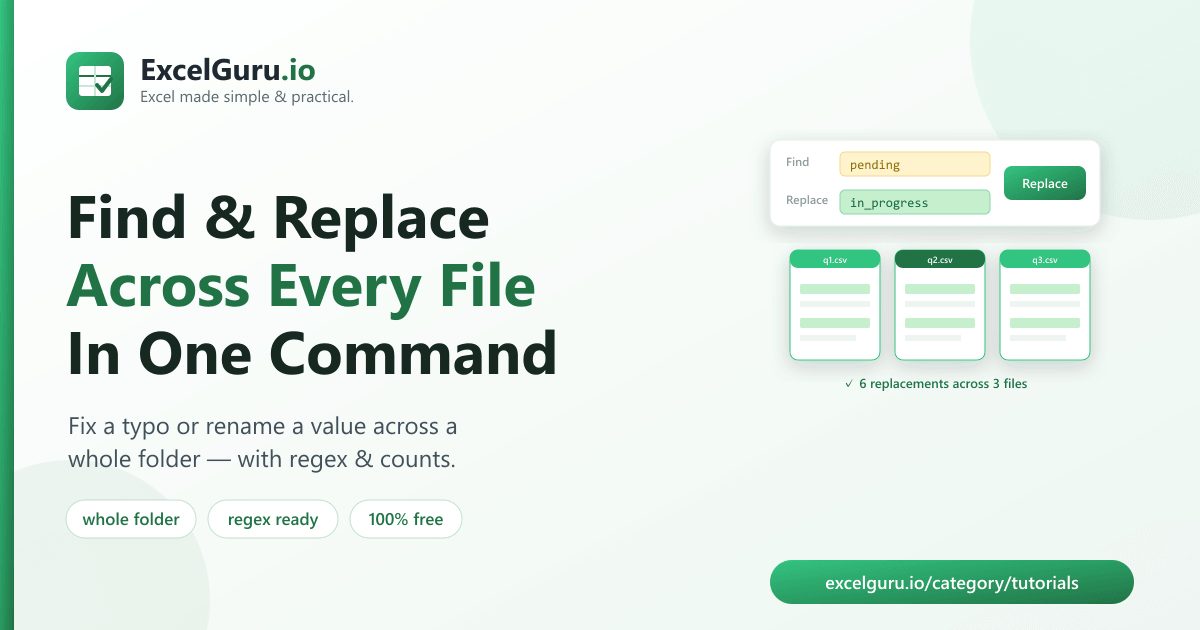
python find_replace.py ./reports --find "pending" --replace "in_progress" -o fixedIt processes every spreadsheet in ./reports, writes the results to fixed/,
and prints the replacement count per file.
Step 2 — Or replace in a single file
python find_replace.py report.xlsx --find "USA" --replace "United States"Step 3 — Refine the match
Add options to control exactly what gets replaced:
# Case-insensitive, only in the "country" column
python find_replace.py data.xlsx --find "usa" --replace "United States" --ignore-case --columns country

# Regex: collapse multiple spaces into one
python find_replace.py data.csv --find "\s+" --replace " " --regex

# Only replace cells that are exactly "N/A"
python find_replace.py data.csv --find "N/A" --replace "" --whole-cellThe options at a glance
| Option | What it does |
|---|---|
--regex | Treat the search as a regular expression |
--ignore-case | Match regardless of upper/lower case |
--whole-cell | Only replace when the entire cell matches |
--columns | Limit changes to specific columns |
--recursive | Include sub-folders when the input is a folder |
Real work use cases
- Rebrand a product — rename it across every report and export at once.
- Standardize values — turn "USA", "U.S.A.", and "United States" into one form.
- Fix a recurring typo — correct it everywhere in a single pass.
- Update status labels — change "pending" to "in_progress" across all files.
- Clear placeholder text — blank out every cell that's exactly "N/A".
Common mistakes to avoid
- Forgetting
--whole-cell. Without it, a search for"US"also changes"United States"and"bus". Use whole-cell matching when you mean the entire value. - Unescaped regex characters. With
--regex, symbols like.,(, and$have special meaning — escape them or drop--regexfor a literal search. - Replacing across all columns by accident. Scope with
--columnswhen a value should only change in one place. - Not checking the counts. The per-file count tells you whether the replace did what you expected — read it before trusting the output.
Frequently asked questions
How do I find and replace in multiple Excel files at once?
Run python find_replace.py ./folder --find "OLD" --replace "NEW" -o output. The tool
applies the replacement to every spreadsheet in the folder and writes the results to the output
folder.
Can I use a regular expression?
Yes. Add --regex and the --find value is treated as a regex pattern, so you
can match and replace with patterns.
Can I make it case-insensitive?
Yes. Add --ignore-case to match regardless of upper or lower case.
How do I only replace a value in one column?
Use --columns name1,name2 to limit the replacement to specific columns.
Will it overwrite my original files?
No. It always writes to a new file or folder, leaving your source files untouched.
Is Excel Find & Replace free?
Yes. It's open-source under the MIT license, free for personal and commercial use. The source is on GitHub.
Do I need Excel installed?
No. It reads and writes files with Python libraries, so it works without Microsoft Excel installed.
Summary
Excel's find & replace stops at one workbook. Excel Find & Replace applies a search-and-replace across an entire folder of spreadsheets in one command — with regex, case-insensitive, whole-cell, and column options, plus a count of every change. It's free, open-source, safe by default, and works without Excel installed.