
Key takeaways
- A repeatable command beats re-clicking Excel's Sort dialog every time the data changes.
- Excel Sort is free and open-source (MIT), built in Python with
pandas. - Numeric-aware: number columns sort correctly (
20before100), not as text. - Per-column direction:
region:asc,amount:desc. - Sort by a priority list of columns, and force text sorting with
--textwhen needed.
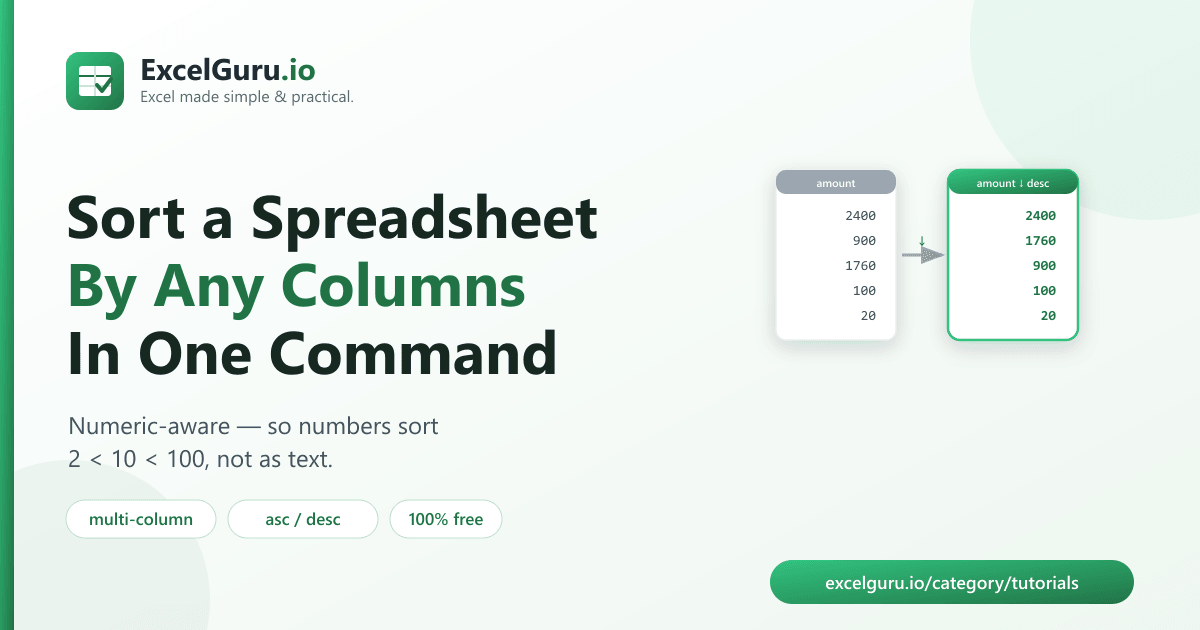
To sort a spreadsheet by one or more columns, run a free tool called Excel Sort, which orders
rows by the columns you choose — each ascending or descending — in one command. It's
numeric-aware, so a column of numbers sorts 2 < 10 < 100 instead of the broken text
order you get from a naive sort.
The sorting trap: numbers stored as text
Here's a bug that catches everyone. You sort an amount column and get
100, 1760, 20, 3000 — clearly wrong. That happens when numbers are stored as text (very
common in CSV exports): they sort character by character, so "100" comes before
"20" because "1" < "2".
Excel Sort detects numeric columns automatically and sorts them as numbers, so you get
20, 100, 1760, 3000 — the order you actually want.
How to install the tool (2 minutes)
You need Python 3.9 or newer. Clone the repository and install its dependencies:
git clone https://github.com/Synth88Labs/excel-tool-sort.git
cd excel-tool-sort
pip install -r requirements.txt
Get Excel Sort on GitHub (free)
How to sort a spreadsheet — step by step
Step 1 — Sort by one column
Sort by amount, highest first:
python sort_excel.py sales.csv --by "amount:desc"Leave off :desc for ascending (the default).
Step 2 — Sort by multiple columns
List columns in priority order, each with its own direction — region A→Z, then amount high→low within each region:
python sort_excel.py sales.csv --by "region:asc,amount:desc" -o sorted.csvStep 3 — Force text sorting (optional)
If a column looks numeric but you want a plain text sort (e.g. product codes with leading
zeros), add --text:
python sort_excel.py data.csv --by "code" --textThe direction syntax
| --by value | Meaning |
|---|---|
amount | Sort by amount, ascending |
amount:desc | Sort by amount, descending |
region:asc,amount:desc | Region A→Z, then amount high→low |
Real work use cases
- Top performers first — sort sales or scores highest to lowest.
- Grouped reports — sort by category, then by value within each category.
- Chronological order — sort by an ID or sequence column.
- Consistent exports — apply the same order every time the data refreshes.
- Prep for a report — sort, then hand the result to a report or pivot tool.
Common mistakes to avoid
- Assuming a text sort is numeric. Without a numeric-aware tool,
"100"sorts before"20". This tool fixes that automatically. - Messy numbers. Values like
"1,200"(with a comma) aren't recognized as numbers — clean the formatting first so numeric sorting kicks in. - Forgetting column priority. The order of columns in
--bymatters — the first is the primary sort key. - Losing leading zeros. For codes like
"007", use--textso they aren't treated as the number 7.
Frequently asked questions
How do I sort a CSV by a column in Python?
Run python sort_excel.py file.csv --by "column:desc". The tool sorts the rows and writes
a new file.
How do I sort by multiple columns?
List them in priority order in --by, each with a direction, e.g.
--by "region:asc,amount:desc".
Why do my numbers sort in the wrong order elsewhere?
Because they're stored as text and sorted character by character. This tool detects numeric columns and sorts them as numbers automatically.
Can I force a text sort?
Yes. Add --text to sort numeric-looking columns as text (useful for codes with leading
zeros).
Is Excel Sort free?
Yes. It's open-source under the MIT license, free for personal and commercial use. The source is on GitHub.
Do I need Excel installed?
No. It reads and writes files with Python libraries, so it works without Microsoft Excel installed.
Does it change my original file?
No. It writes the sorted data to a new file and leaves the source untouched.
Summary
Sorting the same way every time — and getting numbers in the wrong order — is a needless chore. Excel Sort orders a spreadsheet by any columns in one command, with per-column direction and correct numeric ordering. It's free, open-source, and works without Excel installed.