
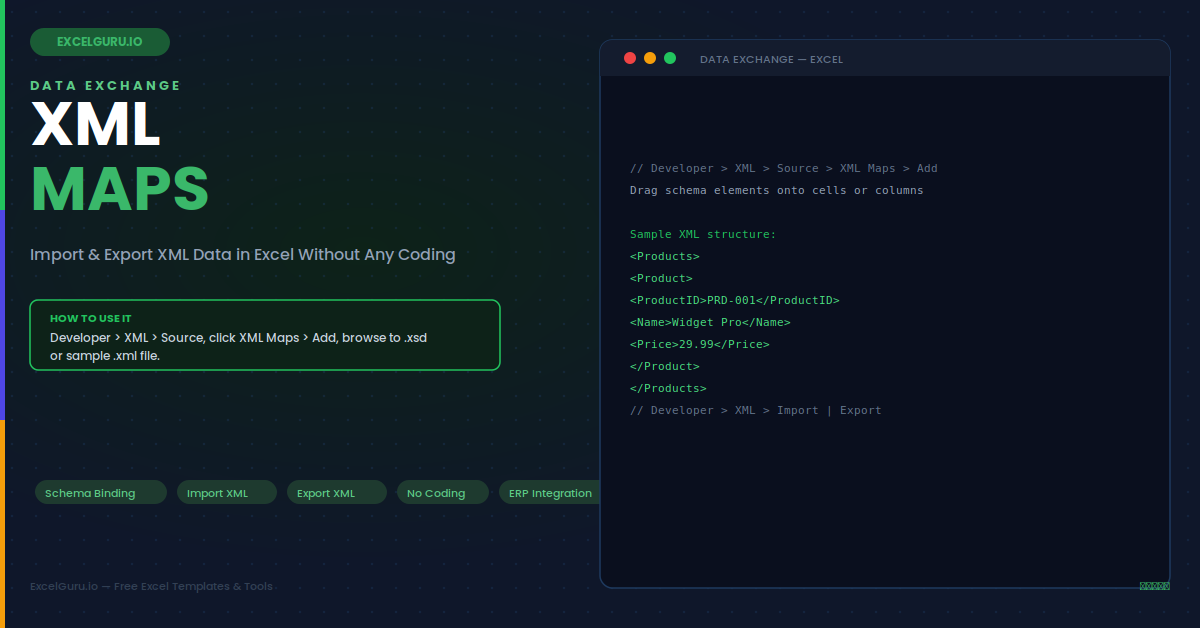
Excel can import and export structured data in XML format without any coding. The XML Maps feature binds XML schema elements to specific cells or table columns, then lets you import XML data files that map automatically to those cells and export the current values back out as a valid XML file. This makes Excel a practical XML editor for configuration files, API payloads, EDI data, and any other XML-based data exchange format. This guide covers the full XML Maps workflow, how to create and bind a schema, six practical import and export scenarios, and every common troubleshooting step.
How XML Maps Work — The Three-Component Model
Understanding the three-component model prevents the most common setup errors. Each component has a distinct role and a distinct location in the Excel workflow — confusing them is the primary source of XML Maps problems.
Creating an XML Map — Step by Step
The XML Map is created in the Developer tab. If the Developer tab is not visible, enable it first via File > Options > Customise Ribbon > check Developer. The tab is hidden by default but remains enabled across sessions once added.
Example 1: Import a Product Catalogue XML File
A supplier provides product data as a weekly XML export with elements for ProductID, Name, Category, Price, and Stock. Creating an XML Map from the supplier's schema — or inferring it from a sample file — binds each element to a table column. Importing the XML file each week populates the table automatically. The table always reflects the current supplier data without any manual copying or CSV conversion. Furthermore, the mapped table can feed Power Query, PivotTables, and VLOOKUP directly with no intermediate steps.
Example 2: Export Invoice Data as XML for an ERP System
An ERP system accepts invoice uploads in a specific XML format. Rather than writing code, create an Excel template with the XML Map bound to the ERP's schema. Finance staff enter invoice data into the mapped cells as a normal Excel table. When the batch is ready, they click Developer > Export to produce a valid XML file matching the ERP's exact format. This approach works for any system that accepts XML imports — order management, payroll, tax submission, and EDI platforms all commonly use this pattern.
Example 3: Infer Schema from a Sample XML File
When no formal .xsd schema is available — which is common with API responses and one-off data files — Excel can infer the schema from a sample XML data file. In the XML Maps dialog, click Add and browse to the .xml file instead of an .xsd file. Excel generates an inferred schema from the file's structure and builds the XML Map automatically. This approach is faster than writing a schema manually and works for the majority of simple XML structures. For complex schemas with conditional elements or strict data type validation, however, a proper .xsd schema produces more reliable import results.
Example 4: API Response — Import JSON-Converted XML
Many REST APIs can return data in XML format when requested with an Accept: application/xml header. Saving the API response as a .xml file and importing it into a mapped Excel workbook provides a fast no-code way to analyse API data. Power Query's Web connector is generally better for live API connections that need to refresh automatically. However, for one-off analysis of a static API snapshot, the XML Map import approach is faster to set up and requires no M code knowledge or connector authentication configuration.
Example 5: Configuration File Editor — XML Settings Template
Software configuration files are often stored as XML — application settings, deployment parameters, server configurations. Binding the configuration schema to an Excel template creates a user-friendly form for editing these files. Non-technical users fill in the Excel fields rather than editing raw XML, reducing the risk of syntax errors that corrupt the configuration file. Exporting produces a valid XML configuration file ready for deployment. The Excel template can include data validation on the mapped cells to enforce allowed values for each setting.
Example 6: Refresh Import — Update Mapped Data Weekly
Once an XML Map is set up and a data file has been imported, refreshing with a new data file replaces the table contents automatically. Go to Developer > XML > Import and select the updated .xml file — Excel clears the existing mapped data and repopulates it from the new file. This makes weekly or monthly data refreshes a one-click operation once the map is built. Specifically, it is useful for regulatory data feeds, supplier price lists, and exchange rate tables that are published as XML files on a regular schedule.
Troubleshooting XML Maps
All three issues below are the most common XML Maps problems. Each has a clear diagnosis step that identifies the cause quickly.
The import fails with "the specified XML source does not refer to a schema"
This error appears when the XML data file's root element or namespace does not match the schema the XML Map was built from. Open the XML data file in a text editor and compare its root element name and namespace (xmlns attribute) against the schema. They must match exactly — including capitalisation and any namespace URI. If you inferred the schema from a different sample file, the inferred schema may not cover all elements in the import file. Re-infer the schema from the actual import file, or use the file's own provided .xsd schema if one is available.
Mapped cells stay empty after a successful import
Empty cells after import almost always mean the XML element path in the map does not match the actual path in the data file. Open the XML Source pane (Developer > XML > Source) and hover over each mapped element — the tooltip shows the full element path. Open the XML file in a text editor and verify the element nesting matches that path exactly. A common cause is a namespace prefix difference — the schema uses one prefix and the data file uses another, even though both refer to the same namespace URI. Re-map using elements from a sample of the actual data file to ensure the paths align.
Export produces a file but the receiving system rejects it as invalid
Excel's XML export does not validate the exported data against the schema — it exports whatever values are in the mapped cells, even if they violate schema constraints such as required elements, data type restrictions, or enumeration limits. Validate the exported file using a free online XML validator (xmlvalidation.com or freeformatter.com/xml-validator) by pasting the .xsd schema and the exported .xml file. The validator identifies exactly which elements are missing or invalid. Add data validation rules to the corresponding Excel cells to prevent invalid values from being entered before export.
Frequently Asked Questions
- How do I import an XML file into Excel?+Go to Developer > XML > Import (enable the Developer tab first via File > Options > Customise Ribbon). If no XML Map exists yet, Excel prompts you to create one from the file's inferred schema — click OK to proceed. Excel maps the XML elements to table columns automatically and imports the data. For subsequent imports of the same XML structure, the existing map is reused. Alternatively, go to Data > Get Data > From File > From XML for a Power Query-based import that provides more transformation options.
- What is the difference between XML Maps and Power Query XML import?+XML Maps create a persistent binding between schema elements and specific cells — the binding stays in the workbook and is reused for every import and export. Power Query XML import creates a query that can be refreshed and transformed with M code, but does not support XML export. Use XML Maps when you need two-way exchange (import and export), when the XML structure is fixed and matches a known schema, or when you are building an XML editor template. Use Power Query for complex XML with nested structures requiring transformation, filtering, or enrichment before loading.
- Can I have multiple XML Maps in one workbook?+Yes. A single workbook can contain multiple XML Maps — one for each schema. Each map binds to its own set of cells or table columns on any sheet in the workbook. Open the XML Maps dialog (Developer > XML > Source > XML Maps) to see all maps in the workbook, add new ones, or delete existing ones. Each map imports and exports independently. This is useful for workbooks that handle multiple XML data formats — for example, one map for product data and a second map for order data in the same template.
- Does XML Maps work in Excel for Mac and Excel Online?+XML Maps are supported in Excel for Mac with a Microsoft 365 subscription — the Developer tab and XML Source pane work identically to the Windows version. XML Maps are not available in Excel Online (the browser version). Workbooks with existing XML Maps can be opened in Excel Online and the data is visible, but the XML import, export, and map management functions require the desktop application. For cross-platform XML data workflows, Power Query XML import is the more portable alternative as it functions in both desktop and most online scenarios.