
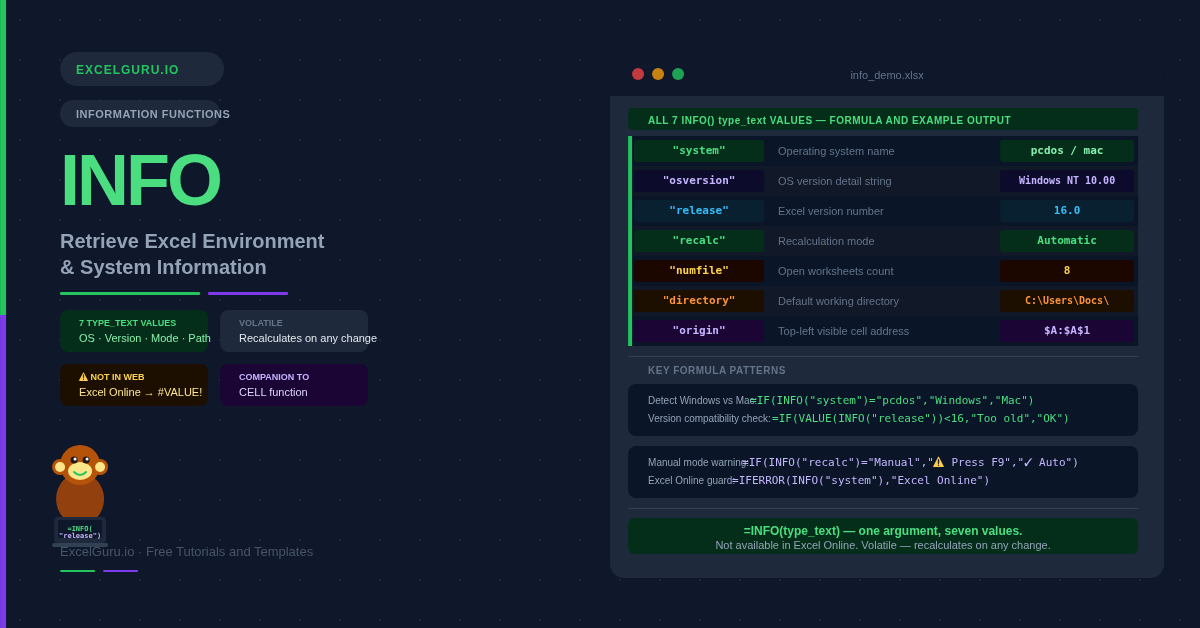
Every time you open Excel, it is running inside a specific environment — a particular operating system, a specific Excel version, and a calculation mode that is either automatic or manual. Normally, you can only find these details through menus or settings panels. The INFO function exposes them directly in a formula. It returns environment details as plain text, making them available for conditional logic, version-checking, and workbook documentation — all without leaving the worksheet.
INFO is a companion to the CELL function. CELL reports information about individual cells. INFO, by contrast, reports information about the Excel application and session itself. Together, they provide a complete picture of both the data environment and the system it runs on.
What Is the INFO Syntax?
INFO takes a single argument — a text string specifying which type of information to return.
| Argument | Required? | What it does |
|---|---|---|
| type_text | Required | A text string enclosed in double quotes that specifies which environment detail to return. Must be one of seven predefined values. The argument is not case-sensitive, so "RELEASE" and "release" both work. |
What Are the Seven INFO type_text Values?
INFO supports exactly seven type_text values. Three deprecated memory values — "memavail", "memused", and "totmem" — were removed in Excel 2007 and now return #N/A. The seven current values are listed below.
| type_text value | What it returns | Example result |
|---|---|---|
| "directory" | The path of the current default directory. This is the folder Excel uses when you open or save a file without specifying a location. | C:\Users\Name\Documents\ |
| "numfile" | The number of active worksheets across all currently open workbooks. Counts sheets, not workbooks. | 5 |
| "origin" | The cell address of the top-left visible cell in the active window, in A1-style notation prefixed with a dollar sign. | $A:$A$1 |
| "osversion" | The operating system version as a text string. On Windows this includes the build number. On Mac it includes the macOS version. | Windows (32-bit) NT 10.00 |
| "recalc" | The current recalculation mode — either "Automatic" or "Manual". Useful for confirming a workbook's calculation state. | Automatic |
| "release" | The Excel version number as a text string. All versions from Excel 2016 through Microsoft 365 return "16.0". Earlier versions return lower numbers. | 16.0 |
| "system" | The operating system name — "pcdos" for Windows or "mac" for Mac. Short and reliable for OS branching. | pcdos |
Example 1: Detect the Operating System
The "system" type_text returns "pcdos" on Windows and "mac" on Mac. This two-value response is the simplest way to branch logic by platform. For instance, the line-break character differs between older Mac and Windows Excel versions. Similarly, file-path separators differ — Windows uses backslash, Mac uses forward slash.
Example 2: Check the Excel Release Version
The "release" type_text returns the Excel version number as a string. Importantly, all versions from Excel 2016 through Microsoft 365 return "16.0" — so this value does not distinguish between them. However, it does clearly separate Excel 2016+ from older versions like Excel 2013 ("15.0") or Excel 2010 ("14.0"). This makes it useful for compatibility guards.
Why "release" Cannot Distinguish Modern Excel Versions
Example 3: Count Open Worksheets Across All Workbooks
The "numfile" type_text returns the total number of active worksheets across all open workbooks — not the number of workbooks. If you have two workbooks open, one with three sheets and one with five, "numfile" returns 8. This is useful for resource monitoring, for workbooks that need to know their context, and for sanity checks in automated reporting workflows.
Example 4: Check the Calculation Mode
The "recalc" type_text returns "Automatic" or "Manual" depending on the workbook's current calculation setting. A workbook in manual mode does not update formula results until you press F9. Consequently, a result that looks correct may actually be stale. Displaying the recalculation mode as a workbook warning saves users from acting on outdated data.
Example 5: Get the Default Directory Path
The "directory" type_text returns the path of the current default directory — the folder Excel uses when opening or saving a file without a specific location. This is useful for building dynamic file-path references that depend on where Excel is configured to work. Furthermore, it provides useful context in workbooks that are part of a structured folder system shared across a team.
=CELL("filename", A1) and extract the folder portion with TEXTBEFORE or SUBSTITUTE.
Example 6: Build an Environment Summary Panel
Combining all seven INFO type_text values produces a self-contained environment summary. This is useful for shared workbooks, audit trails, and help desks — anyone who opens the file can immediately see the system context without navigating menus. Additionally, pairing INFO with the CELL function adds cell-level context to the system-level picture.
What to Include in an Environment Panel
Place each INFO formula in a dedicated row of a summary section. Add a label in the adjacent column, and optionally wrap each value in a coloured cell using conditional formatting. Consequently, anyone reviewing the workbook has the environment details at a glance without any manual data entry.
How to Fix Common INFO Function Issues
#VALUE! error
The type_text argument is not one of the seven supported values, or the formula is being used in Excel for the web. INFO is not supported in browser-based Excel sessions and returns #VALUE! there. Additionally, the deprecated memory values ("memavail", "memused", "totmem") now return #N/A — not #VALUE! — so check which error type appears to diagnose the cause.
INFO("osversion") does not update after a system change
Some INFO values — particularly "osversion" — are captured when Excel starts and do not update during the session, even after pressing F9. To get a current reading, close and reopen Excel. For most practical purposes, this limitation does not matter since the OS version rarely changes mid-session.
INFO("release") returns "16.0" for every modern Excel version
Microsoft has returned "16.0" for all versions from Excel 2016 through Microsoft 365. Consequently, INFO("release") cannot distinguish between them. For feature-detection — for example, checking whether XLOOKUP is available — use IFERROR around the target function instead. If IFERROR returns the fallback value, the function is absent from the current version.
=IFERROR(INFO("system"), "Excel Online").
Frequently Asked Questions
-
What does the INFO function do in Excel?+INFO returns information about the current Excel environment as a text string. It accepts one of seven type_text values and reports details such as the operating system ("system"), the Excel version ("release"), the recalculation mode ("recalc"), the number of open worksheets ("numfile"), the default directory ("directory"), the OS version ("osversion"), and the top-left visible cell ("origin"). These details are useful for version-checking, cross-platform compatibility, and workbook documentation.
-
How do I check the Excel version using INFO?+Use =INFO("release") to get the version number as a text string. Excel 2010 returns "14.0", Excel 2013 returns "15.0", and Excel 2016 through Microsoft 365 all return "16.0". To compare it numerically, wrap in VALUE(): =VALUE(INFO("release")) returns a number you can use in greater-than or less-than comparisons. Note that "16.0" cannot distinguish between Excel 2016, 2019, 2021, and 365 — use feature-detection with IFERROR for that purpose.
-
What is the difference between INFO and CELL?+INFO reports information about the Excel application and session — the operating system, version, calculation mode, and so on. CELL, by contrast, reports information about a specific cell — its address, format code, data type, or the filename of the workbook it lives in. They complement each other: INFO provides system context, while CELL provides cell-level context. Both are volatile functions and recalculate on every worksheet change.
More Questions About the INFO Function
-
Why does INFO return #VALUE! in Excel Online?+INFO is not supported in browser-based Excel sessions. Microsoft's documentation explicitly states that the function is unavailable in Excel Web App. Any workbook containing INFO formulas will show #VALUE! errors when opened in a browser. Wrap in IFERROR to handle this gracefully: =IFERROR(INFO("system"), "Excel Online — INFO not supported"). This prevents the error from disrupting reports viewed in both desktop and web contexts.
-
How do I detect whether Excel is running on Windows or Mac?+Use =INFO("system"), which returns "pcdos" for Windows and "mac" for Mac. This is the most reliable approach for a simple platform check. For a more readable label, wrap in IF: =IF(INFO("system")="pcdos","Windows","Mac"). Alternatively, INFO("osversion") returns a more detailed string, but its exact format varies by OS build — making it less suitable for simple branching logic than "system".
-
Which Excel versions support INFO?+INFO has been available since Excel 2003 and works in all desktop versions through Microsoft 365. It is also available on Excel for iPad, iPhone, and Android. However, it is not available in Excel for the web (Excel Online), where it returns #VALUE!. Additionally, the deprecated memory type_text values ("memavail", "memused", "totmem") were removed in Excel 2007 and now return #N/A in all current versions.