
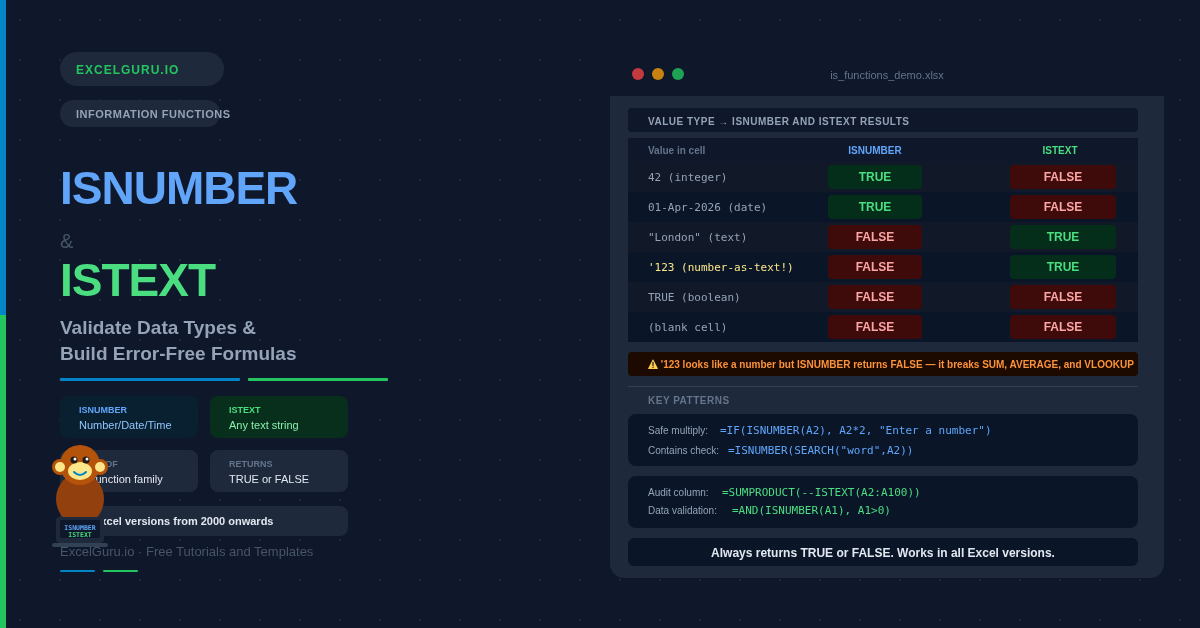
Numbers stored as text silently break calculations. Similarly, text stored where numbers belong causes VLOOKUP to fail with no clear error message. Before performing any calculation on uncertain data, therefore, it pays to confirm what type of value a cell actually holds.
The ISNUMBER function returns TRUE when a cell contains a number, date, or time. By contrast, the ISTEXT function returns TRUE when a cell holds a text string.
Together, these two functions form the foundation of reliable data validation in Excel. They are also the building blocks for the contains-text pattern, safe arithmetic guards, and Data Validation rules covered in this guide.
What Is the IS Function Family?
ISNUMBER and ISTEXT belong to a broader group called the IS functions. Each member of the family tests for one specific data type or condition and returns either TRUE or FALSE.
Knowing which function to reach for depends on what you want to check. The table below lists all six members and their typical use cases.
| Function | Returns TRUE when the value is... | Useful for |
|---|---|---|
| ISNUMBER | A number, date, or time (stored as a number) | Validating numeric input, checking formula results |
| ISTEXT | Any text string (including numbers stored as text) | Detecting text fields, flagging mistyped numbers |
| ISBLANK | An empty cell (no value, no formula) | Checking for missing data |
| ISERROR | Any error value (#N/A, #VALUE!, #DIV/0!, etc.) | Catching formula errors before they propagate |
| ISLOGICAL | A logical value (TRUE or FALSE) | Detecting boolean results |
| ISNONTEXT | Anything that is NOT text (numbers, blanks, errors) | Opposite of ISTEXT — useful in reverse checks |
What Is the Syntax for ISNUMBER and ISTEXT?
Both functions take a single argument and return TRUE or FALSE. No other configuration is needed.
| Argument | What it does |
|---|---|
| value | The value to test. Use a cell reference for most cases. You can also pass a direct value, a formula result, or any expression. The IS functions do not convert their input — they evaluate the actual data type as stored by Excel. |
How Do ISNUMBER and ISTEXT Respond to Different Values?
Several edge cases catch users off guard. For example, dates and times look like text but are actually stored as numbers internally. Booleans (TRUE/FALSE), by contrast, are logical values — neither numbers nor text.
Additionally, any number entered with a leading apostrophe is stored as text, even though it appears numeric on screen. The table below shows exactly what each function returns for the most common value types.
| Cell contains | ISNUMBER | ISTEXT | Notes |
|---|---|---|---|
| 42 (number) | TRUE | FALSE | Plain integer |
| 3.14 (decimal) | TRUE | FALSE | Plain decimal |
| 01-Apr-2026 (date) | TRUE | FALSE | Dates are stored as numbers in Excel |
| 09:30 (time) | TRUE | FALSE | Times are also stored as numbers (fractions of a day) |
| "London" (text) | FALSE | TRUE | Plain text string |
| '123 (number-as-text) | FALSE | TRUE | Apostrophe prefix forces text storage |
| TRUE (boolean) | FALSE | FALSE | Logical values are neither numbers nor text |
| #VALUE! (error) | FALSE | FALSE | Errors are their own category — use ISERROR |
| (blank cell) | FALSE | FALSE | Empty cells return FALSE for both — use ISBLANK |
Example 1: Audit a Column for Mixed Data Types
Imported data from a CSV or database often mixes genuine numbers with text strings in the same column. Consequently, SUM, sorting, and filtering all behave differently for the two types. Running ISNUMBER and ISTEXT across the column therefore instantly reveals which rows need fixing — without any manual scrolling.
Example 2: Build Safe Calculation Formulas
Arithmetic on a cell that holds text throws a #VALUE! error. Fortunately, ISNUMBER lets you test first and calculate only when the value is genuinely numeric. As a result, errors stop cascading through the worksheet and users receive a clear, readable message instead of a raw error code.
Example 3: The Contains-Text Pattern — ISNUMBER with SEARCH
ISNUMBER is widely used to check whether a cell contains a specific word or phrase. The trick is to nest SEARCH inside ISNUMBER. Specifically, SEARCH returns a position number when the text is found and returns #VALUE! when it is not. ISNUMBER then converts these two outcomes into TRUE and FALSE, giving you a clean contains-check with no IFERROR wrapper needed.
Example 4: Detect Numbers Stored as Text
A number stored as text shows a small green triangle in the top-left corner of the cell. However, that indicator can be disabled. ISTEXT therefore gives you a programmatic check that works regardless of the visual indicator. Furthermore, combining ISTEXT with VALUE lets you convert and validate in a single formula.
Why Numbers-as-Text Cause Problems
When a number is stored as text, SUM ignores it and AVERAGE skips it entirely. VLOOKUP, furthermore, may fail to match it even when the value looks correct. Consequently, totals appear too low and lookups return #N/A — with no obvious clue as to why.
Example 5: Conditional Formatting to Highlight Data Type Issues
Conditional formatting rules accept ISNUMBER and ISTEXT directly as formula conditions. This turns data type validation into a visual check — every cell that fails the type test lights up automatically. As a result, the entire column becomes self-auditing without any helper column.
$A1 — dollar on the column, no dollar on the row. This allows the rule to check each row independently as it applies down the range.
Example 6: Data Validation Rules with ISNUMBER and ISTEXT
Data Validation in Excel accepts custom formulas that include ISNUMBER and ISTEXT. This approach prevents wrong data types from being entered in the first place, rather than detecting the problem afterward. For example, you can restrict a "Customer Name" column to text only, or limit a "Quantity" column to numbers only.
How to Fix Common Surprises with ISNUMBER and ISTEXT
ISNUMBER returns TRUE for dates and times
This is correct behaviour, not an error. Excel stores every date as a serial integer and every time as a decimal fraction. Both are therefore numbers, and ISNUMBER correctly returns TRUE for them. If you need to exclude dates from a number check, additionally test the cell format using the CELL function.
ISNUMBER("123") returns FALSE
IS functions never convert their input. "123" in double quotes is always a text string — so ISNUMBER returns FALSE. In contrast, ISNUMBER(123) returns TRUE because 123 without quotes is a genuine number. To check whether a text string represents a valid number, wrap VALUE in ISNUMBER: =ISNUMBER(IFERROR(VALUE(A2),"")).
ISTEXT returns FALSE for empty cells
Blank cells hold no value at all, so both functions return FALSE. To include blanks in a text check — for instance, treating blanks as acceptable entries — combine ISTEXT with ISBLANK: =OR(ISTEXT(A2), ISBLANK(A2)).
=ISLOGICAL(A2).
Frequently Asked Questions
-
What does ISNUMBER return for dates in Excel?+ISNUMBER returns TRUE for dates. Excel stores every date as a serial integer — for example, 1-Jan-2026 is stored as 46023 — and every time as a decimal fraction. Because both are numbers internally, ISNUMBER correctly returns TRUE for them. To check specifically for a date rather than any number, inspect the cell format using the CELL function or compare against a known date range.
-
How do I check if a cell contains a number stored as text?+Use ISTEXT to confirm the cell holds text, then wrap VALUE in ISNUMBER to check if that text is a convertible number: =IF(ISTEXT(A2), ISNUMBER(IFERROR(VALUE(A2),"")), FALSE). As a result, this returns TRUE only when the cell contains a number disguised as text — the most common cause of broken SUM and VLOOKUP formulas. Apply it across a column with SUMPRODUCT to get a count of all affected rows.
-
Why does ISNUMBER(SEARCH(...)) work without IFERROR?+SEARCH returns a number when the text is found and returns #VALUE! when it is not. ISNUMBER then evaluates both outcomes — it returns TRUE for a number and FALSE for any error value, including #VALUE!. Consequently, the #VALUE! error from SEARCH is automatically converted to FALSE by ISNUMBER, making IFERROR unnecessary. This is precisely what makes the pattern so compact and easy to read.
More Questions About IS Functions
-
What is the difference between ISNUMBER and ISTEXT?+ISNUMBER returns TRUE when a cell holds a genuine number, date, or time value. ISTEXT, by contrast, returns TRUE when a cell holds any text string, including numbers that have been stored as text. The two functions are complementary — a real number gives TRUE from ISNUMBER and FALSE from ISTEXT, and vice versa for a text string. Blank cells, logical values, and errors return FALSE from both.
-
Can I use ISNUMBER in Data Validation?+Yes. In the Data Validation dialog, choose Allow: Custom and enter =ISNUMBER(A1). Excel applies this rule to every cell in the selected range. Any entry that ISNUMBER evaluates as FALSE — text, blanks, or errors — will be blocked and an error alert will appear. Combine with AND for additional conditions, such as positive numbers only: =AND(ISNUMBER(A1), A1>0).
-
Which Excel versions support ISNUMBER and ISTEXT?+Both functions are available in every Excel version from Excel 2000 onwards, including Microsoft 365, Excel 2024, 2021, 2019, 2016, 2013, 2010, 2007, and earlier. They also work in Excel for the web and Google Sheets. No special version, add-in, or setting is required.