
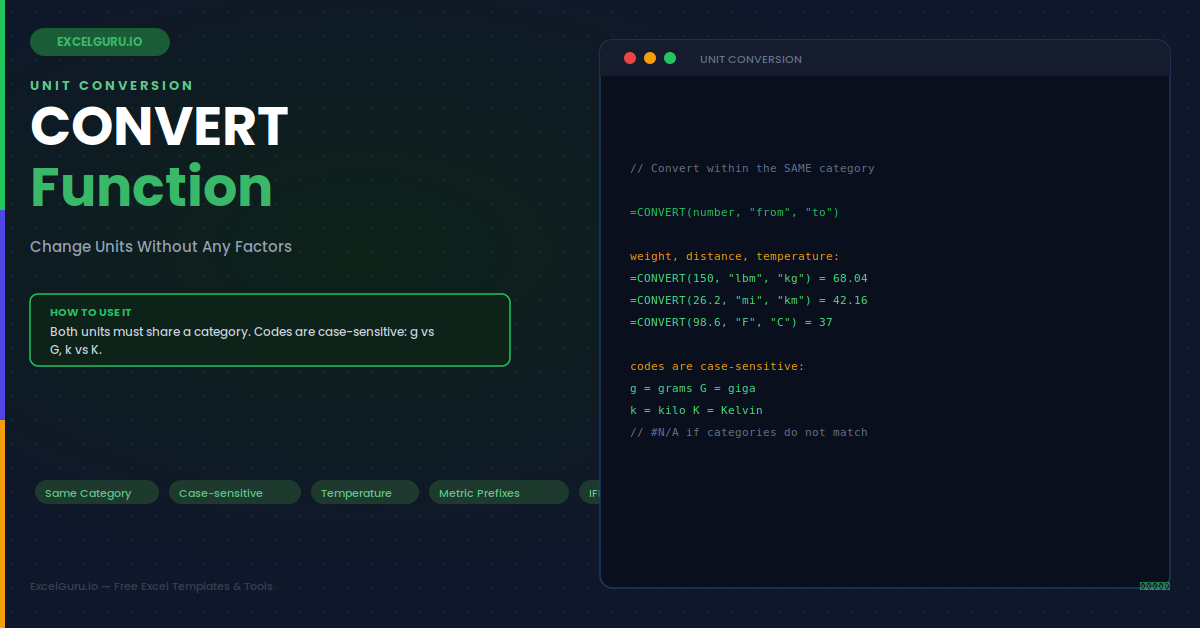
A supplier sends weights in pounds, but your system needs kilograms. A recipe lists temperatures in Fahrenheit, while your oven reads Celsius. A spec sheet mixes miles and metres in the same table. Converting units by hand means hunting for the right factor and hoping you did not flip it. Excel removes that risk with one function. CONVERT changes a number from one unit of measure to another, covering weight, distance, temperature, time, volume, pressure, energy, and more. You give it a value and two unit codes, and it returns the converted result.
Below, this guide shows how to use CONVERT accurately and avoid its common traps. First, it covers the syntax and the all-important rule about matching categories. Then it works through real conversions across several unit families. A set of worked examples and a full troubleshooting section follow. By the end, you will convert units reliably without memorising a single conversion factor.
How CONVERT Is Organised
In essence, CONVERT groups units into categories. Weight is one such category. Distance is another separate one. You can only convert within a single category, never across two of them. The infographic below shows the main families at a glance.
Fortunately, the rule is simple but strict. You can turn pounds into kilograms, since both are weights. However, you cannot turn pounds into metres, because they measure different things. Consequently, the from-unit and the to-unit must always belong to the same category. When they do not, CONVERT returns an error rather than a wrong number. This safeguard is actually helpful, since it catches mistakes early.
The Syntax and the Golden Rule
As with many functions, CONVERT takes three arguments in total. The first is the number to convert. The next two are text codes for the units involved. Those codes are specific and case-sensitive. Getting them exactly right is the key to success.
Example 1: Convert Weight
First, start with a common weight conversion. You change pounds to kilograms directly. Because the from-unit and to-unit are both weights, the call works. The result appears immediately in the cell. No lookup table is needed at all.
Example 2: Convert Distance
Similarly, distance conversions work the same way. You change miles to kilometres here. Again, both are length units in the same family. The pattern is identical to the weight example. This consistency is what makes CONVERT easy.
Example 3: Convert Temperature
However, temperature is a special category. Notably, it uses single-letter codes. Unlike other units, the scales have different zero points. CONVERT handles that offset for you.
Example 4: Convert Time and Volume
In practice, many everyday units live in CONVERT. Time and volume are two useful families to know. You can move between hours and seconds, or litres and gallons, with ease. The same three-argument shape applies every time. Once you learn the pattern, all categories feel familiar.
Example 5: Use Metric Prefixes
Helpfully, CONVERT supports metric prefixes on many units. Specifically, you add a prefix letter to the base code. Together, this builds kilometres, milligrams, and megabytes. The prefixes save defining every unit separately. As a result, one base unit covers a whole scale range.
Example 6: Build a Conversion Table
For example, a living conversion table is handy. You put values in one column. Then you apply CONVERT across the row. Then, change an input and every result updates.
Specifically, each column uses one CONVERT formula filled down. The from-unit is miles throughout, with a different to-unit per column. This turns a static chart into a live calculator. Edit a single input, and the whole table recalculates. That is far better than a printed conversion sheet.
Example 7: Guard Mismatched Categories
Notably, the most common CONVERT error is a category mismatch. A short guard can flag it. Instead, you wrap the call to catch the resulting error. As a result, this gives a clear message instead.
Example 8: Pressure and Energy Units
Beyond the basics, CONVERT also covers technical categories. Pressure and energy are two clear examples. Engineers move between pascals, atmospheres, joules, and calories daily. The same simple pattern applies throughout. So the function scales from kitchens to laboratories.
Troubleshooting CONVERT
All three problems below are the most common. Each has a clear cause and a quick fix.
You get a #N/A error
This error usually means the two units are not in the same category. CONVERT cannot turn a weight into a length, so mixing pounds and metres returns #N/A. Confirm that both the from-unit and the to-unit measure the same kind of quantity. The other frequent cause is a mistyped or wrongly cased unit code, since the codes are exact and case-sensitive. Double-check each code against the reference for its category. Once both codes are valid and belong to the same family, the conversion succeeds.
The case of the unit code matters
If a conversion returns a wildly wrong value or an error, the case of a code may be at fault. The unit codes and their metric prefixes are case-sensitive, so a lowercase g means grams while a capital G means the giga prefix. Likewise, "k" is kilo but "K" is Kelvin. A small case slip can silently change the meaning or break the formula. Copy codes carefully from a trusted reference rather than typing from memory. Matching the exact case for every unit and prefix resolves these puzzling results.
Temperature conversions look wrong
If a temperature result seems off, remember that temperature scales have different zero points, not just different sizes. CONVERT correctly applies the offset between Fahrenheit, Celsius, and Kelvin, unlike a plain multiplication. So do not try to convert temperatures with a simple factor of your own. Use CONVERT with the single-letter codes "C", "F", and "K" and let it handle the shift. If your figure still looks wrong, verify you used the right letters and did not accidentally swap the from and to units, which reverses the direction of the whole conversion.
Frequently Asked Questions
- What does the CONVERT function do?+Essentially, CONVERT changes a number from one unit of measurement to another within the same category. You provide the value, a text code for the unit you are converting from, and a text code for the unit you are converting to. For example, =CONVERT(10, "lbm", "kg") turns 10 pounds into about 4.54 kilograms. It covers many families, including weight, distance, temperature, time, volume, pressure, and energy. The great advantage is that you never need to remember or look up conversion factors, and you avoid the classic mistake of multiplying when you should divide. It handles the arithmetic reliably every time.
- Why do I get a #N/A error?+Specifically, a #N/A error almost always means the two units are not in the same category, or a unit code is mistyped. CONVERT can only convert within a single family, so trying to change a weight into a length, such as pounds into metres, returns #N/A because the units are incompatible. The other common cause is an incorrect or wrongly cased code, since the codes are exact and case-sensitive. To fix it, confirm that both units measure the same kind of quantity and that each code exactly matches the reference. Wrapping the formula in IFERROR can also provide a clearer, friendlier message.
- Are the unit codes case-sensitive?+Notably, yes, the unit codes and their metric prefixes are strictly case-sensitive, which trips up many users. A lowercase g means grams, but a capital G means the giga prefix, and similarly a lowercase k means kilo while a capital K means Kelvin. Because of this, a small case slip can silently change the meaning of a conversion or cause an error. The safest approach is to copy the exact codes from a reliable reference rather than typing them from memory. Paying careful attention to the case of every base unit and every prefix will prevent a whole class of confusing results.
- Can CONVERT handle temperature correctly?+Because temperature scales have different zero points, CONVERT is especially valuable here, since it applies the proper offset rather than a simple multiplication. Converting Fahrenheit to Celsius is not just a scaling factor; it involves both a shift and a scale, which is easy to get wrong by hand. CONVERT does this correctly using the single-letter codes "C" for Celsius, "F" for Fahrenheit, and "K" for Kelvin. For instance, =CONVERT(98.6, "F", "C") returns exactly 37. This makes it far more reliable than a manual formula, so you should always let CONVERT handle temperature conversions instead of writing your own.