
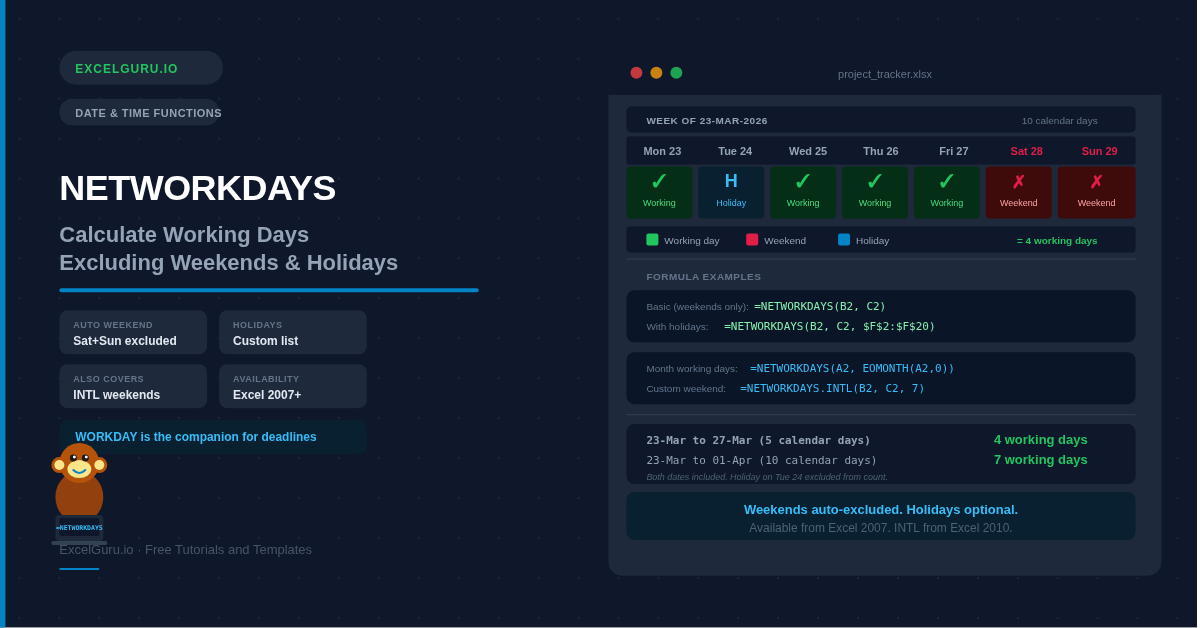
Need to know how many working days are left before a project deadline? Want to calculate an employee's billable days excluding public holidays? The NETWORKDAYS function does both in a single formula — it counts the working days between two dates, automatically skipping weekends, and can subtract any custom holiday list you provide. Its companion, NETWORKDAYS.INTL, extends this with custom weekend definitions for global businesses where the working week does not fall on Monday to Friday. This guide covers both functions with six practical examples.
NETWORKDAYS Syntax
| Argument | Required? | What it means |
|---|---|---|
| start_date | Required | The first date of the period. Must be a valid Excel date — use a cell reference, DATE(), or TODAY(). NETWORKDAYS includes this date in the count if it is a working day. |
| end_date | Required | The last date of the period. Also included in the count if it falls on a working day. If end_date is earlier than start_date, NETWORKDAYS returns a negative number. |
| holidays | Optional | A range of dates (e.g. $F$2:$F$20) or an array constant of dates to exclude from the working day count. Lock this range with $ signs when copying the formula down. Holidays that fall on weekends are ignored — they are already excluded. |
Example 1: Count Working Days Between Two Dates
The simplest use — how many working days are there between a start date and an end date? NETWORKDAYS handles all the Saturday/Sunday skipping automatically.
Example 2: Exclude Public Holidays
Add a holiday list to NETWORKDAYS and those dates are subtracted from the working day count. Store your holiday dates in a dedicated range — lock it with $ signs so it stays fixed when you copy the formula down.
PublicHolidays. You can then use that name in every NETWORKDAYS formula in the workbook. When the holiday list changes, update one range — every formula updates automatically.
Example 3: Working Days in a Specific Month
Combine NETWORKDAYS with EOMONTH to calculate the number of working days in any given month — useful for capacity planning, payroll periods, and monthly target-setting dashboards.
Example 4: Employee Leave and Payroll Days
NETWORKDAYS is the standard function for payroll calculations — it tells you exactly how many days an employee worked, excluding weekends and company holidays. Multiply the result by the daily rate to get the pay for any period.
=NETWORKDAYS(B2,C2,$G$2:$G$20) * 8 for an 8-hour day. For part-time schedules, multiply by the appropriate daily hours instead.
Example 5: NETWORKDAYS.INTL — Custom Weekend Days
NETWORKDAYS always treats Saturday and Sunday as the weekend. NETWORKDAYS.INTL adds a third argument — the weekend number — letting you define any combination of weekend days. This is essential for businesses in regions where the working week is Friday-Saturday off, or where only one day per week is a rest day.
| Code | Weekend days | Typical region |
|---|---|---|
| 1 | Saturday and Sunday (default) | Most of Europe, Americas, Asia Pacific |
| 2 | Sunday and Monday | Some Middle Eastern countries |
| 7 | Friday and Saturday | GCC countries (UAE, Saudi Arabia, Qatar) |
| 11 | Sunday only | Six-day working week |
| 17 | Saturday only | Six-day working week |
| "0000000" | No weekend — all 7 days count | Custom / special projects |
"0000110" = Friday (position 5) and Saturday (position 6) are off, all other days are working days.
Example 6: SLA Tracking and Deadline Monitoring
NETWORKDAYS is widely used in customer service and operations to track SLA compliance — whether a ticket was resolved within the agreed number of working days. Combine it with TODAY() and conditional formatting to build a live overdue alert.
Troubleshooting NETWORKDAYS Errors
#VALUE! error
One or more arguments is not a valid Excel date. Common causes: dates stored as text rather than real date values, a holiday list that contains a text cell mixed in with the dates, or a date entered with slashes that Excel is reading as division. Check each argument with =ISNUMBER(A2) — real dates return TRUE since Excel stores them as numbers internally.
Result is 1 when you expected 0
NETWORKDAYS always counts the start date as day 1 if it is a working day. If you are measuring elapsed time from an opening date, subtract 1 from the result: =NETWORKDAYS(B2,TODAY())-1.
Result is negative
The end_date is earlier than the start_date. This is intentional behaviour — a negative result tells you that the end date is before the start. Swap the arguments or use ABS() to convert to a positive number: =ABS(NETWORKDAYS(A2,B2)).
Holidays are not being excluded
Most commonly caused by the holiday range not being locked. When you copy the formula down, a relative reference like F2:F10 shifts to F3:F11 and misses some holidays. Always use absolute references: $F$2:$F$10. Also verify the holiday dates are stored as real Excel dates, not as text.
"1111111" or the wrong length returns a #VALUE! error.
Frequently Asked Questions
-
What does NETWORKDAYS do in Excel?+NETWORKDAYS calculates the number of working days between two dates, automatically excluding Saturdays and Sundays. You can also provide an optional list of holiday dates to exclude from the count. Both the start date and end date are counted as working days if they fall on a weekday. The result is a positive integer, or a negative number if the end date is before the start date.
-
What is the difference between NETWORKDAYS and NETWORKDAYS.INTL?+NETWORKDAYS always treats Saturday and Sunday as the non-working weekend. NETWORKDAYS.INTL adds a third argument — a weekend code or a 7-character string — that lets you define any combination of weekend days. Use NETWORKDAYS.INTL when your business operates on a non-standard working week, such as Friday-Saturday off in GCC countries, or a six-day working week with only Sunday off.
-
How do I add a holiday list to NETWORKDAYS?+Store your holiday dates in a column — each date in its own cell. Lock the range with dollar signs and pass it as the third argument: =NETWORKDAYS(A2, B2, $F$2:$F$20). Locking with $ signs ensures the holiday range stays fixed when you copy the formula to other rows. For the cleanest setup, define the range as a named range (e.g. "PublicHolidays") and use the name in the formula.
-
Does NETWORKDAYS include the start date and end date?+Yes. Both the start date and end date are included in the count if they fall on a working day. This means if you give NETWORKDAYS the same date for both arguments and it is a weekday, the result is 1 — not 0. If you need to count elapsed time from a start date (not counting the start itself), subtract 1 from the result.
-
How do I calculate the number of working days in a month?+Use EOMONTH to get the last day of the month automatically: =NETWORKDAYS(A2, EOMONTH(A2, 0), $F$2:$F$20) where A2 contains the first day of the month. EOMONTH(A2, 0) returns the last day of the same month as A2, so the formula covers the full month. Add the holiday range to subtract public holidays from the count.
-
What is the difference between NETWORKDAYS and WORKDAY?+NETWORKDAYS counts the working days between two existing dates. WORKDAY calculates a future or past date that is N working days away from a start date. They are companion functions: use NETWORKDAYS to measure how many working days have passed between two dates, and use WORKDAY to find what date falls exactly N working days in the future. Both accept the same optional holiday list.