
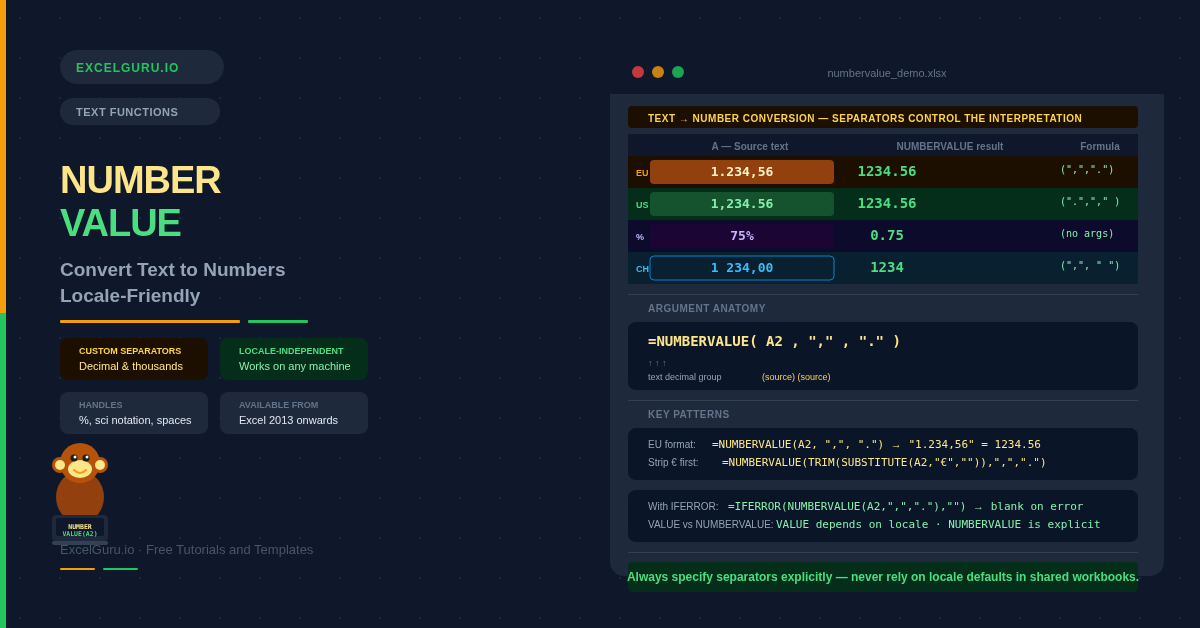
Numbers imported from other countries, copied from web pages, or exported from databases often arrive as text — left-aligned, ignored by SUM, and resistant to arithmetic. The VALUE function can convert simple cases. However, it fails when decimal and thousands separators differ from the current locale. The NUMBERVALUE function solves this precisely. It accepts the source text's own separator characters as arguments, making the conversion locale-independent and reliable across every regional setting.
For example, a European spreadsheet might store one million two hundred and thirty-four as "1.234,00" — period as thousands separator and comma as decimal. NUMBERVALUE converts it to 1234 cleanly on any machine, regardless of that machine's regional settings. Consequently, it is the right tool for any cross-border data pipeline.
What Is the NUMBERVALUE Syntax?
NUMBERVALUE takes one required argument and two optional separator arguments.
| Argument | Required? | What it does |
|---|---|---|
| text | Required | The text string to convert. Can be a cell reference, a literal string in quotes, or the output of another formula. Leading and trailing spaces are ignored. An empty string ("") returns 0. |
| decimal_separator | Optional | The character used as the decimal point in the source text. Enclose in double quotes — for example, "," for European data. If omitted, the current locale's decimal separator is used. Only the first character counts if multiple are supplied. |
| group_separator | Optional | The character used as the thousands separator in the source text — for example, "." for European data or " " (space) for some French and Swiss formats. If omitted, the current locale's group separator is used. |
How Does NUMBERVALUE Differ from VALUE?
VALUE converts text to numbers using the machine's regional settings only. It has no separator arguments. Consequently, it fails silently — or produces wrong numbers — when the source data uses different separators. NUMBERVALUE, by contrast, accepts the source format explicitly. Use VALUE for simple, locale-matched data. Use NUMBERVALUE for anything cross-regional.
| Feature | NUMBERVALUE | VALUE |
|---|---|---|
| Custom decimal separator | ✅ Yes — specify any character | ❌ No — uses locale only |
| Custom group separator | ✅ Yes — specify any character | ❌ No — uses locale only |
| Cross-locale reliability | ✅ Consistent on any machine | ⚠ Machine-dependent |
| Handles % suffix | ✅ Converts to decimal | ✅ Yes |
| Available from | Excel 2013+ | All Excel versions |
Example 1: Convert Standard US-Format Text Numbers
Even within the same locale, numbers sometimes arrive as text — left-aligned in their cells, ignored by SUM, and showing a green triangle in the corner. NUMBERVALUE handles them cleanly. When the source data uses the same separators as your machine, omitting the optional arguments is fine. However, specifying them explicitly is safer for shared workbooks.
Example 2: Convert European Format (Comma Decimal, Period Thousands)
Many European countries use a comma as the decimal separator and a period as the thousands separator. This is the opposite of the US convention. Consequently, VALUE fails completely on this data in a US-locale Excel — it either errors or misreads "1.234,56" as 1234.56 incorrectly. NUMBERVALUE handles it precisely by accepting the source separators as arguments.
=NUMBERVALUE(A2,$E$1,$F$1) throughout the column. Changing E1 from "," to "." then instantly reinterprets all data — useful when a data supplier occasionally switches format between exports.
Example 3: Handle Percentage Text
NUMBERVALUE automatically handles trailing percent signs. One "%" divides the result by 100. Two "%%" divide it by 10,000. This means "75%" becomes 0.75 — the correct decimal representation for Excel's Percentage format. Consequently, you can import percentage data as text and convert it to proper decimal values in a single formula.
Example 4: Scientific Notation and Custom Separator Characters
NUMBERVALUE recognises scientific notation — for example, "3.5E+05" converts to 350000. Furthermore, the separator arguments accept any character, not just commas and periods. This makes NUMBERVALUE flexible enough to handle exports from legacy systems, databases, or programming environments that use unusual delimiters.
Example 5: Handle Errors with IFERROR and ISTEXT
NUMBERVALUE returns #VALUE! when it cannot interpret the text. This happens when separators are specified incorrectly, the decimal separator appears more than once, or the text contains non-numeric characters. In a production column with mixed data, wrapping in IFERROR keeps the sheet clean and helps identify problem rows.
When Does NUMBERVALUE Return #VALUE!?
Four specific situations cause #VALUE!: the decimal separator appears more than once in the text; the group separator appears after the decimal separator; an invalid argument is supplied; or the text contains a non-numeric character other than the separators and a trailing percent sign. Knowing these rules makes troubleshooting straightforward.
Example 6: Clean and Convert Mixed Import Data
Real-world imports often include currency symbols, extra spaces, or mixed formats in the same column. NUMBERVALUE handles spaces automatically. For currency symbols and other prefix or suffix characters, SUBSTITUTE removes them first. Combining SUBSTITUTE, TRIM, and NUMBERVALUE in a single formula produces clean numeric output from almost any messy text.
How to Fix Common NUMBERVALUE Errors
#VALUE! — wrong or swapped separators
The most common cause is specifying separators that do not match the source text. For instance, telling NUMBERVALUE the decimal separator is "." when the text actually uses "," produces #VALUE!. Double-check the source format. Additionally, ensure the group separator does not appear after the decimal separator in the text — that combination also triggers #VALUE!.
#VALUE! — decimal separator appears more than once
A text string like "12.34.56" contains two periods. If the period is specified as the decimal separator, NUMBERVALUE cannot determine which one is the decimal point. Consequently, it returns #VALUE!. Inspect the source data for typos or systematic formatting errors. Use SUBSTITUTE to remove extra separators before converting.
Result is wrong but no error appears
This usually means the separators are mixed up. For example, "1.234,56" converted with decimal="." and group="," produces 1.234 — it reads 1.234 as the number and ignores ",56" as an invalid tail. Always verify one row manually before copying the formula down. Furthermore, comparing the NUMBERVALUE result to the expected value in a test cell is a fast clearance check.
Frequently Asked Questions
-
What is NUMBERVALUE used for in Excel?+NUMBERVALUE converts text representations of numbers into actual numeric values — with explicit control over decimal and thousands separators. It is especially useful for international data, where the comma and period roles are swapped compared to US convention. Unlike the VALUE function, NUMBERVALUE does not rely on the machine's regional settings, making it reliable for shared workbooks opened on computers with different locales.
-
How do I convert European numbers like "1.234,56" to 1234.56?+Use =NUMBERVALUE(A2,",","."). The second argument tells NUMBERVALUE that the comma is the decimal separator in the source text. The third argument tells it that the period is the thousands separator. This converts "1.234,56" to 1234.56 on any machine regardless of regional settings. Always specify both arguments when the source data uses non-standard separators to guarantee consistent results.
-
What is the difference between NUMBERVALUE and VALUE?+VALUE converts text to numbers using the current locale's separator settings. It has no arguments for custom separators. Consequently, it fails on European-format numbers when running in a US-locale Excel. NUMBERVALUE solves this by accepting the source text's separator characters as explicit arguments, making it locale-independent. Use NUMBERVALUE whenever data may come from different regional formats. Use VALUE for simple cases where the source and destination locales are guaranteed to match.
More Questions About NUMBERVALUE
-
Does NUMBERVALUE handle percentage symbols?+Yes. Trailing percent signs are handled automatically. One "%" divides the result by 100, so "75%" becomes 0.75. Two "%%" divide by 100 twice, so "9%%" becomes 0.0009. To display the result as a percentage, apply the Percentage cell format to the result cell after conversion — the underlying value is already the correct decimal. European percentage text like "12,5%" also works: =NUMBERVALUE("12,5%",",",".") returns 0.125.
-
Why does NUMBERVALUE return #VALUE!?+The four most common causes are: the decimal separator appears more than once in the text; the group separator appears after the decimal separator; the separator arguments do not match the characters actually in the source text; or the text contains a non-numeric character other than the separators and a trailing percent sign. Wrap in IFERROR to suppress the error: =IFERROR(NUMBERVALUE(A2,",","."),"")
-
Which Excel versions support NUMBERVALUE?+NUMBERVALUE is available in Excel 2013 and all later versions, including Microsoft 365, Excel 2024, 2021, 2019, and 2016. It also works in Excel for the web and Google Sheets. For Excel 2010 or earlier, use the VALUE function as a fallback — but note that VALUE depends on the machine's regional settings and may not correctly handle non-standard number formats.