
VBA has automated Excel for decades. Yet it only runs on the Windows desktop app. Open the same workbook in a browser, and your macros go quiet. More teams now live in Excel for the web, so that gap hurts. Office Scripts close it. They are Microsoft's modern, cloud-first way to automate Excel, written in TypeScript and run straight from the Automate tab.
This guide gets you started with Office Scripts from scratch. First, it explains the Automate tab and the main function. Then it records a script and reads real code. Worked examples and a full troubleshooting section follow. By the end, you will write and run your first script with confidence.
What Office Scripts Are
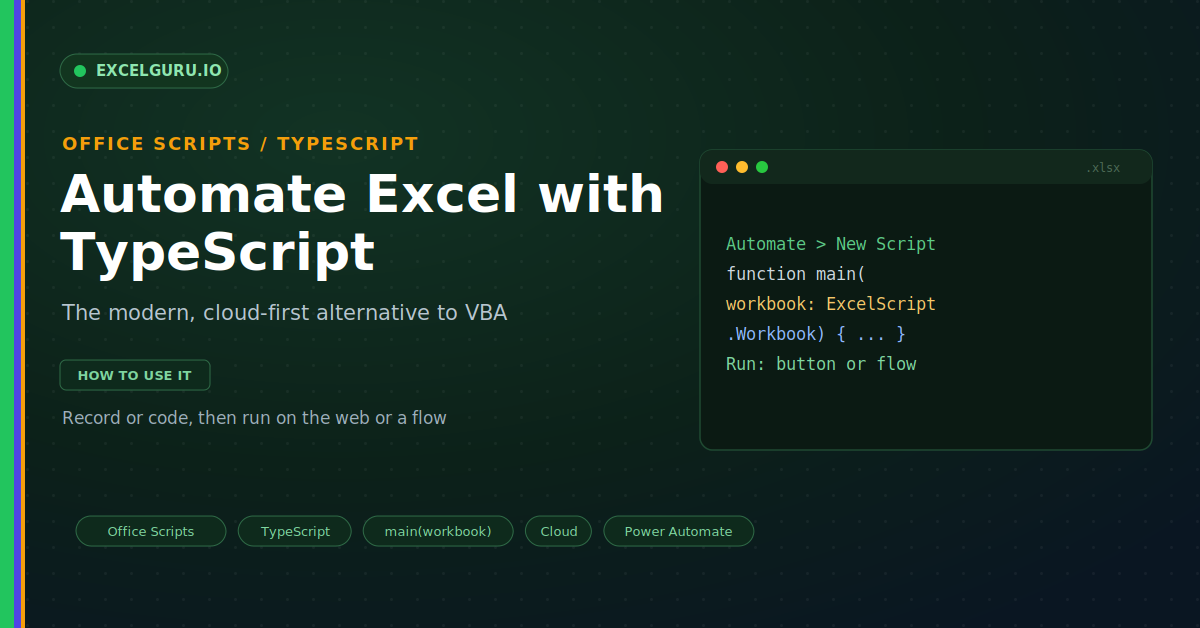
Office Scripts automate Excel with a modern language. You write them in TypeScript, a typed form of JavaScript. Crucially, they run in the cloud, not on your desktop. So they work on Excel for the web and on Windows alike. The infographic below shows the flow.
Every script starts from a single main function. It runs, touches the workbook, and finishes. Notably, you never manage files or windows yourself. Instead, Excel hands your code a workbook object to work with.
Office Scripts Versus VBA
Both tools automate Excel, but they suit different worlds. VBA rules the Windows desktop and reaches deep into the app. Office Scripts run in the cloud and chain into Power Automate. Therefore your choice depends on where the work lives.
Example 1: Record Your First Script
The fastest start is to record, not type. The Action Recorder watches what you do. Then it writes the matching TypeScript for you. So you learn the code by seeing your own steps.
Example 2: Read the main Function
Every script shares the same entry point. Excel calls a function named main for you. It passes in the workbook as an argument. Therefore your code always starts from that object.
Example 3: Read and Write a Range
Most scripts read some cells and write others. The getRange method points at a block of cells. Then getValues and setValues move the data. As a result, you process a range in a few lines.
Example 4: Loop Over Rows
Real work often repeats across many rows. A simple loop walks through each one. You read a value, change it, and write it back. So a script can clean a whole column at once.
Example 5: Return a Value to a Flow
A script can hand data back to Power Automate. You simply return a value from main. Then a flow reads that result and acts on it. This is how scripts join a larger automation.
Example 6: Run a Script on a Schedule
Scripts really shine inside Power Automate. There, a flow can run your script on a timer. It can also trigger on a new email or file. Therefore your report updates with no one at the keyboard.
Troubleshooting Office Scripts
All three problems below are the most common. Each has a clear cause and a quick fix.
The Automate tab is missing
This almost always comes down to your plan. Office Scripts need a Microsoft 365 business or enterprise licence. A personal or family plan simply will not show the tab. First, confirm your licence with your admin. Next, ask whether Office Scripts are enabled in the admin centre. Some organisations switch the feature off by policy. Once the plan and policy allow it, the Automate tab appears.
The script cannot reach another app
Office Scripts run inside a safe sandbox by design. So a script cannot open files or control other programs. This differs sharply from VBA, which can reach the whole PC. To connect to email, files, or other services, use Power Automate instead. A flow calls your script and handles the outside steps. In short, keep the script on the workbook and let the flow do the rest.
TypeScript flags a type error
TypeScript checks types before the script runs. So a value read from a cell may need a clear type. A cell value can be text, a number, or a boolean. Because of this, the editor may warn until you say which one. To fix it, cast the value, such as reading it as a number. The editor underlines the problem and suggests a fix. Once the types line up, the warning disappears.
Frequently Asked Questions
- Are Office Scripts a replacement for VBA?+Not exactly, since each suits a different world. Office Scripts run in the cloud and across platforms. VBA runs on the desktop with deeper app access. So choose scripts for shared, browser-based work.
- What language do Office Scripts use?+They use TypeScript, a typed form of JavaScript. Every script starts from a main function. That function receives the workbook as an argument. From there, the ExcelScript API does the work.
- Do I need to code to get started?+No, you can begin with the Action Recorder. It writes the TypeScript from your own clicks. Then you can read and tweak that code. So recording is a gentle first step.
- Why is the Automate tab not showing?+Usually your plan does not include the feature. Office Scripts need a Microsoft 365 business plan. Your admin may also need to enable them. Check both the licence and the policy.