
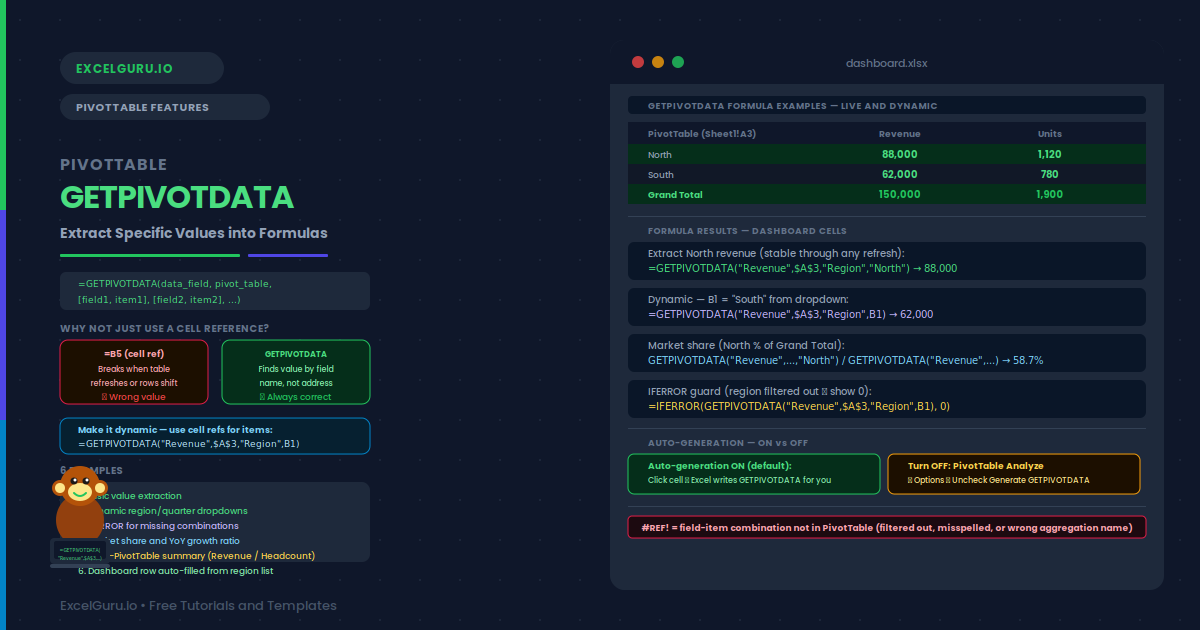
You click a PivotTable cell and type =. Excel writes a long, cryptic formula instead of the simple cell reference you expected. That formula is GETPIVOTDATA — and it is far more powerful than it looks. Unlike a plain cell reference, GETPIVOTDATA identifies a value by field name and item name. It does not use the cell address. This means the formula stays correct even when the PivotTable is filtered, sorted, or refreshed.
This guide covers the full GETPIVOTDATA syntax, how to turn auto-generation on or off, and six practical examples. Specifically, you will learn how to reference PivotTable values in a dashboard, make references dynamic, handle #REF! errors, and compare values across multiple PivotTables.
What Is the GETPIVOTDATA Syntax?
| Argument | Required? | What it does |
|---|---|---|
| data_field | Required | The name of the value field to extract from, as a text string. For example, "Revenue" or "Sum of Revenue". |
| pivot_table | Required | Any cell reference inside the PivotTable. Excel uses this to identify which PivotTable to query. A reference to the top-left cell of the PivotTable is conventional. |
| field1, item1 | Optional | A field-item pair that filters the result. "Region", "North" means "the value where Region equals North". Add more pairs to narrow the result further. |
| field2, item2 | Optional | Additional field-item pairs. All pairs must match simultaneously. Together they define a unique intersection in the PivotTable. |
Examples 1–4: GETPIVOTDATA in Practice
The most common use is extracting one specific value from the PivotTable into a dashboard cell. Specifically, GETPIVOTDATA identifies the value by its field and item names, not by cell address. This keeps the reference stable through refreshes and layout changes.
Hard-coded item names limit flexibility. Replacing the string with a cell reference makes the formula dynamic. A dropdown in cell B1 lets the user choose a region. The GETPIVOTDATA formula then returns whichever region is currently selected. This pattern is the foundation of interactive PivotTable dashboards.
GETPIVOTDATA returns #REF! when the field-item combination does not exist in the PivotTable. This happens when a region is filtered out, an item is hidden, or the data for a particular combination is empty. Wrapping with IFERROR prevents #REF! from breaking dashboards and provides a clean fallback value instead.
Because GETPIVOTDATA returns a number, you can use it directly in arithmetic. Dividing one GETPIVOTDATA result by another calculates a ratio, share, or growth rate entirely in the formula bar. No helper column is needed, and the calculation updates whenever the PivotTable refreshes.
Examples 5–6: Building Summary Reports
A management summary report often needs values from two or more PivotTables side by side. For example, Revenue from one PivotTable and Headcount from another. GETPIVOTDATA can reference different PivotTables in the same formula, by pointing each call to a different pivot_table cell reference.
A summary table with all regions listed in column A can pull values from a PivotTable automatically. The region name in column A feeds the GETPIVOTDATA item argument directly, so the entire column fills without repeating the formula manually for each region. This is the standard pattern for building a PivotTable-powered executive summary.
Common Issues and How to Fix Them
GETPIVOTDATA returns #REF!
#REF! means the field-item combination you specified does not exist in the PivotTable. The most common causes are: the item is filtered out, the field name is misspelled (names are case-insensitive but must match exactly), or the PivotTable is showing a different aggregation (for example, "Count of Revenue" instead of "Sum of Revenue"). Check the exact field name by clicking any value cell in the PivotTable and reading the auto-generated formula. The first argument of that formula is the exact string to use.
GETPIVOTDATA was auto-inserted but I wanted a plain reference
Excel generates GETPIVOTDATA automatically when you click a PivotTable cell while typing a formula. To stop this, go to PivotTable Analyze → PivotTable dropdown → Options → uncheck Generate GETPIVOTDATA. Alternatively, type the cell address manually (for example, B5) rather than clicking it. Either approach gives you a plain cell reference instead of GETPIVOTDATA.
Frequently Asked Questions
-
What does GETPIVOTDATA do in Excel?+GETPIVOTDATA extracts a specific value from a PivotTable by specifying the value field name and one or more field-item filter pairs. For example, =GETPIVOTDATA("Revenue", $A$3, "Region", "North") returns the North revenue from the PivotTable whose top-left cell is A3. Unlike a plain cell reference, GETPIVOTDATA remains correct even when the PivotTable is filtered, refreshed, or sorted, because it identifies the value by name rather than by address.
-
How do I stop Excel from auto-inserting GETPIVOTDATA?+Click anywhere inside the PivotTable. Go to PivotTable Analyze → click the small arrow below "PivotTable" (top-left of the ribbon) → Options. Uncheck "Generate GetPivotData". From then on, clicking a PivotTable cell while typing a formula inserts a plain cell reference instead. You can also type the address manually (e.g. =$B$5) while building a formula, which bypasses auto-generation without changing the global setting.
-
Can I use GETPIVOTDATA with a cell reference instead of a hard-coded item name?+Yes. Replace the quoted item string with a cell reference: =GETPIVOTDATA("Revenue", $A$3, "Region", B1) where B1 contains the region name. When B1 changes (for example via a dropdown), the GETPIVOTDATA result updates accordingly. This is the standard technique for building interactive dashboards where a single formula serves all regions or periods. You can also replace the data_field argument with a cell reference if you want the user to choose between Revenue, Units, and Margin from a dropdown.
-
Why does GETPIVOTDATA return a different number than the PivotTable cell shows?+This usually means the data_field name does not match the PivotTable's field name exactly. If the PivotTable shows "Sum of Revenue", the GETPIVOTDATA data_field must be "Revenue" (without the "Sum of" prefix). Alternatively, if multiple fields are named Revenue (for example from different data sources), GETPIVOTDATA may be picking up the wrong one. Always verify the field name by clicking the value cell and checking the auto-generated formula that Excel produces.