
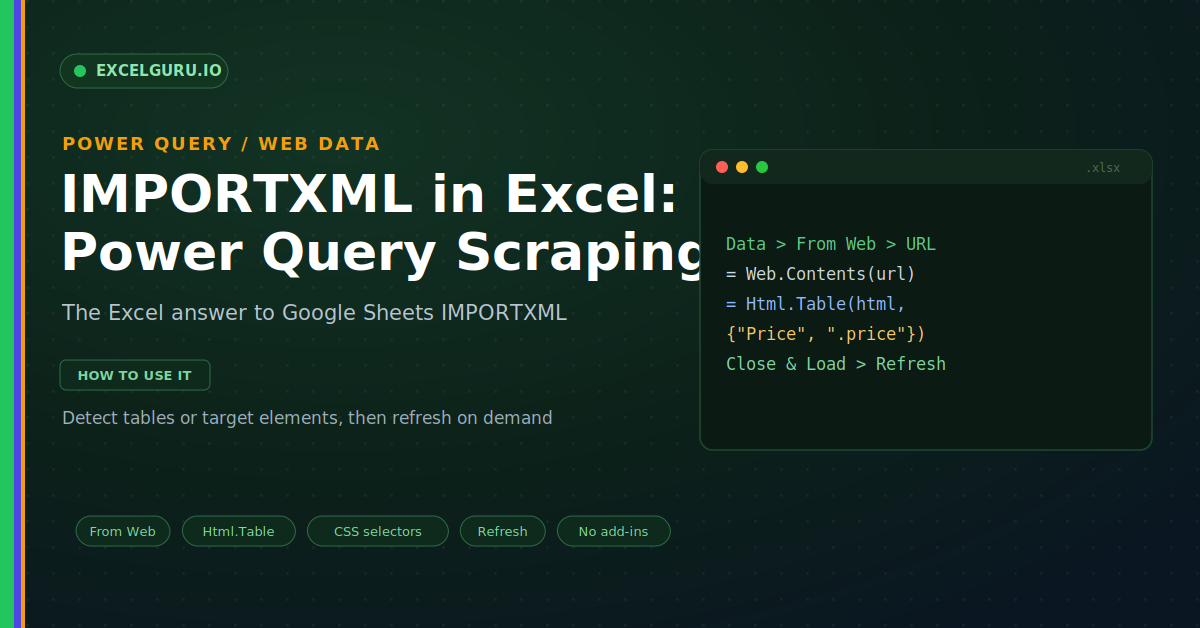
Google Sheets has a handy trick. Its IMPORTXML function pulls data straight from a web page into a cell. You pass a URL and an XPath, and the data lands in your sheet. Many people reach for Excel and look for the same function. However, Excel has no IMPORTXML at all. The good news is that Excel offers something more powerful instead. Power Query can scrape a web page, clean the result, and refresh it on demand.
This guide shows the Excel way to import web data. First, it maps IMPORTXML onto the Power Query tools that replace it. Then it walks through real imports, from simple tables to targeted elements. Several worked examples and a full troubleshooting section follow. By the end, you will pull live web data into Excel without a single add-in.
What IMPORTXML Did, and Excel's Answer
IMPORTXML reads part of a web page using an XPath address. That address points at a table, a list, or a single value. Excel solves the same problem with Power Query. Notably, it uses table detection or CSS selectors rather than XPath. The infographic below shows both routes side by side.
Power Query lives on the Data tab, under From Web. First, you paste a URL. Then a Navigator window shows every table it found. Finally, you pick one, tidy it, and load it. As a result, the data refreshes whenever you click Refresh.
From Web or Html.Table: Which to Use
Excel gives you two levels of control. The From Web button suits pages with clear tables. For precise targeting, the Html.Table function reads CSS selectors. Because of this, you can match almost anything IMPORTXML could.
Example 1: Import a Table with From Web
Start with the simplest case of all. Many pages hold plain HTML tables. For these, From Web does the work for you. In practice, it detects each table automatically. Then you simply choose the one you need. This alone replaces most IMPORTXML uses.
Example 2: Target Elements with CSS Selectors
Sometimes the data is not a neat table. Instead, it sits in cards, lists, or spans. Here Html.Table shines, because it reads CSS selectors. Therefore you can grab exactly the pieces you need.
Example 3: Grab a Single Value or List
You often want just one number. A stock price or a rating is a good example. For that, you point a selector at one element. Then you drill into the first row.
Example 4: Clean the Imported Data
Web data rarely arrives tidy. It may carry symbols, spaces, or text. Fortunately, Power Query cleans it in a few clicks. Each step records itself for the next refresh.
Example 5: Refresh the Data Automatically
This is where Power Query beats a manual copy. The query remembers the page and every step. As a result, one click pulls fresh data. You can also refresh on a schedule. Because of this, a report never goes stale. Manual copy and paste cannot match it.
Example 6: Pass a Parameter into the URL
Many sites change the page by the URL. A search term or a page number is common. Instead of editing the query by hand, you build the URL from a cell. Then one input drives the whole import.
Example 7: Combine Several Pages at Once
Often the data spans many pages. A catalogue might run over ten pages, for instance. Rather than import each by hand, you loop over them. Then Power Query stacks the results into one table.
Example 8: Load Straight to the Data Model
A web import can feed more than a sheet. You can send it to the Data Model instead. From there, it joins other tables in a PivotTable. As a result, scraped data powers a full report.
Troubleshooting Web Imports
All three problems below are the most common. Each has a clear cause and a quick fix.
The page loads but the data is missing
Usually this means the site builds its content with JavaScript. Power Query reads only the raw HTML, so it never runs that script. As a result, data added after load stays invisible to it. First, view the page source in your browser and search for the value. If it is absent from the source, Power Query cannot reach it either. In that case, look for a data feed, an API, or a static version of the page. Those sources return real HTML that Power Query can read.
You get a 403 or access-denied error
This means the site refused the request. Many servers block tools that do not look like a browser. To fix it, add a user-agent header in Web.Contents so the request looks normal. Also check whether the page needs a login, since Power Query cannot sign in for you. Above all, review the site terms first, because some sites forbid scraping outright. When the site allows access and the header is set, the request usually succeeds.
The wrong table comes back
Sometimes the Navigator picks a table you did not want. Pages often hold several hidden tables for layout. Because of this, the first match may be the wrong one. First, click through each table in the Navigator and preview it. Then choose the one whose columns match your goal. For odd layouts, switch to Html.Table with a specific CSS selector. That selector targets one element and ignores the rest.
Frequently Asked Questions
- Does Excel have an IMPORTXML function?+No, Excel has no IMPORTXML function. Instead, it uses Power Query on the Data tab. From Web imports tables, while Html.Table targets elements with CSS selectors. Together they replace IMPORTXML and add cleaning and refresh.
- Can Power Query scrape any website?+Not every site, unfortunately. Power Query reads raw HTML only, so pages built by JavaScript often return nothing. Moreover, some sites block requests or forbid scraping. Always check the site terms before you import.
- How do I use a CSS selector instead of XPath?+Specifically, you pass selectors to Html.Table as name and selector pairs. For example, ".price" grabs the price element. Thus a CSS selector plays the same role that an XPath plays in IMPORTXML.
- Will the imported data stay up to date?+Yes, because Power Query saves every step. Therefore one click on Refresh pulls fresh data and cleans it again. You can also refresh on open or on a timer through Query Properties.