
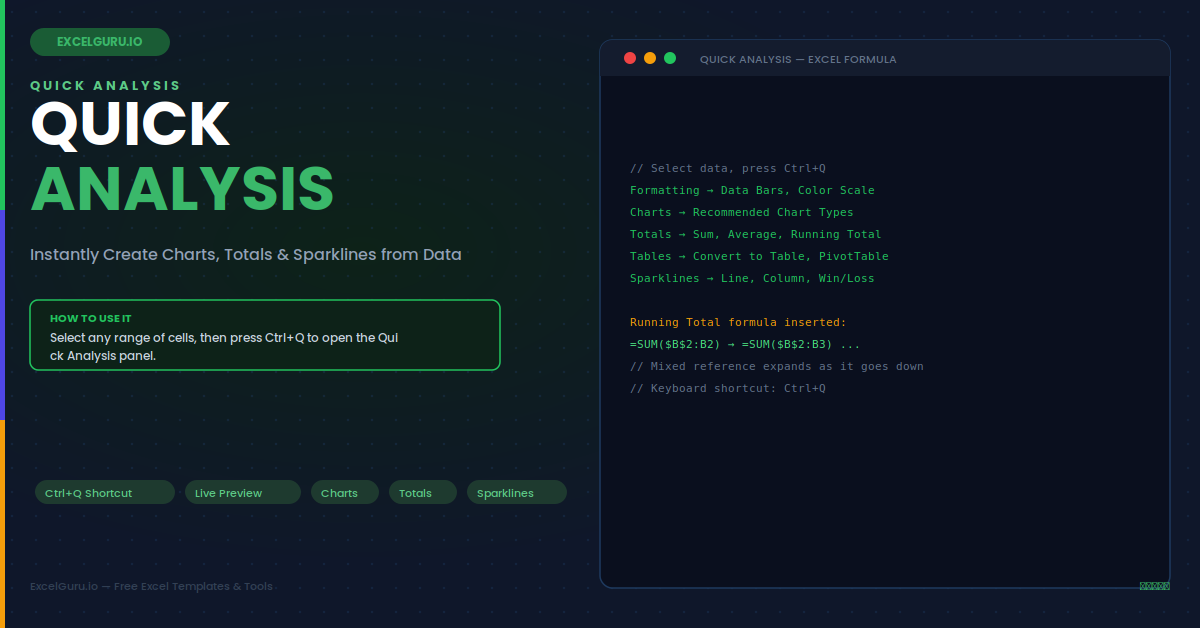
Every time you select data in Excel, you repeat the same sequence of ribbon clicks to format values, add a chart, or calculate totals. The Quick Analysis Tool eliminates this repetition. Press Ctrl+Q after selecting any range of two or more cells. A panel opens instantly with five tabs: Formatting, Charts, Totals, Tables, and Sparklines. Every option shows a live preview on your actual data before you click — hover to preview, click to apply. This guide covers all five tabs, six detailed examples across real business scenarios, and every common problem.
The Five Tabs — What Each One Does
Each tab targets a different type of analysis task. The panel remembers your last-used tab across sessions. Hovering over any option without clicking shows a live preview on the selected cells, which disappears if you move away without clicking.
Example 1: Sales Heat Map — Color Scale Across a Region × Month Grid
Select the 72 revenue values in a 6-region by 12-month table, excluding all headers. Press Ctrl+Q, click Formatting, then hover over Color Scale. The gradient preview appears immediately on your actual cells — no dialog box, no guessing. Click to apply. Excel adds a green–yellow–red gradient where the highest value appears darkest green and the lowest appears darkest red. Seasonal performance patterns — Q4 spikes, summer troughs, regional performance gaps — become visually obvious without reading a single number. The Conditional Formatting rule is fully editable afterwards via Home > Conditional Formatting > Manage Rules.
Example 2: Running Total — Year-to-Date Cumulative Revenue
Select your 12 monthly revenue values — data rows only, not the header row. Press Ctrl+Q, click Totals, then Running Total. Excel inserts cumulative SUM formulas in the adjacent column. The mixed-reference pattern it uses is exactly correct for a year-to-date accumulation. In row 2, the formula is =SUM($B$2:B2). In row 3, it becomes =SUM($B$2:B3). The anchor ($B$2) stays fixed at the first data row. The end reference (B2, B3...) expands down the column. All 12 formulas recalculate automatically when source revenue values change.
Example 3: Sparklines — Row-Level Trend Indicators for Every Region
Select the 12 monthly value columns for all 8 regions — data only, not row labels or headers. Press Ctrl+Q, click Sparklines, then Line. Excel inserts 8 line sparklines in the adjacent column simultaneously. This is the same result as 8 separate Insert > Sparklines ribbon operations, completed in a single click. After insertion, the Sparkline tab appears on the ribbon. Use it to add High Point and Low Point markers in contrasting colours. Set the vertical axis scale to control the visual story: "Same for All Sparklines" makes rows visually comparable on an absolute scale. "Individual" scales each row to its own range and emphasises trend shape over magnitude.
Example 4: Recommended Chart — One-Click Chart from Time Series
Select your date and revenue columns including headers. Press Ctrl+Q and click Charts. Excel analyses the data structure. It detects the date column and recommends a Line chart as the first option. Hover over any thumbnail to see a full-size preview of that chart type applied to your actual data. Click to insert. The chart appears in under 3 seconds — significantly faster than Insert > Charts, which requires choosing a type without seeing a preview. The inserted chart is fully interactive and editable with all standard chart formatting tools.
Example 5: Table Conversion — Auto-Expansion and Structured References
Select your data range including headers. Press Ctrl+Q, click Tables, then Table. The range converts immediately to a formatted Excel Table. It gets banded rows, filter dropdowns on every header, and an auto-assigned table name (Table1, Table2...). The table auto-expands when new rows are typed directly below the last row. New data is automatically included in all Table aggregations. The table also becomes a named data source for Power Query, Forecast Sheet, PivotTables, and structured formula references like =SUM(SalesTable[Revenue]). This reference is always correct regardless of how many rows the table contains.
Example 6: Recommended PivotTable — Instant Pivot from Raw Data
Select your full raw data table including all headers. Press Ctrl+Q and click Tables. Excel analyses the column types — text, numeric, date — and generates up to four PivotTable layout suggestions with thumbnail previews. Each suggestion represents a different grouping or aggregation approach relevant to the detected data structure. Clicking any thumbnail creates the PivotTable on a new worksheet. All fields are pre-configured in the row labels, column labels, and values areas. The result is ready to explore immediately — drag fields, add filters, or change the aggregation function without starting from a blank PivotTable layout.
Troubleshooting Quick Analysis
Both issues below have clear causes. Each has a straightforward fix that takes under 30 seconds to verify and resolve.
The Quick Analysis icon does not appear after selecting data
First, verify the feature is enabled: go to File > Options > General and confirm "Show Quick Analysis options on selection" is checked. The icon only appears for a selection of two or more contiguous cells. It does not appear for single-cell selections, non-adjacent multi-selections made while holding Ctrl, or cells on a protected worksheet. If the icon appears but disappears before you can click it, use the keyboard shortcut Ctrl+Q immediately after making the selection — the shortcut opens the panel directly without requiring you to click the icon.
Totals formulas overwrite existing data or land in wrong cells
Quick Analysis places Totals formulas based on what it treats as data cells. If the header row is included in the selection, it counts the header as a data row and places the total one row too low, overwriting whatever data or formula is below the selection. Fix this by excluding the header row — select only the data rows before pressing Ctrl+Q. If the worksheet has frozen panes or merged cells adjacent to the selection, these can also cause placement errors. The safest approach for complex layouts is using the Table Design tab's Totals Row, which is header-aware by design and never overwrites existing cells.
Sparklines are missing from the Quick Analysis panel
The Sparklines tab is available in Excel 2013 and later on the Windows desktop version. It is not available in Excel Online and may be absent in some older Excel for Mac versions. If the tab is present but no sparkline types appear, some columns in the selection may contain non-numeric data. Quick Analysis requires at least one column of numbers to offer sparkline options. Ensure you select only the numeric data columns — exclude any text label columns from the selection — before pressing Ctrl+Q.
Frequently Asked Questions
- What is the keyboard shortcut for Quick Analysis in Excel?+The shortcut is Ctrl+Q on both Windows and Mac. Select two or more contiguous cells first, then press Ctrl+Q. The panel opens near the selection. Navigate between tabs with Tab or Shift+Tab, and between options within a tab with the left and right arrow keys. Press Enter to apply the highlighted option. The shortcut also works on Mac, where the lightning bolt icon at the bottom-right corner of the selection is the alternative trigger if Ctrl+Q conflicts with a system shortcut.
- Can Quick Analysis add sparklines for multiple rows simultaneously?+Yes — and this is one of its most time-saving capabilities. Select the numeric data across multiple rows simultaneously (all 12 monthly columns for all 8 regions at once, for example). Press Ctrl+Q and click Sparklines. Choosing Line, Column, or Win/Loss inserts one sparkline per row in the adjacent column, all in a single operation. Select any sparkline in the group and the Sparkline tab appears, allowing you to customise colours, add High/Low markers, and set the axis scale for all sparklines in the group simultaneously.
- Does Quick Analysis work in Excel Online?+Quick Analysis has limited availability in Excel Online. The Formatting and Charts tabs may appear, but Sparklines and PivotTable recommendations are typically absent in the browser version. For the complete Quick Analysis experience with all five tabs, live hover previews, and full functionality, use the Excel desktop application on Windows or Mac with Excel 2013 or later. Excel Online focuses on core editing and collaboration features rather than analysis shortcuts.
- Does applying a Formatting option from Quick Analysis remove existing cell formats?+Applying a Formatting option from Quick Analysis adds a conditional formatting rule on top of any existing formatting — it does not remove number formats, font sizes, borders, or manually applied fill colours. However, conditional formatting rules applied via Quick Analysis take visual precedence over manual fill colours for the cells they cover. To remove a Quick Analysis conditional formatting rule, go to Home > Conditional Formatting > Manage Rules, select the rule, and click Delete. Totals and Sparklines options insert formulas or chart objects and do not affect existing cell formatting at all.