
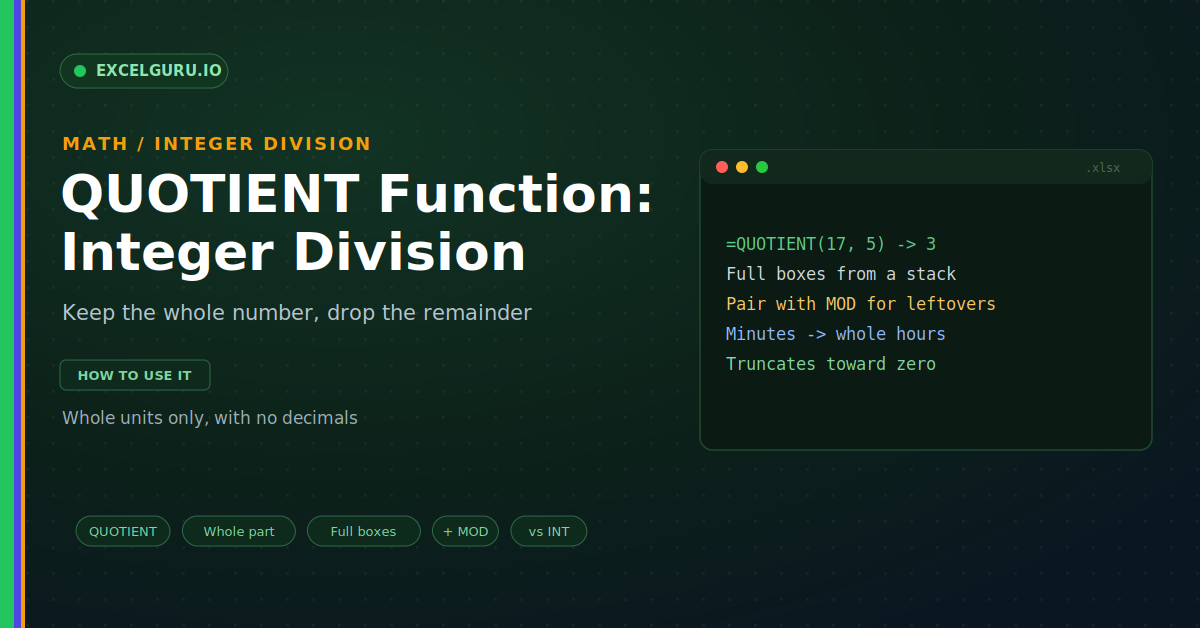
Sometimes you only care about whole units. How many full boxes fit a shipment of items? And how many complete hours hide in a pile of minutes? How many teams of four from a group of thirty? In each case, the fraction does not matter. You want the whole number, with the remainder set aside. The QUOTIENT function does exactly this. It performs integer division and drops whatever is left over.
QUOTIENT is the tidy partner of the MOD function. One gives the whole groups, the other the leftovers. This guide explains it with realistic examples. By the end, you will handle whole-unit maths with ease.
What QUOTIENT Does
QUOTIENT divides one number by another. It then keeps only the whole-number part. The decimal portion is simply cut off. So it never rounds, it just truncates, as below.
This is different from a normal division. Seventeen divided by five is three point four. QUOTIENT returns just the three. As a result, the point four is discarded, not rounded.
The Syntax
The QUOTIENT syntax is short and clear. You give the numerator, then the denominator. Excel returns the whole part of that division. So the order is top number, then bottom number.
Example: How Many Full Boxes
Packing is the classic QUOTIENT job. You have a stack of items and a box size. You want the number of full boxes. So the leftovers are not the question here.
Pair It With MOD
QUOTIENT and MOD work as a team. QUOTIENT gives the full groups. MOD gives the items left over. Together they describe the split completely, as below.
Example: Convert Minutes to Whole Hours
Time conversions are another neat fit. You have a total number of minutes. You want the whole hours inside it. QUOTIENT and MOD split it cleanly.
QUOTIENT Versus Division and INT
You might wonder how QUOTIENT differs from INT. For positive numbers, they often match. For negative numbers, they part ways. So the difference is worth knowing, as below.
Best Practices
A few habits keep QUOTIENT reliable. They prevent the common surprises. They also pair it well with MOD. So keep these in mind.
Troubleshooting QUOTIENT
All three problems below are the most common. Each has a clear cause and a quick fix.
A #DIV/0! error appears
QUOTIENT cannot divide by zero. So a denominator of zero triggers this error. First, check the second argument in your formula. Confirm it never reaches zero. If a cell might be blank, add a guard. Wrap it in an IF that checks the denominator first. After that, the error clears.
Negative numbers look wrong
QUOTIENT cuts toward zero, not downward. So =QUOTIENT(-7, 2) returns -3. People often expect -4 from habit. First, decide which behaviour you actually want. For truncation toward zero, QUOTIENT is right. For rounding down, use INT instead. After that, the sign behaves as intended.
I expected a decimal answer
QUOTIENT never returns a fraction by design. So it always drops the decimal part. This catches people who wanted the exact figure. First, decide if you need the whole part or the exact value. For whole units, keep QUOTIENT. For the precise result, use plain division instead. After that, you get the answer you meant.
Frequently Asked Questions
- What does the QUOTIENT function do?+It divides two numbers and keeps the whole part. The decimal portion is dropped, not rounded. For example, =QUOTIENT(17, 5) returns 3. So it performs integer division.
- What is the difference between QUOTIENT and division?+Plain division gives the exact result, like 3.4. QUOTIENT keeps only the whole number, 3. So use division when the decimal matters. Use QUOTIENT for whole units.
- How is QUOTIENT different from INT?+For positive numbers, they usually agree. For negatives, they differ. QUOTIENT truncates toward zero, while INT rounds down. So =QUOTIENT(-7, 2) is -3, but INT gives -4.
- How do I get the remainder too?+Use the MOD function alongside QUOTIENT. QUOTIENT gives the whole groups. MOD gives what is left over. So together they split a division fully.