
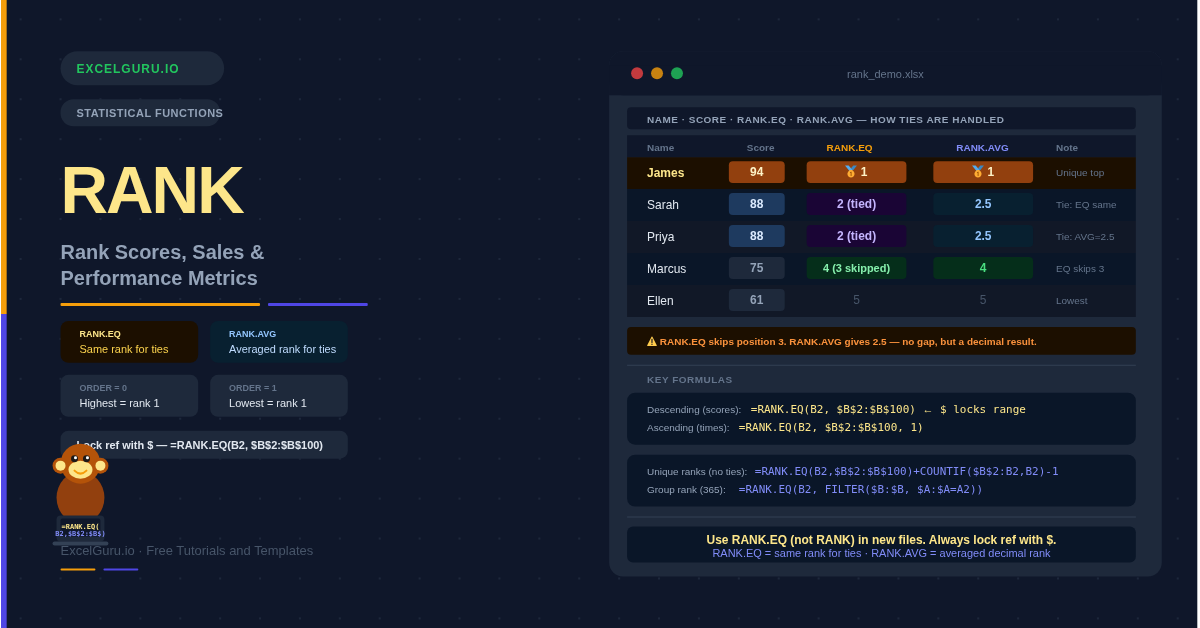
Sorting a column to find rank positions destroys the original order and produces a static result. Every time data changes, you need to sort again. The RANK.EQ function solves this — it calculates each value's position in a list without moving anything. Update a single cell, and every rank in the column refreshes automatically. Furthermore, RANK.EQ handles both ascending and descending order, making it equally useful for test scores, race times, and sales figures.
Excel provides three ranking functions: RANK, RANK.EQ, and RANK.AVG. They share the same syntax. However, their tie-handling behaviour differs, and Microsoft recommends using RANK.EQ or RANK.AVG in new files rather than the older RANK function.
What Is the Syntax for RANK.EQ, RANK.AVG, and RANK?
All three functions share identical syntax. Only the name and tie-handling logic differ.
| Argument | Required? | What it does |
|---|---|---|
| number | Required | The value whose rank you want. Usually a cell reference pointing to one number in the list. |
| ref | Required | The full list of numbers to rank against. Always lock this with $ signs so it does not shift when the formula is copied down the column. |
| order | Optional | 0 (or omitted) = descending, largest value ranked 1st. Use this for scores and sales. 1 = ascending, smallest value ranked 1st. Use this for race times and error counts. |
How Do RANK.EQ, RANK.AVG, and RANK Differ?
The only meaningful difference is how tied values are handled. RANK.EQ assigns both duplicates the same rank and skips the next position. RANK.AVG, by contrast, averages the positions they would have occupied. The original RANK function behaves identically to RANK.EQ.
| Feature | RANK.EQ | RANK.AVG | RANK (legacy) |
|---|---|---|---|
| Tie handling | Same rank, next position skipped | Average of the tied positions | Same as RANK.EQ |
| Tie result example (2nd and 3rd tie) | Both get rank 2; rank 3 is skipped | Both get rank 2.5 | Both get rank 2; rank 3 is skipped |
| Result type | Always an integer | Can be a decimal (e.g. 2.5) | Always an integer |
| Recommended? | ✅ Yes — use in new files | ✅ Yes — use when averages needed | ⚠ Legacy — may be deprecated |
| Available from | Excel 2010+ | Excel 2010+ | Excel 2000+ |
$B$2:$B$100 rather than B2:B100.
Example 1: Rank Scores — Highest Gets Rank 1
Descending rank is the default. It assigns rank 1 to the largest value. This suits exam scores, revenue figures, and any metric where higher is better. Leave the order argument blank or set it to 0.
Example 2: Ascending Rank for Race Times and Error Counts
For some metrics, a smaller value is better. A faster race time should earn rank 1. Fewer defects should earn the top position. Setting the order argument to 1 switches RANK.EQ to ascending mode — the smallest value gets rank 1.
Example 3: Break Ties and Assign Unique Ranks
RANK.EQ assigns the same rank to tied values and skips the next position. Sometimes, however, you need every row to have a unique rank — for instance, when generating a numbered leaderboard where no two entries can share the same position. Adding COUNTIF to the formula resolves ties by position in the list.
How the Tie-Break Formula Works
COUNTIF counts how many earlier rows hold the same value. Adding that count to the base RANK.EQ result pushes duplicate entries down by one position each. As a result, the first occurrence keeps the tied rank, and each subsequent duplicate receives the next available position.
Example 4: Conditional Rank Within a Group
Standard RANK.EQ ranks across the entire dataset. Often, however, you need to rank within a category — for instance, the top salesperson per region, or the highest score per class. Replacing the ref argument with a filtered array achieves this cleanly.
Example 5: Display Rank as a Label — "1st", "2nd", "3rd"
Numbers alone can look bare in a report. Combining RANK.EQ with a SWITCH or nested IF that appends "st", "nd", "rd", or "th" converts rank integers into proper ordinals. Additionally, a CHOOSE function handles the first three suffixes concisely.
=RANK.EQ(B2,$B$2:$B$20)&IF(RANK.EQ(B2,$B$2:$B$20)=1,"st",IF(RANK.EQ(B2,$B$2:$B$20)=2,"nd","th")).
Example 6: Rank with a Tiebreaker Column
When two rows share the same primary value, a secondary column can break the tie fairly. For example, two students with the same subject score might be ranked by their overall average. Two athletes with the same primary time might be separated by a secondary heat result. COUNTIFS handles multi-column tie-breaking cleanly.
How to Fix Common RANK Errors
Ranks shift when the formula is copied down
The ref argument is not locked with $ signs. Without them, the range shifts row by row as the formula copies. Each row then ranks against a different slice of the data. Fix this by using absolute references: replace B2:B100 with $B$2:$B$100.
#VALUE! error
RANK functions only work with numeric values. Text, blanks, and logical values in the ref range are ignored — but if the number argument itself is text, #VALUE! appears. Check whether the cell being ranked contains a number stored as text. Use ISNUMBER to verify, and VALUE() to convert if needed.
Wrong rank direction
The order argument is set incorrectly. For scores and revenue (higher is better), use 0 or omit the argument entirely. For times and error counts (lower is better), use 1. Specifically, a common mistake is using the default (descending) for a race time dataset — consequently, the fastest runner ends up ranked last.
Frequently Asked Questions
-
What is the difference between RANK.EQ and RANK.AVG?+Both functions rank values in a list, but they handle ties differently. RANK.EQ assigns the same integer rank to all tied values — for example, two values tied for 2nd both receive rank 2, and rank 3 is skipped. RANK.AVG, by contrast, averages the tied positions — both values receive rank 2.5, and no position is skipped. Use RANK.EQ for leaderboards and use RANK.AVG when performing statistical calculations that require continuous rank values.
-
Why does my RANK formula give the wrong result when copied down?+The most common cause is a relative reference in the ref argument. When you copy =RANK.EQ(B2, B2:B100) down, the ref shifts to B3:B101, B4:B102, and so on — each row compares against a different range. Fix this by locking the ref with $ signs: =RANK.EQ(B2, $B$2:$B$100). The $ prevents the range from shifting while the number argument (B2) correctly updates to B3, B4, and so on.
-
How do I rank within a category or group?+Replace the standard ref argument with a conditional array. The COUNTIFS method works in all versions: =COUNTIFS($A$2:$A$100, A2, $B$2:$B$100, ">"&B2)+1. This counts how many rows in the same group have a higher value and adds 1 for the rank. In Excel 365, alternatively use FILTER: =RANK.EQ(B2, FILTER($B$2:$B$100, $A$2:$A$100=A2)).
More Questions About RANK Functions
-
How do I force unique ranks with no ties?+Add COUNTIF with an expanding range to push duplicates down: =RANK.EQ(B2, $B$2:$B$100) + COUNTIF($B$2:B2, B2) - 1. The $B$2:B2 range starts fixed at the top but expands as the formula copies down. For each row, COUNTIF counts how many times that value appeared above it. Subtracting 1 ensures the first occurrence keeps its natural rank. Subsequent duplicates receive the next available positions.
-
What is the order argument in RANK.EQ?+The order argument controls rank direction. Use 0 (or omit it) for descending order, where the largest value gets rank 1 — this suits scores, sales, and revenue. Use 1 for ascending order, where the smallest value gets rank 1 — this suits race times, costs, and error counts. Getting the direction wrong produces rankings that are completely reversed, so it is worth double-checking against your specific use case.
-
Which Excel versions support RANK.EQ and RANK.AVG?+RANK.EQ and RANK.AVG are available in Excel 2010 and later, including Microsoft 365, Excel 2024, 2021, 2019, and 2016. The older RANK function works in every version from Excel 2000 onwards, but Microsoft may discontinue it in a future release. For new files, RANK.EQ is the recommended choice — it produces the same results as RANK while aligning with Microsoft's current function guidelines.