
Key takeaways
- The fastest way to split a spreadsheet into separate files is a folder-writing script, not manual filtering and copy-paste.
- Excel Splitter is free and open-source (MIT), built in Python with
pandas. - Split by column (
--by region) writes one file per unique value. - Split by rows (
--rows 1000) writes fixed-size chunks. - Output as
.xlsxor.csv, with safe, readable file names.
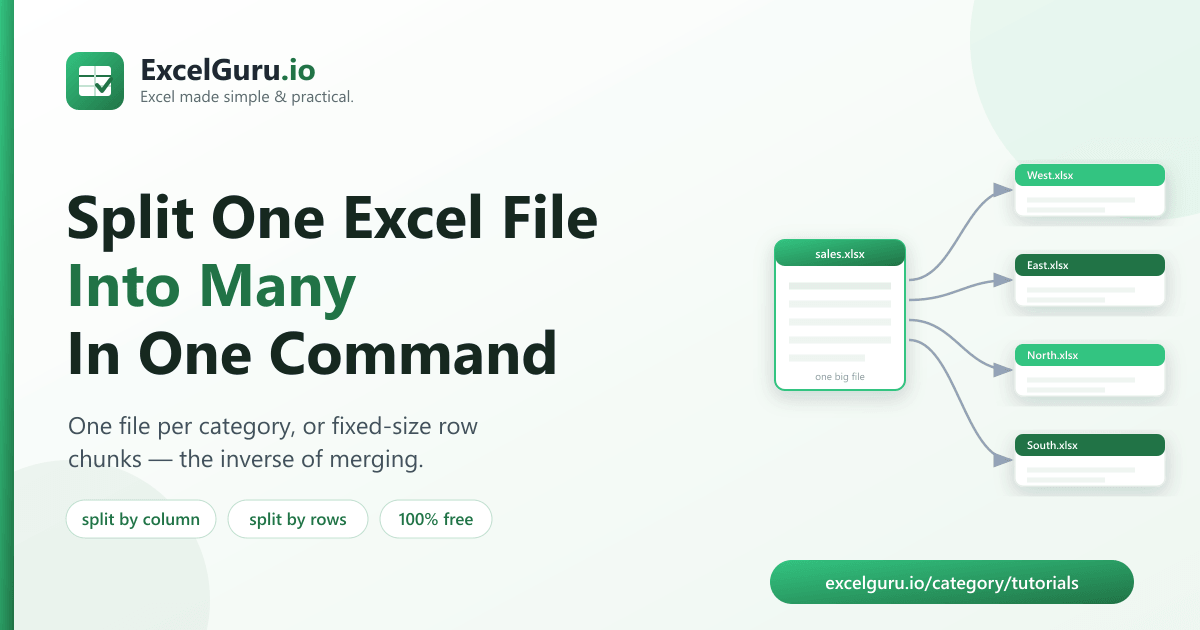
To split an Excel file into multiple files, run a free tool called Excel Splitter, which breaks one spreadsheet into many — either one file per category (like region or client) or into fixed-size chunks of N rows. It's the exact inverse of merging, and it runs in a single command with no manual copy-paste.
Why splitting a spreadsheet by hand is painful
You've got one master sheet and you need it broken up — a separate file for each sales rep, each region, each month, or just smaller pieces because the file is too big to share. The manual way is tedious: filter by a value, copy the visible rows, paste into a new file, save, repeat. On a dozen categories that's a dozen chances to grab the wrong rows or forget one.
A script does it in one pass — every category gets its own correctly-filtered file, named clearly, every time.
How to install the tool (2 minutes)
You need Python 3.9 or newer. Clone the repository and install its dependencies:
git clone https://github.com/Synth88Labs/excel-tool-splitter.git
cd excel-tool-splitter
pip install -r requirements.txt
Get Excel Splitter on GitHub (free)
How to split an Excel file into multiple files — step by step
Option A — One file per category (split by column)
To write a separate file for each unique value in a column — for example one file per
region:
python split_excel.py sales.xlsx --by region -o split_outputYou'll get West.xlsx, East.xlsx, North.xlsx, and so on, each
containing only that region's rows.
Option B — Fixed-size chunks (split by rows)
To break a large file into smaller pieces of a set number of rows each:
python split_excel.py sales.csv --rows 1000 -o chunks --format csvThis writes part_001.csv, part_002.csv, and so on — 1000 rows per file.
Choose your output format
Add --format csv or --format xlsx (the default) to control the output type,
and --prefix to add a label to every file name.
--by and --rows are mutually exclusive — pick one mode
per run. The tool also creates the output folder for you if it doesn't exist.
Split by column vs. split by rows
| Mode | Command | Best for |
|---|---|---|
| By column | --by region |
One file per category — region, client, month, department |
| By rows | --rows 1000 |
Breaking a huge file into smaller, shareable pieces |
Real work use cases
- Distribute reports — send each manager only their region's or team's rows.
- Per-client files — split a master list into one file per client for handoff.
- Break up huge exports — chunk a file that's too big to email or import.
- Monthly archives — one file per month from a single year-long sheet.
- Batch processing — split into row chunks to process pieces in parallel.
Common mistakes to avoid
- Splitting on a messy column. If a column has inconsistent values
(
"West"vs"west "), you'll get duplicate-looking files. Clean the data first. - Too many tiny files. Splitting by a high-cardinality column (like an ID) creates one file per row. Split by a grouping column, not a unique key.
- Forgetting the format. The default output is
.xlsx; add--format csvif you need CSVs. - Reusing an output folder. Old files from a previous run may linger — use a fresh or empty output folder.
Frequently asked questions
How do I split an Excel file into separate files by a column?
Run python split_excel.py yourfile.xlsx --by COLUMN -o output_folder. The tool writes
one file per unique value in that column, each containing only the matching rows.
How do I split a large CSV into smaller files?
Use the row mode: python split_excel.py big.csv --rows 1000 --format csv. This creates
files of 1000 rows each.
Can I choose the output format?
Yes. Add --format xlsx (default) or --format csv to control the output
file type.
Is Excel Splitter free?
Yes. It's open-source under the MIT license, free for personal and commercial use. The source is on GitHub.
Do I need Excel installed?
No. It reads and writes files with Python libraries, so it works without Microsoft Excel installed.
What happens to blank values in the split column?
Rows with a blank value in the chosen column are written to a file named blank, so no
data is lost.
Can I merge the files back together later?
Yes — use the companion Excel/CSV Merger to combine a folder of files back into one.
Summary
Splitting a master spreadsheet by hand is slow and error-prone.
Excel Splitter breaks one file into many in a single command — one file per category
with --by, or fixed-size chunks with --rows. It's free, open-source, and
works without Excel installed.