
Key takeaways
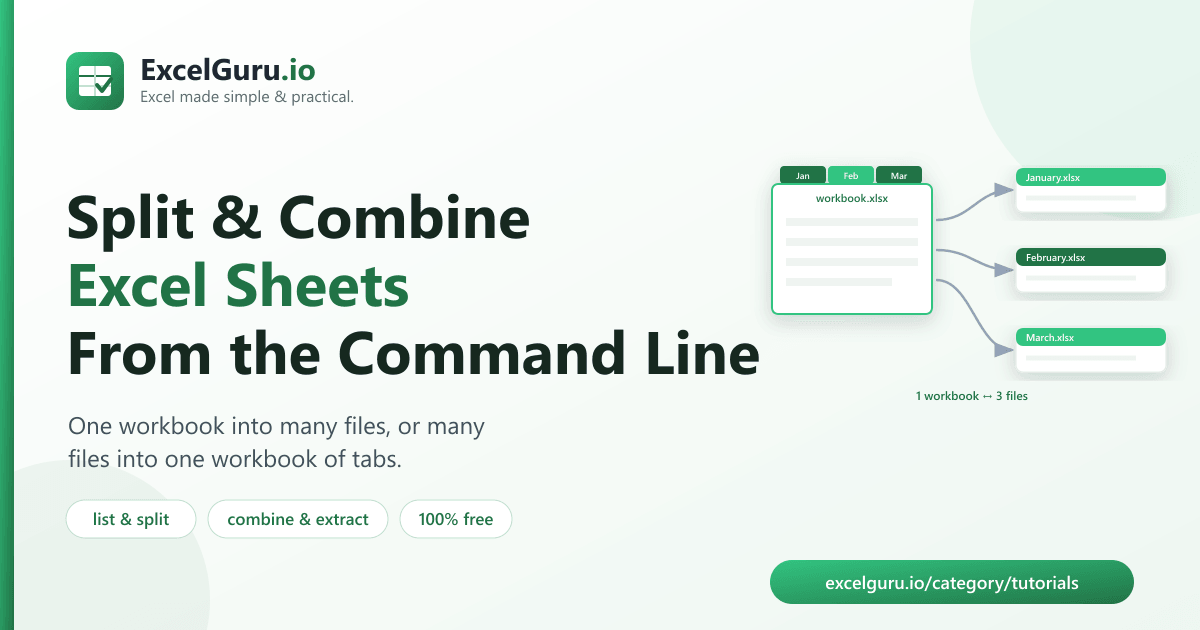
- Excel makes you save each tab by hand — this tool splits a whole workbook into files in one command.
- Excel Sheet Manager is free and open-source (MIT), built in Python.
- split: multi-sheet workbook → one file per sheet.
- combine: many files → one workbook, a tab per file.
- Plus list (see the tabs) and extract (pull out named sheets).
To split an Excel workbook into separate files — one per sheet — or combine many files into one multi-tab workbook, run a free tool called Excel Sheet Manager. It also lists a workbook's tabs and extracts just the sheets you name, all from a single command.
The workbook chores Excel makes tedious
You have a workbook with a tab for every month and someone wants each month as its own file. Or you have a folder of separate files and need them all in one workbook, one tab each. In Excel that means right-click → Move or Copy → “create a copy” → save… over and over, tab by tab.
Sheet Manager turns all of that into a single command — and it handles Excel’s fussy sheet-name rules
(max 31 characters, no \ / ? * [ ] :) for you.
combine puts them back into one workbook.How to install the tool (2 minutes)
You need Python 3.9 or newer. Clone the repository and install its dependencies:
git clone https://github.com/Synth88Labs/excel-tool-sheets.git
cd excel-tool-sheets
pip install -r requirements.txt
Get Excel Sheet Manager on GitHub (free)
How to split and combine Excel sheets — step by step
See the tabs (list)
python sheets_excel.py list workbook.xlsxSplit a workbook into one file per sheet
python sheets_excel.py split workbook.xlsx -o tabsEach tab becomes its own file (named after the sheet). Add --format csv for CSV output.
Combine files into one workbook
python sheets_excel.py combine january.csv february.csv march.csv -o year.xlsxEach file becomes a tab, named after the file.
Extract only the sheets you want
python sheets_excel.py extract workbook.xlsx --sheets "January,March" -o out\ / ? * [ ] :) replaced — and duplicate
names are made unique, so nothing collides.
The four commands
| Command | What it does |
|---|---|
list | Print the sheet names in a workbook |
split | Write one file per sheet |
combine | Merge files into one workbook — a tab per file |
extract | Write only the named sheets to their own files |
Real work use cases
- Distribute tabs — send each department or month its own file from one workbook.
- Consolidate files — gather a folder of files into one tabbed workbook.
- Pull one tab — extract a single sheet to share without the rest.
- Audit a workbook — list every tab at a glance.
- Prep for a system — some tools want one file per sheet, others one workbook.
Common mistakes to avoid
- Confusing sheets with rows. This tool works on tabs. To combine rows from many files into one sheet, use the Merger instead.
- Long or illegal file names when combining. They’re auto-sanitized to valid tab names, so the output name may be shortened — check the printed sheet list.
- Expecting formatting to survive. Splitting/combining moves the data; heavy styling and formulas may not carry over perfectly.
- Overwriting an output folder. Old files from a previous run can linger — use a fresh output folder.
Frequently asked questions
How do I save each Excel sheet as a separate file?
Run python sheets_excel.py split workbook.xlsx -o out_dir. Each tab is written to its own
file, named after the sheet.
How do I combine multiple files into one workbook?
Run python sheets_excel.py combine file1.csv file2.xlsx -o combined.xlsx. Each file becomes
a tab in the new workbook.
How do I list the sheets in a workbook?
Run python sheets_excel.py list workbook.xlsx to print every sheet name.
Can I extract just one sheet?
Yes. Use extract with --sheets "Name" to pull specific sheets into their own
files.
Is Excel Sheet Manager free?
Yes. It's open-source under the MIT license, free for personal and commercial use. The source is on GitHub.
Do I need Excel installed?
No. It reads and writes files with Python libraries, so it works without Microsoft Excel installed.
What happens to invalid sheet names?
When combining, names are trimmed to 31 characters with illegal characters replaced, and duplicates are made unique automatically.
Summary
Saving every tab by hand — or copying files into one workbook one at a time — is tedious. Excel Sheet Manager splits a workbook into files, combines files into a workbook, lists tabs, and extracts sheets, all in one command. It's free, open-source, and works without Excel installed.