
Key takeaways
- The repeatable way to reshape columns is a script, not dragging and re-doing Text-to-Columns every time.
- Excel Column Tool is free and open-source (MIT), built in Python with
pandas. - Split a column by a delimiter (e.g. full name → first + last).
- Combine columns into one with a separator (e.g. city + country → location).
- Also rename, drop, and reorder — combine every operation in one run.
To reshape the columns of a spreadsheet, run a free tool called Excel Column Tool, which can split one column into several, combine columns into one, rename, drop, and reorder — all in one command. It's Excel's Text-to-Columns and Concatenate, automated and repeatable.
The column chores Excel makes you repeat
Splitting a "Full Name" column into first and last. Gluing "City" and "Country" into one field. Renaming cryptic headers, deleting junk columns, and putting everything in the right order before an import. In Excel that's Text-to-Columns wizards, helper formulas, and manual dragging — redone by hand every time the data refreshes.
One command replaces all of it, and produces the exact same layout every time.
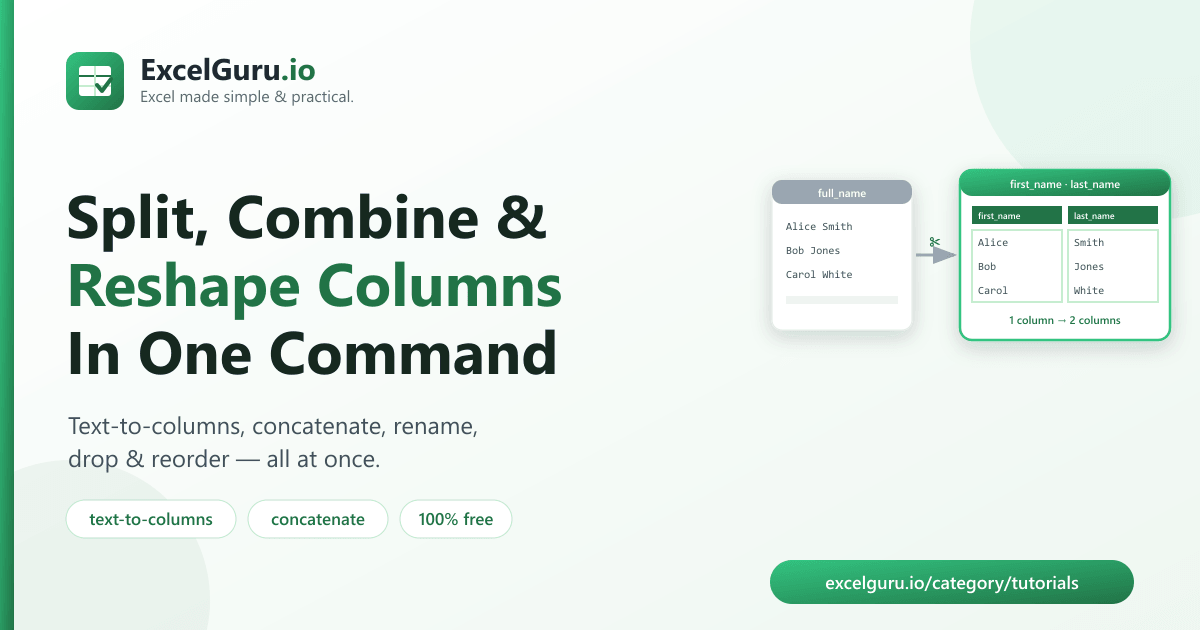
full_name into first_name and last_name.How to install the tool (2 minutes)
You need Python 3.9 or newer. Clone the repository and install its dependencies:
git clone https://github.com/Synth88Labs/excel-tool-columns.git
cd excel-tool-columns
pip install -r requirements.txt
Get Excel Column Tool on GitHub (free)
How to reshape Excel columns — step by step
Split a column (Text-to-Columns)
Split full_name by a space into first_name and last_name:
python columns_excel.py people.csv --split "full_name: :first_name,last_name"The format is source:DELIM:new1,new2 — here the delimiter is a single space.
Combine columns (Concatenate)
Join city and country into a location column:
python columns_excel.py people.csv --combine "location=city,country:, "The format is target=colA,colB:SEP — here the separator is a comma and space.
Rename, drop, and reorder
python columns_excel.py data.csv --rename "amt=amount" --drop notes --select id,amount,locationThe operations at a glance
| Option | Format | Example |
|---|---|---|
--split | source:DELIM:new1,new2 | full_name: :first,last |
--combine | target=colA,colB:SEP | location=city,country:, |
--rename | old=new,old2=new2 | amt=amount |
--drop | col1,col2 | notes,temp |
--select | col1,col2,... | id,amount |
Real work use cases
- Split names & addresses — full name → first/last, address → street/city/zip.
- Build display fields — combine columns into a single label or key.
- Prep for import — rename headers and reorder columns to match a target schema.
- Trim the fat — drop columns a downstream system doesn't need.
- Standardize exports — apply the same column layout every time data refreshes.
Common mistakes to avoid
- Uneven splits. "Mary Anne Smith" split by space gives three parts, not two — extra parts are dropped and missing ones become blank. Check your delimiter matches the data.
- Wrong delimiter. The
--splitdelimiter is literal; a comma-separated value needs,, a space needs a real space between the colons. - Referencing renamed columns too early. Rename happens after split and
combine — use original names in
--split/--combine, new names in--select. - Overwriting your source. The tool writes to a new file by default — keep it that way until you've checked the output.
Frequently asked questions
How do I split one Excel column into two?
Run python columns_excel.py file.csv --split "column:DELIM:new1,new2". For a full name
split by space, use --split "full_name: :first_name,last_name".
How do I combine two columns into one?
Use --combine "target=colA,colB:SEP", for example
--combine "location=city,country:, " to join with a comma and space.
Can I do several column changes at once?
Yes. Pass --split, --combine, --rename, --drop,
and --select together; they run in that order.
How do I reorder columns?
Use --select with the columns in the order you want — it keeps only those columns, in
that sequence.
Is Excel Column Tool free?
Yes. It's open-source under the MIT license, free for personal and commercial use. The source is on GitHub.
Do I need Excel installed?
No. It reads and writes files with Python libraries, so it works without Microsoft Excel installed.
Does it change my original file?
No. It writes to a new file and leaves the source untouched.
Summary
Reshaping columns by hand — Text-to-Columns wizards, helper formulas, manual reordering — is repetitive and error-prone. Excel Column Tool splits, combines, renames, drops, and reorders columns in one command, the same way every time. It's free, open-source, and works without Excel installed.