
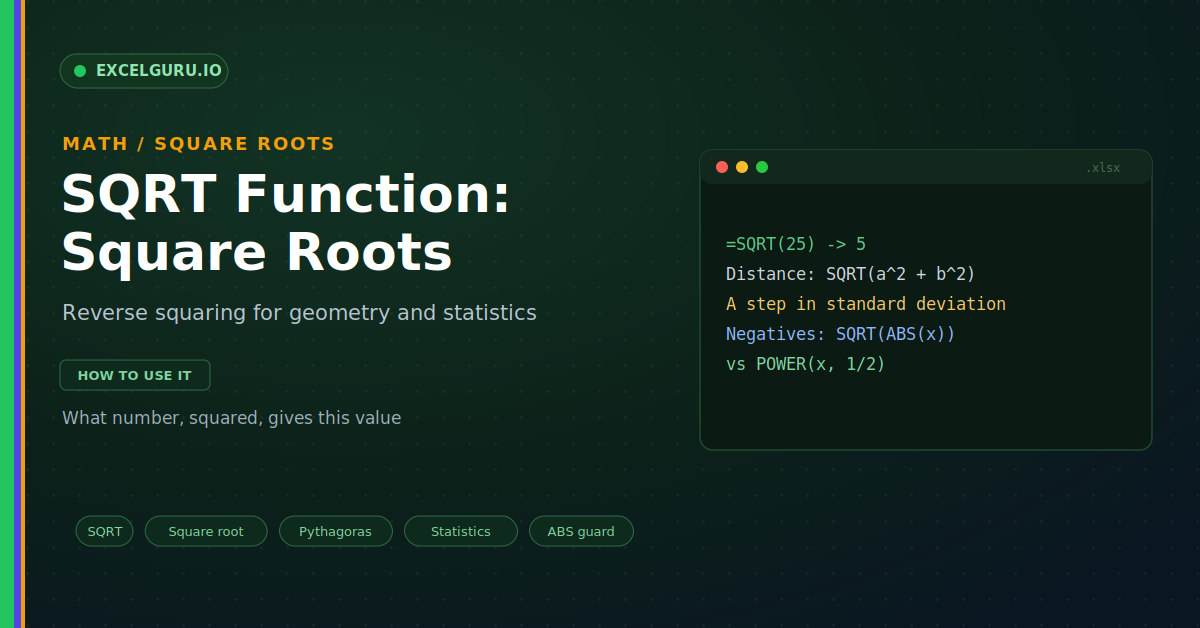
Square roots turn up in a lot of everyday maths. Geometry uses them to measure distances and diagonals. Statistics uses them inside the standard deviation. Finance uses them to convert rates between time periods. Working a root out by hand is slow and imprecise. The SQRT function does it instantly. It returns the square root of any positive number.
SQRT is a simple, reliable maths function in every version of Excel. It answers one clear question: what number, squared, gives this? This guide explains it with realistic examples. By the end, you will use roots in real formulas with ease.
What SQRT Does
SQRT reverses the act of squaring. Squaring five gives twenty-five. So the square root of twenty-five is five. In short, it undoes a square, as below.
Think of it as a question, not a command. It asks which number times itself gives your value. For twenty-five, that number is five. As a result, SQRT hands you the answer at once.
The Syntax
The SQRT syntax is as short as they come. You give it a single number. Excel returns the square root of that number. So there is only one argument to worry about.
Example: Distance With Pythagoras
The most famous use is the Pythagorean rule. It finds the long side of a right triangle. You square the two short sides, add them, then root. So SQRT gives the straight-line distance, as below.
Example: A Step Inside Statistics
SQRT sits at the heart of many stats formulas. Standard deviation is the classic case. You find the variance, then take its root. So SQRT converts variance into a readable spread.
SQRT Versus POWER
You can also find a root with POWER. A power of one half gives a square root. So SQRT and POWER can agree here. The difference is mostly about clarity.
Handle Negative Numbers
SQRT cannot take a root of a negative. A negative input returns a number error. Often the sign is noise you can drop. So the ABS function clears it first, as below.
Troubleshooting SQRT
All three problems below are the most common. Each has a clear cause and a quick fix.
A #NUM! error appears
This means the input is negative. SQRT has no real answer for a negative number. So Excel returns a number error instead. First, check whether the value should be negative at all. If the sign is not needed, wrap it in ABS. Use =SQRT(ABS(number)) to be safe. After that, the error clears.
A #VALUE! error appears
This points to text in the input. SQRT needs a number, not a word. So a stray label triggers this error. First, click the referenced cell and check its contents. Look for spaces or text stored as a value. Then convert it to a true number. After that, SQRT works normally.
I expected a negative root
SQRT always returns the positive root. Every positive number has two roots in theory. So Excel gives only the positive one. First, decide if the negative version matters. If it does, simply add a minus sign yourself. Write =-SQRT(number) for the negative case. After that, you have the value you need.
Frequently Asked Questions
- What does the SQRT function do?+It returns the square root of a number. For example, =SQRT(25) returns 5. That is the number which, squared, gives 25. So it reverses squaring.
- Why does SQRT show a #NUM! error?+Because the input is a negative number. SQRT has no real root for negatives. So wrap the value in ABS if the sign is noise. Use =SQRT(ABS(number)) to avoid the error.
- What is the difference between SQRT and POWER?+SQRT is built only for square roots. POWER can raise a number to any exponent. So =POWER(16, 1/2) also gives a square root. Use POWER for cube roots and higher.
- How do I find distance with SQRT?+Use the Pythagorean rule inside SQRT. Square the horizontal and vertical gaps first. Then take the root of their sum. So =SQRT(dx^2 + dy^2) gives the distance.