
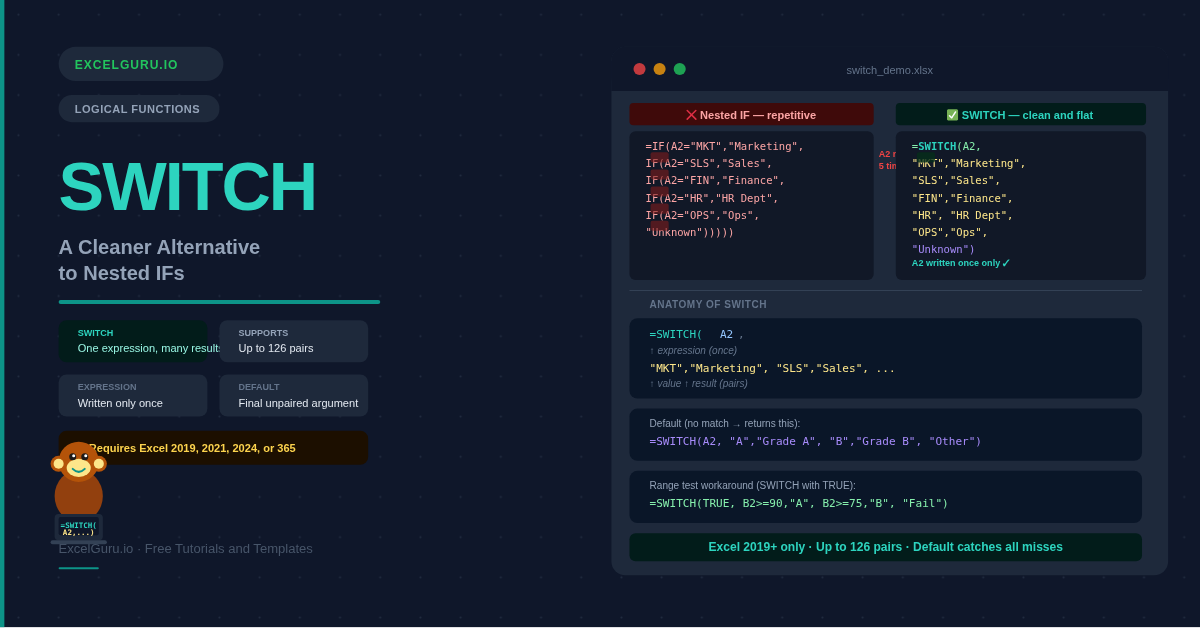
Nested IF formulas grow in one direction: outward. Each additional condition adds another layer of brackets. By the fourth or fifth layer, the formula becomes difficult to read, harder to audit, and easy to break when edited. The SWITCH function solves this problem directly. It maps a single expression to a list of possible values and returns the result for the first match — all in one clean, flat formula.
SWITCH is ideal whenever you need to convert a code, label, or number into another value. Status codes become plain-English labels. Numeric weekdays become day names. Region abbreviations become full region names. Furthermore, a default value at the end handles every unmatched case gracefully.
What Is the SWITCH Syntax?
SWITCH compares one expression against up to 126 values and returns the result for the first match.
| Argument | Required? | What it does |
|---|---|---|
| expression | Required | The value to test. This is usually a cell reference, but can also be a formula. The expression is evaluated once, then compared against each value in turn. |
| value1, result1 | Required | The first match/result pair. If expression equals value1, SWITCH returns result1 immediately and stops testing further pairs. |
| value2, result2… | Optional | Additional match/result pairs, up to 126 total. Each pair must be complete — you cannot have a value without its result. |
| default | Optional | The value to return when no match is found. Without a default, SWITCH returns #N/A on no match. Add a default as the final odd argument (not a value/result pair). |
How Does SWITCH Compare to Nested IF and IFS?
All three approaches can produce the same output. However, each has a different strength. SWITCH is the clearest when the expression is a single cell and you are matching against fixed values. IFS is better for range-based tests (greater than, less than). Nested IF works in all Excel versions, making it the fallback for older files.
| Feature | SWITCH | IFS | Nested IF |
|---|---|---|---|
| Expression written once? | ✅ Yes | ❌ Repeated per condition | ❌ Repeated per condition |
| Supports range tests (>, <)? | ❌ Exact match only | ✅ Yes | ✅ Yes |
| Default / catch-all | ✅ Final argument | ✅ TRUE workaround | ✅ Final else clause |
| Max conditions | 126 pairs | 127 | 64 (Excel 2007+) |
| Available in Excel 2016? | ❌ No | ❌ No | ✅ Yes |
| Best for | Exact value mapping | Range and logic tests | Legacy compatibility |
=SWITCH(A2, >100, "High", <=100, "Low"). For range-based tests, use IFS or nested IF instead. However, you can pass an expression as the first argument — for example =SWITCH(MOD(A2,2), 0, "Even", 1, "Odd") — to handle logic within SWITCH indirectly.
Example 1: Map a Code to a Label
The most common use of SWITCH is converting a short code into a readable label. Department codes, status abbreviations, region identifiers, and product categories are all good candidates. SWITCH handles each case cleanly and returns a default when the code is unrecognised.
Example 2: Convert Weekday Numbers to Day Names
SWITCH pairs naturally with functions that return numeric codes. The WEEKDAY function returns 1–7 depending on the day of the week. SWITCH then maps those numbers to readable names. This combination works for MONTH (1–12), QUARTER, and any other function that produces a small set of numeric results.
Example 3: Use an Expression Inside SWITCH
SWITCH is not limited to simple cell references. Any formula that produces a single value works as the expression. This opens up range-based matching — something SWITCH does not support natively with operators. By evaluating the condition in the expression argument, you can effectively handle greater-than and less-than logic.
Example 4: Return a Calculation as the Result
Results in SWITCH do not have to be text strings or fixed values. Each result argument accepts any formula. Consequently, different branches of the SWITCH can apply completely different calculations — discount rates, multipliers, lookup formulas, or date offsets — based on the matched value.
Example 5: SWITCH as a Mini Lookup Table
For small, stable mapping sets, SWITCH is a lightweight alternative to VLOOKUP. It keeps the mapping inside the formula — no lookup table required. This is especially convenient for dashboards where adding a separate table would clutter the sheet.
When to Use SWITCH Instead of VLOOKUP
VLOOKUP is better for large or frequently changing mapping tables. SWITCH is better when the list is short, fixed, and unlikely to change — for instance, mapping 4 region codes or 5 status labels. Additionally, SWITCH avoids reference errors when the lookup table is on a different sheet that might be renamed or moved.
Example 6: Handle Missing Matches with a Default Value
Without a default argument, SWITCH returns #N/A whenever the expression does not match any value. This error propagates through dependent formulas and breaks summaries. Adding a default — even an empty string — prevents this entirely. The default is always the final argument, with no value paired before it.
How to Fix Common SWITCH Errors
#N/A — no match found
SWITCH returns #N/A when the expression does not equal any listed value and no default argument was provided. The fix is straightforward — add a default as the final argument. Even an empty string ("") stops the error from propagating. Alternatively, wrap the entire formula in IFERROR for a more general catch.
#VALUE! — mismatched value/result pairs
Every value must have a corresponding result. If you accidentally omit a result — for example, writing three values but only two results — Excel returns #VALUE!. Count the arguments carefully. Additionally, the default is intentionally an odd argument (unpaired), so it should always be the very last entry.
SWITCH returns the wrong result
The most likely cause is a type mismatch. SWITCH uses exact comparison, so the number 1 does not equal the text "1". To verify, use ISNUMBER or ISTEXT on the expression cell. Also check whether the expression produces leading or trailing spaces — in that case, TRIM the cell reference before using it in SWITCH.
Frequently Asked Questions
-
What is the SWITCH function in Excel?+SWITCH evaluates one expression — usually a cell reference — against a list of values and returns the result for the first match. It is a cleaner alternative to nested IF statements for exact value mapping. The expression appears just once, and each match/result pair follows in sequence. A final unpaired argument acts as the default when nothing matches.
-
What is the difference between SWITCH and IFS?+SWITCH compares one expression against exact values — for example, matching "MKT" to "Marketing". The expression is written once and must match exactly. IFS, by contrast, evaluates full logical conditions for each case — for example, B2>=90 — making it suitable for range-based tests. Use SWITCH when matching fixed values; use IFS when each condition involves a comparison operator.
-
How do I add a default value in SWITCH?+Add a single unpaired argument as the last entry in SWITCH. For example: =SWITCH(A2, "A", "Grade A", "B", "Grade B", "Not recognised"). The "Not recognised" text has no value before it, so Excel treats it as the default. Without this argument, SWITCH returns #N/A for any unmatched expression. Use "" for a blank result or 0 when the output feeds into a numeric formula.
More Questions About SWITCH
-
Can SWITCH handle greater-than and less-than comparisons?+Not directly — SWITCH only performs exact matching. However, you can work around this by using TRUE as the expression: =SWITCH(TRUE, B2>=90, "A", B2>=75, "B", "Fail"). Each condition evaluates to TRUE or FALSE, and SWITCH returns the result for the first condition that equals TRUE. This mimics the behaviour of IFS and is a useful technique when you prefer SWITCH's cleaner syntax.
-
How many conditions can SWITCH handle?+SWITCH accepts up to 126 value/result pairs, plus the optional default — making 253 arguments in total. In practice, however, formulas with more than ten or twelve pairs become difficult to read and maintain. For larger mapping tables, consider using VLOOKUP or XLOOKUP with a lookup range, which is easier to update without editing the formula itself.
-
Which Excel versions support SWITCH?+SWITCH is available in Excel 2019, Excel 2021, Excel 2024, and Microsoft 365. It is also supported in Excel for the web and Google Sheets. Notably, it is not available in Excel 2016 or earlier — formulas containing SWITCH produce a #NAME? error in those versions. For workbooks shared with colleagues on older Excel, use IFS or nested IF as a compatible alternative.