
A project budget that lives in a finance system but not in the project manager’s hands is a budget that cannot be managed. By the time the finance report arrives, the overspend has already happened.
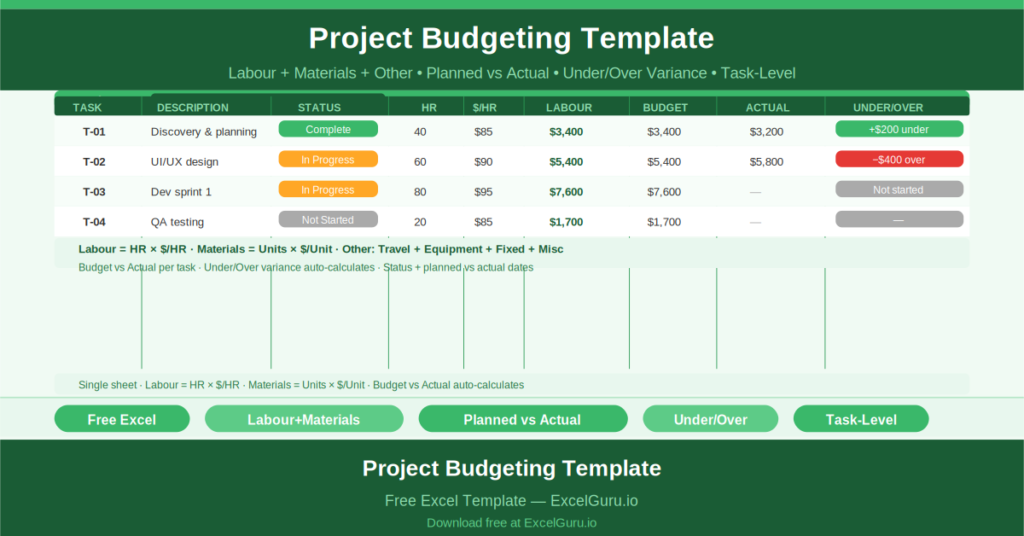
This free Excel Project Budgeting Template puts the budget directly in the project manager’s hands. Every task has its own row. Labor, materials, and other costs calculate at the task level. Planned versus actual spend is tracked side by side. An Under/Over column shows at a glance whether each task is on budget.
Download Project Cost Benefit Analysis Template In Excel.
What Is the Project Budgeting Template?
The Project Budgeting Template is a free Microsoft Excel workbook with a single sheet. It tracks task-level costs across three categories — Labor, Materials, and Other — with automatic calculation of totals, budget vs actual comparisons, and variance flags.
The header displays the Project Name, Start Date, and a running Balance that reflects total budget health. Task rows form the main body of the template.
The Three-Category Cost Structure
Each task row tracks costs across three categories:
- Labor: Hours (HR) multiplied by the hourly rate ($/HR) to produce the Labor Total automatically
- Materials: Units multiplied by the per-unit cost ($/Units) to produce the Materials Total automatically
- Other: split into Travel, Equipment/Space, Fixed costs, and Miscellaneous, summed into an Other Total
Every calculation happens automatically. Enter the inputs and the totals appear without any manual arithmetic.
Planned vs Actual and Variance
For each task, the template tracks Budget (planned cost), Actual (recorded spend), and Under/Over (the difference). This three-column comparison makes budget variance immediately visible at the task level — not just at the project level.
When actuals are entered as work progresses, the Under/Over column updates automatically. Green variance means under budget. Red or positive variance signals an overrun that needs attention before it compounds.
Task Status and Date Tracking
Each task also records Status (Not Started, In Progress, Complete, Overdue), Start Date Planned, Start Date Actual, and End Date. Comparing planned versus actual start dates reveals scheduling drift — tasks that started late and are therefore likely to finish late.
Who Should Use This Template?
Project managers who need to track budget at the task level — not just at the project level — will use this template to maintain a real-time view of cost vs plan without waiting for finance reports.
Small business owners and freelancers managing project costs for clients will use the template to record and report spend accurately at each task stage.
Operations managers overseeing capital or improvement projects will use the task-level detail to identify which activities are consuming budget fastest and adjust resource allocation accordingly.
How to Use the Template
Open the workbook. Enter the Project Name and Start Date. For each task, enter the Task ID, Description, and Status. Enter planned hours and hourly rate for Labor. Enter units and unit price for Materials. Enter any Other costs. The totals calculate automatically. Update Actual figures as work progresses to maintain the Budget vs Actual comparison.
Download the free Project Budgeting Template and track every project cost at the task level, in real time.