
A delivery arrives, someone signs, and the boxes disappear into the back. Too often, nobody checks whether the count and quality match the order.
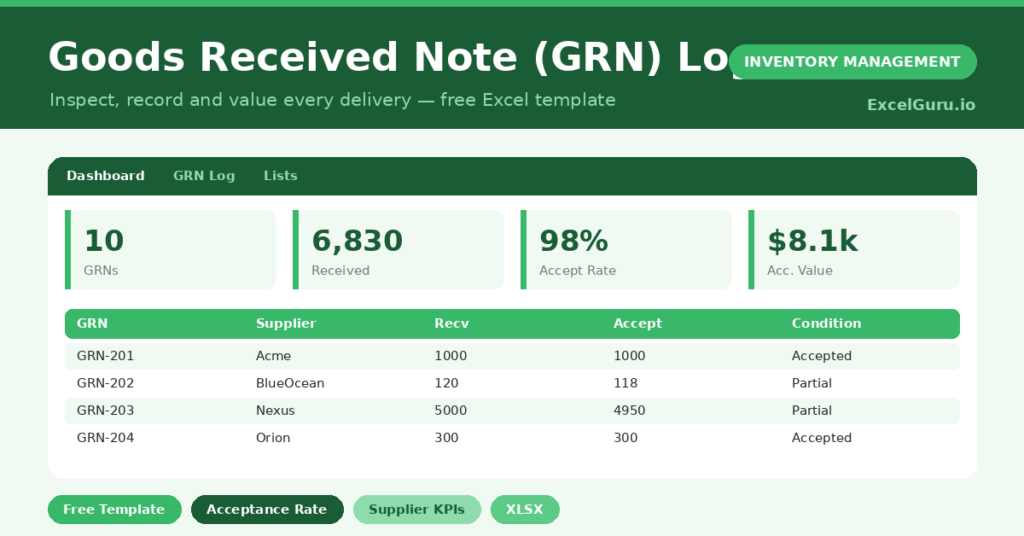
This free goods received note log closes that gap. You record and inspect every delivery, and the sheet values the accepted goods automatically. You will also find realistic sample data already inside the file. Therefore, you can explore every formula, dropdown and chart first, and then replace the samples with your own records in minutes.
Below, we explain the formulas, the workflow, and how to adapt the log to your own receiving process.
Also, check out Stock in/out register template in Excel and download for free.
What Is a Goods Received Note Log?
A goods received note, or GRN, records what actually arrived from a supplier. It captures the quantity received, the quantity accepted and any rejections.
A GRN log gathers these notes in one place. As a result, you have proof of every delivery and a clear record of supplier quality.
Why Does Goods Receiving Matter?
Receiving is the last line of defense against paying for goods you never got. Short shipments and damaged stock slip through when nobody inspects on arrival.
A disciplined GRN process catches these issues at the door. Therefore, you only accept and pay for what truly meets the order. Over time, the log also shows which suppliers deliver cleanly and which need a closer watch.
Why Use This Template?
A good GRN log protects both cash and quality. In particular, this one helps you:
- Record every delivery against its purchase order.
- Separate accepted and rejected quantities clearly.
- Value the accepted goods automatically.
- Track supplier acceptance rates over time.
- Keep evidence for any supplier dispute.
What’s Inside the Template?
The workbook has four tabs:
- How to Use — a built-in guide.
- Dashboard — acceptance rate plus value by supplier.
- GRN Log — one row per delivery.
- Lists — supplier and inspector dropdowns.
What Formulas Does the Template Use?
The log uses clear Excel formulas:
| Formula | What it does |
| =Qty Received – Qty Accepted | Calculates the rejected quantity. |
| =Qty Accepted * Unit Cost | Values the accepted goods. |
| =IF(Rejected=0,”Accepted”,…) | Sets the condition from the quantities. |
| =SUM(Accepted) / SUM(Received) | Calculates the overall acceptance rate. |
| =SUMIF(Supplier, s, Accepted Value) | Totals accepted value per supplier. |
How Do You Use the Template?
The workflow is simple. Just follow these steps:
- Open the GRN Log and start a row for each delivery.
- Enter the GRN number, date, supplier and PO reference.
- Record the quantity received and the quantity accepted.
- Add the unit cost so the accepted value calculates.
- Let the rejected quantity and condition fill in automatically.
- Review acceptance rates on the Dashboard.
What Are the Best Use Cases?
The log fits many teams, such as:
- Warehouses checking incoming deliveries.
- Retailers receiving supplier orders.
- Manufacturers inspecting raw materials.
- Workshops verifying parts shipments.
- Finance teams matching receipts to invoices.
How Can You Modify the Template?
You can tailor it freely. To add suppliers or inspectors, edit the Lists tab and the dropdowns update at once.
You can also add a rejection-reason column to learn why goods fail inspection. Then summarize the reasons on the dashboard.
In addition, the log covers 40 deliveries by default, and you can copy the formulas down for many more.
What Mistakes Should You Avoid?
A few habits weaken the log. Therefore, avoid these common mistakes:
- Signing for goods before counting them.
- Leaving the accepted quantity blank, which breaks the value.
- Skipping the PO reference, so receipts cannot be matched.
- Ignoring a low acceptance rate instead of acting on it.
Tips to Get the Most From It
- Inspect quality and count before you accept.
- Record rejections honestly to hold suppliers to account.
- Match every GRN to its invoice before paying.
- Review supplier acceptance rates before renewing contracts.
Frequently Asked Questions
What is the difference between a GRN and a delivery note?
A delivery note comes from the supplier and states what they sent. A GRN is your own record of what you actually received and accepted, which may differ.
How is the acceptance rate calculated?
It divides the total accepted quantity by the total received quantity. Therefore, a falling rate is an early warning about a supplier’s quality.
Can I link GRNs to my purchase orders?
Yes. The PO reference column ties each delivery to its order, so you can confirm you received what you actually bought.
Should I keep rejected goods?
Hold them until the supplier responds. The log gives you the evidence to claim a credit or replacement.
Does it work in Google Sheets?
It does, with minor adjustments to dropdowns and formatting after importing.
Download the Template and Get Started
What you fail to check on arrival, you pay for later. This log makes disciplined receiving quick and routine.
Download the Goods Received Note Log and inspect your next delivery with confidence.