
Overtime is easy to wave through and hard to see the cost of. A few extra hours here and there add up to real money and real fatigue.
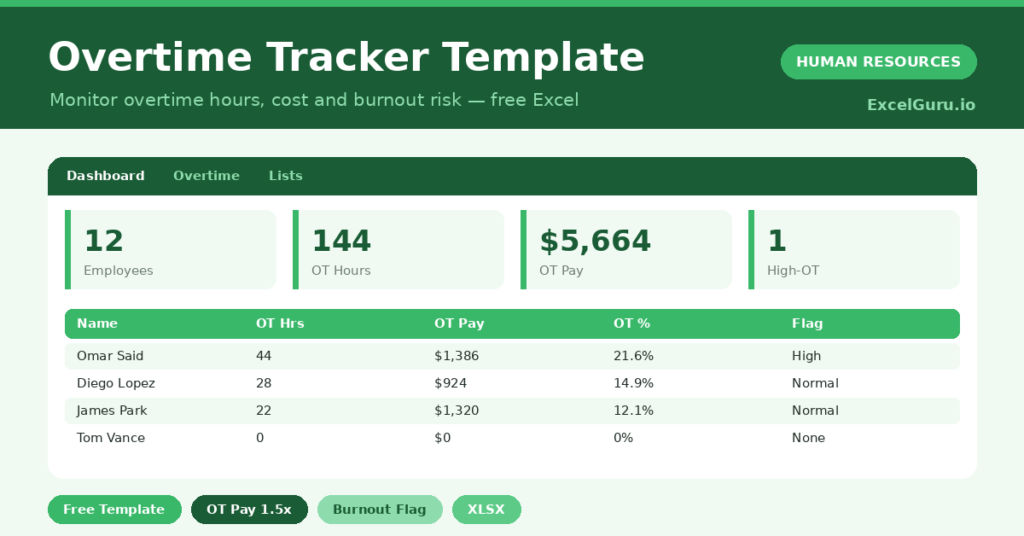
This free overtime tracker makes both visible. You log hours and a rate, and the sheet calculates the pay and flags anyone overloaded. You will also find realistic sample data already inside the file. Therefore, you can explore every formula, dropdown and chart first, and then replace the samples with your own records in minutes.
Below, we explain the formulas, the workflow, and how to adapt the tracker to your own rules.
What Is an Overtime Tracker?
An overtime tracker records the regular and overtime hours each employee works over a period. It then calculates the overtime pay.
It also measures overtime as a share of total hours. As a result, you can see both the cost and the warning signs of overwork.
Why Does Tracking Overtime Matter?
Overtime carries a double cost: money now and burnout later. Both are easy to miss until a budget overruns or a good employee quits.
A clear tracker surfaces both early. Therefore, you can control cost and protect your people before either becomes a crisis. Persistent overtime on one person is often a sign you are short-staffed.
Why Use This Template?
A clear tracker keeps overtime under control. In particular, this one helps you:
- Record regular and overtime hours per person.
- Calculate overtime pay with a premium.
- Measure overtime as a share of hours.
- Flag anyone with a high overtime load.
- See overtime cost by department.
What’s Inside the Template?
The workbook has four tabs:
- How to Use — a built-in guide.
- Dashboard — overtime hours, pay and flag KPIs.
- Overtime — one row per employee.
- Lists — the department dropdown and reference.
What Formulas Does the Template Use?
The tracker uses dependable Excel formulas:
| Formula | What it does |
| =OT Hours * Hourly Rate * 1.5 | Calculates overtime pay with the premium. |
| =OT Hours / (Regular + OT Hours) | Calculates overtime as a share of hours. |
| =IF(Share>0.2,”High”,”Normal”) | Flags a high overtime load. |
| =COUNTIF(Flag, “High”) | Counts staff with high overtime. |
| =SUMIF(Department, d, OT Pay) | Totals overtime pay by department. |
How Do You Use the Template?
The tracker is quick to run. Just follow these steps:
- Open the Overtime tab and list your employees.
- Enter regular and overtime hours.
- Add the hourly rate for each person.
- Let overtime pay and the share calculate.
- Check the flag for anyone overloaded.
- Review cost by department on the Dashboard.
What Are the Best Use Cases?
The tracker fits many teams, such as:
- Managers controlling overtime cost.
- HR teams monitoring workload and burnout.
- Finance teams forecasting labor spend.
- Operations teams in busy seasons.
- Anyone balancing cost and wellbeing.
How Can You Modify the Template?
You can tailor it freely. To change the rules, edit the 1.5 premium or the 20 percent high-flag threshold.
You can also add a week or project column to track overtime in more detail.
Moreover, the sheet covers 40 employees by default, and you can copy the formula row downward for more.
What Mistakes Should You Avoid?
A few habits weaken the tracker. Therefore, avoid these common mistakes:
- Approving overtime without recording it.
- Ignoring a repeated high flag on one person.
- Using the wrong premium for your region.
- Treating overtime as free because it is flexible.
Tips to Get the Most From It
- Record overtime as it is worked, not later.
- Investigate anyone flagged High repeatedly.
- Check your overtime premium against local law.
- Use the trend to decide whether to hire.
Frequently Asked Questions
How is overtime pay calculated?
It multiplies overtime hours by the hourly rate and a premium, set at 1.5 by default. You can change the premium to match your rules.
What does the high flag mean?
Anyone whose overtime is more than a fifth of their total hours is flagged High. It is an early warning of overwork, not just cost.
Can I change the threshold?
Yes. Edit the 20 percent figure in the flag formula to set a stricter or looser warning level.
Does it track time off in lieu?
It focuses on paid overtime. You can add a column for time off in lieu if your business uses it instead of pay.
Does it work in Google Sheets?
It does, with minor adjustments to formatting after importing.
Download the Template and Get Started
Overtime should be a choice, not a surprise. This tracker shows you the cost and the strain before they grow.
Download the Overtime Tracker Template and take control of overtime today.