
Expense claims are small, frequent and easy to lose track of. Left unmanaged, they pile up, frustrate staff and blur your spending.
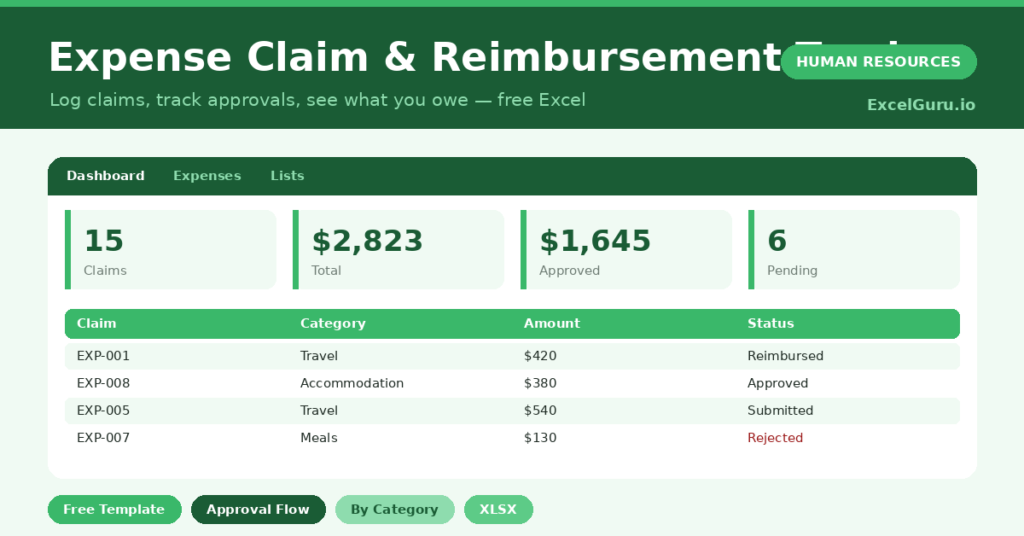
This free expense tracker brings order to the pile. You log each claim, and the sheet tracks approval, reimbursement and totals by category. You will also find realistic sample data already inside the file. Therefore, you can explore every formula, dropdown and chart first, and then replace the samples with your own records in minutes.
Below, we explain the formulas, the workflow, and how to adapt the tracker to your own process.
What Is an Expense Claim Tracker?
An expense claim tracker records every reimbursement request from staff. It captures the amount, category and approval status of each claim. Instead of loose receipts and email threads, you get one organized list.
It then totals what is approved and what is owed. As a result, you always know where each claim stands and what you are spending. Every claim carries a status, so nothing sits forgotten between submission and payment. The running totals also make budgeting and sign-off far simpler.
Why Does Expense Tracking Matter?
Unmanaged expenses cause two problems at once: slow reimbursements annoy staff, and unclear spending hides waste. Both quietly erode trust and margin if they are left to drift.
A clear tracker fixes both. Therefore, claims move faster and your spending becomes visible by category. Seeing the pattern also helps you spot policy gaps and rising costs early. A clear record also makes tax time and audits far less painful.
Why Use This Template?
A clear tracker keeps expenses under control. In particular, this one helps you:
- Log every claim in one place.
- Track approval and reimbursement status.
- See approved and outstanding amounts.
- Total spending by category.
- Process pending claims promptly.
What’s Inside the Template?
The workbook has four tabs:
- How to Use — a built-in guide.
- Dashboard — totals, approved and pending KPIs.
- Expenses — one row per claim.
- Lists — department, category and status dropdowns.
What Formulas Does the Template Use?
The tracker uses dependable Excel formulas:
| Formula | What it does |
| =IF(OR(Status=”Approved”,Status=”Reimbursed”),Amount,0) | Calculates the approved amount. |
| =IF(Status=”Submitted”,TODAY()-Date,””) | Calculates days a claim has been pending. |
| =SUMIF(Status,”Reimbursed”,Amount) | Totals reimbursed claims. |
| =SUMIF(Category, c, Amount) | Totals spending by category. |
| =COUNTIF(Status,”Submitted”) | Counts pending claims. |
How Do You Use the Template?
The tracker is quick to run. Just follow these steps:
- Open the Expenses tab and log each claim.
- Enter the category, amount and date.
- Set the status as the claim moves along.
- Let the approved amount and pending days calculate.
- Clear the submitted claims promptly.
- Review spending by category on the Dashboard.
What Are the Best Use Cases?
The tracker fits many teams, such as:
- Small businesses managing staff expenses.
- Managers approving team claims.
- Finance teams totaling reimbursements.
- Founders watching discretionary spend.
- Anyone replacing a messy expense inbox.
How Can You Modify the Template?
You can tailor it freely. To add structure, insert columns for a project code or a receipt link.
You can also add categories on the Lists tab to match your spending.
Moreover, the sheet covers 40 claims by default, and you can copy the formula row downward for more.
What Mistakes Should You Avoid?
A few habits weaken the tracker. Therefore, avoid these common mistakes:
- Letting submitted claims sit unprocessed.
- Approving claims without receipts.
- Using inconsistent categories that skew totals.
- Forgetting to mark claims as reimbursed.
Tips to Get the Most From It
- Process submitted claims quickly to keep staff happy.
- Require a receipt reference for every claim.
- Use consistent categories for clean totals.
- Review the category chart to spot rising costs.
Frequently Asked Questions
How is the approved amount calculated?
The sheet counts a claim’s amount as approved once its status is Approved or Reimbursed. Submitted and rejected claims are excluded.
How are pending days tracked?
For any claim still marked Submitted, the sheet shows how many days it has waited. This helps you clear the oldest claims first.
Can I add expense categories?
Yes. Edit the category list on the Lists tab, and the category totals update to include your new types.
Should I keep receipts?
Yes. Add a receipt reference or link column so every claim is supported, which matters for tax and audit.
Does it work in Google Sheets?
It does, with minor adjustments to formatting after importing.
Download the Template and Get Started
Tidy expense management keeps staff happy and spending clear. This tracker handles both with ease.
Download the Expense Claim & Reimbursement Tracker and tame your claims today.