
A missed probation review is a quiet but costly slip. Let the date pass, and you may lose the chance to act or confirm a hire cleanly.
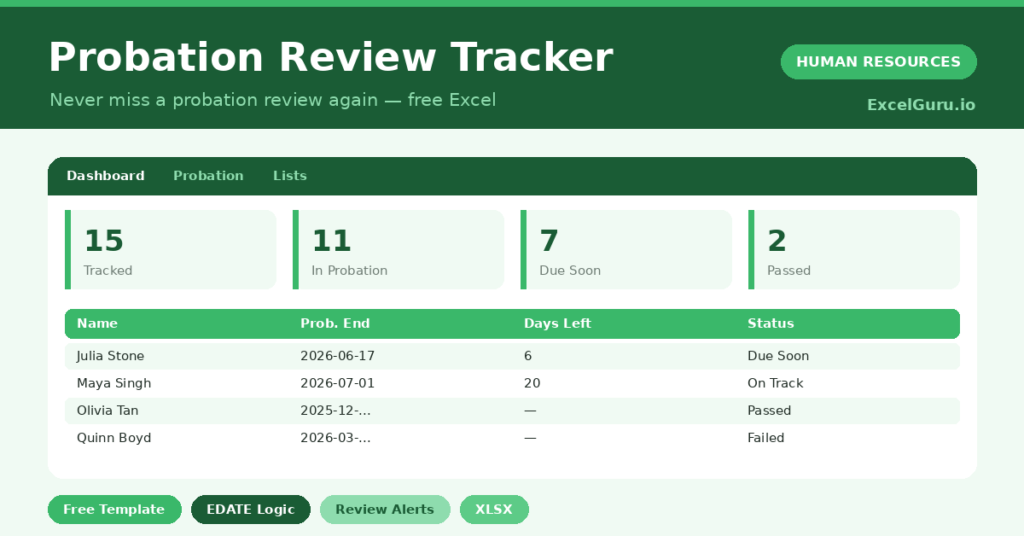
This free probation tracker keeps every review on time. You enter a start date and length, and the sheet works out the end date and the warning. You will also find realistic sample data already inside the file. Therefore, you can explore every formula, dropdown and chart first, and then replace the samples with your own records in minutes.
Below, we explain the formulas, the workflow, and how to adapt the tracker to your own policy.
What Is a Probation Review Tracker?
A probation review tracker follows each new hire through their probation period. It calculates when probation ends and when the review is due.
It then flags reviews that are approaching or overdue. As a result, no probation period quietly lapses without a decision.
Why Does Probation Tracking Matter?
Probation is a narrow window with real consequences. Miss the review, and confirming or ending employment becomes harder and riskier.
A clear tracker protects that window. Therefore, you can hold reviews on time and make confident, timely decisions. It also gives new hires the fair, structured assessment they deserve.
Why Use This Template?
A clear tracker keeps probation on track. In particular, this one helps you:
- Calculate each probation end date automatically.
- See days remaining for every new hire.
- Flag reviews that are due or due soon.
- Record the outcome of each review.
- See the next review date at a glance.
What’s Inside the Template?
The workbook has four tabs:
- How to Use — a built-in guide.
- Dashboard — due, due-soon and outcome KPIs.
- Probation — one row per new hire.
- Lists — department and outcome dropdowns.
What Formulas Does the Template Use?
The tracker uses dependable Excel formulas:
| Formula | What it does |
| =EDATE(Start Date, Probation Months) | Calculates the probation end date. |
| =Probation End – TODAY() | Calculates days remaining. |
| =IF(End<=TODAY(),”Review Due”,…) | Flags the review status. |
| =MIN(pending end dates) | Finds the next review due date. |
| =COUNTIF(Status, “Due Soon”) | Counts reviews due soon. |
How Do You Use the Template?
The tracker is quick to run. Just follow these steps:
- Open the Probation tab and list your new hires.
- Enter each start date and probation length.
- Let the end date and days remaining calculate.
- Watch the status for due and due-soon reviews.
- Hold the review before the end date.
- Record the outcome and review the Dashboard.
What Are the Best Use Cases?
The tracker fits many teams, such as:
- HR teams managing many new hires.
- Managers confirming their new team members.
- Small businesses without HR software.
- People teams tracking probation outcomes.
- Anyone who must not miss a review date.
How Can You Modify the Template?
You can tailor it freely. To change the warning window, edit the days-soon threshold to fit your notice needs.
You can also add a reviewer or notes column to capture the decision.
Moreover, the sheet covers 40 hires by default, and you can copy the formula row downward for more.
What Mistakes Should You Avoid?
A few habits weaken the tracker. Therefore, avoid these common mistakes:
- Scheduling the review after the end date.
- Leaving outcomes unrecorded after the review.
- Forgetting to set the probation length.
- Ignoring the due-soon warning until too late.
Tips to Get the Most From It
- Book the review well before the end date.
- Record the outcome on the day you decide.
- Use the next-review date to plan your week.
- Give honest feedback throughout, not just at the end.
Frequently Asked Questions
How is the probation end date calculated?
The sheet uses the start date and the probation length in months to calculate the exact end date with the EDATE function.
What does Due Soon mean?
A review is flagged Due Soon when the end date is within the warning window, set at 14 days by default. It is your prompt to schedule the review.
How does the next review date work?
The dashboard finds the earliest end date among hires still in probation, so the most urgent review is always in view.
Can I extend a probation?
Yes. Set the outcome to Extended, and the status reflects it. You can also update the probation length to recalculate the end date.
Does it work in Google Sheets?
It does, with minor adjustments to formatting after importing.
Download the Template and Get Started
A timely probation review protects both you and your new hire. This tracker makes sure the date never slips.
Download the Probation Review Tracker and stay ahead of every review today.