
Workload has a way of pooling unevenly. A few people quietly carry too much while others have room, and nobody sees it until someone burns out.
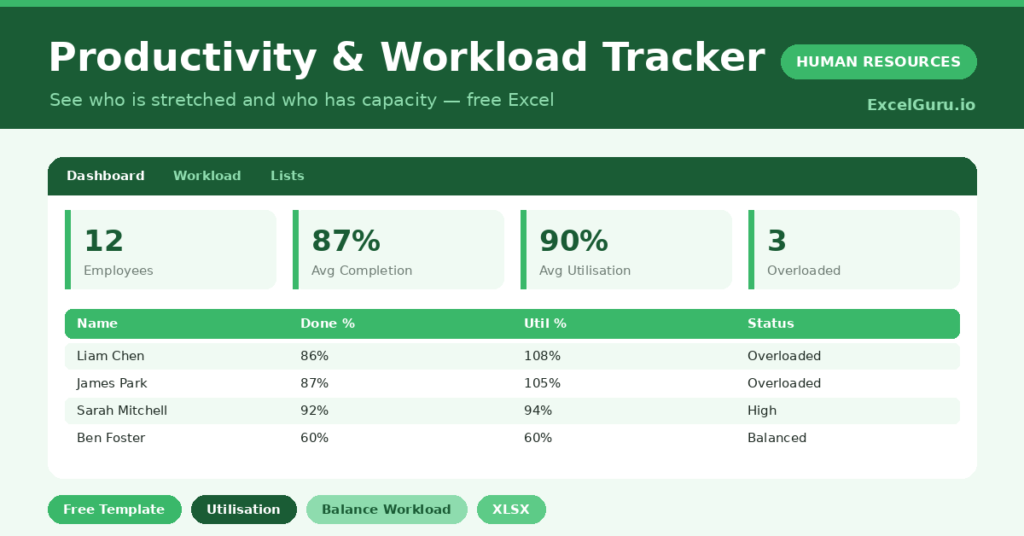
This free workload tracker makes the balance visible. You enter tasks and hours, and the sheet flags who is overloaded and who has capacity. You will also find realistic sample data already inside the file. Therefore, you can explore every formula, dropdown and chart first, and then replace the samples with your own records in minutes.
Below, we explain the formulas, the workflow, and how to adapt the tracker to your own team.
What Is a Workload Tracker?
A workload tracker measures both output and capacity for each employee. It compares tasks done with tasks assigned, and hours logged with hours available. Together these show not just how much work is happening, but whether it is spread fairly.
From those figures, it calculates completion and utilisation. As a result, you can see who is stretched and who has room to take on more. The two measures together give a fuller picture than either output or hours alone.
Why Does Workload Balance Matter?
Uneven workload is costly in both directions. Overloaded people burn out and make mistakes, while underused people disengage.
A clear tracker lets you rebalance fairly. Therefore, you can move work from the overloaded to those with capacity before anyone breaks. Sustained overload on one person is also a clear signal you may be short-staffed. Spotting that early protects both your people and your output.
Why Use This Template?
A clear tracker keeps workload fair. In particular, this one helps you:
- Measure task completion per person.
- Calculate utilisation against capacity.
- Flag who is overloaded or underused.
- Rebalance work with evidence.
- Spot staffing pressure early.
What’s Inside the Template?
The workbook has four tabs:
- How to Use — a built-in guide.
- Dashboard — completion, utilisation and status KPIs.
- Workload — one row per employee.
- Lists — the department dropdown and reference.
What Formulas Does the Template Use?
The tracker uses dependable Excel formulas:
| Formula | What it does |
| =Completed / Assigned | Calculates the task completion rate. |
| =Logged Hours / Capacity Hours | Calculates utilisation. |
| =IF(Utilisation>1,”Overloaded”,…) | Flags the workload status. |
| =COUNTIF(Status,”Overloaded”) | Counts overloaded staff. |
| =SUM(Logged) / SUM(Capacity) | Calculates average team utilisation. |
How Do You Use the Template?
The tracker is quick to run. Just follow these steps:
- Open the Workload tab and list your team.
- Enter assigned and completed tasks.
- Add capacity and logged hours.
- Let completion, utilisation and status calculate.
- Find anyone overloaded or underused.
- Rebalance the work and review the Dashboard.
What Are the Best Use Cases?
The tracker fits many teams, such as:
- Managers balancing team workload.
- Project leads allocating work.
- Agencies tracking billable capacity.
- Operations teams in busy periods.
- Anyone protecting their team from burnout.
How Can You Modify the Template?
You can tailor it freely. To change the bands, edit the utilisation thresholds for overloaded, high and balanced.
You can also add a period column to track workload week by week.
Moreover, the sheet covers 40 employees by default, and you can copy the formula row downward for more.
What Mistakes Should You Avoid?
A few habits weaken the tracker. Therefore, avoid these common mistakes:
- Treating utilisation above 100 percent as normal.
- Measuring tasks without regard to their size.
- Ignoring a person who is consistently overloaded.
- Using stale capacity figures.
Tips to Get the Most From It
- Move work from overloaded people to those with room.
- Treat sustained overload as a staffing signal.
- Keep capacity figures realistic and current.
- Look at task size, not just task count.
Frequently Asked Questions
How is utilisation calculated?
It divides logged hours by capacity hours. A figure above 100 percent means a person is working beyond their planned capacity.
What does the status mean?
It flags each person as overloaded, high, balanced or underused based on their utilisation, so you can rebalance work quickly.
Does it account for task size?
It counts tasks equally by default. For very uneven tasks, lean on the hours-based utilisation figure, which reflects effort more fairly.
How often should I update it?
Weekly works well for most teams. Frequent updates keep the workload picture accurate and useful for rebalancing.
Does it work in Google Sheets?
It does, with minor adjustments to formatting after importing.
Download the Template and Get Started
A balanced team is a healthier, more productive one. This tracker shows you where to share the load.
Download the Productivity & Workload Tracker and balance your team today.