
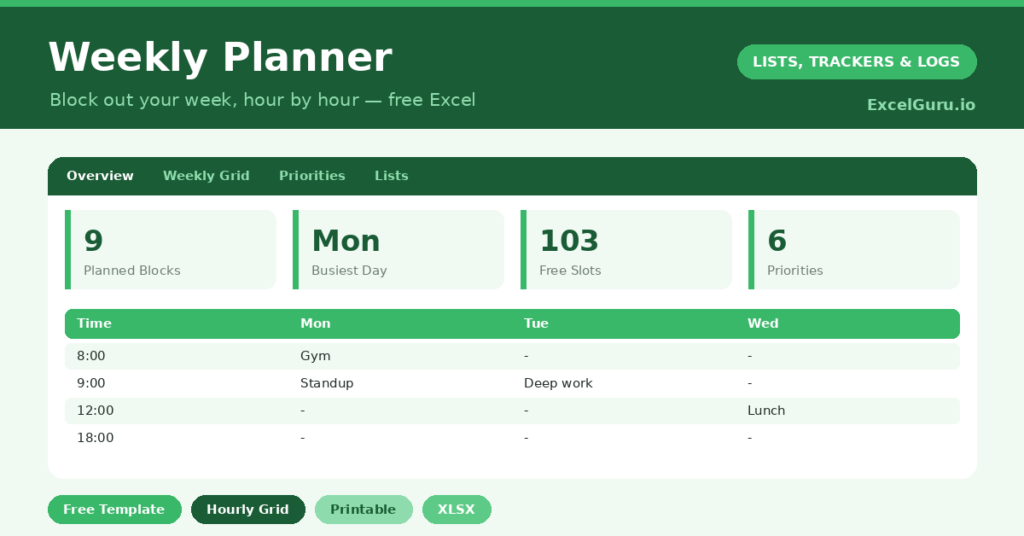
A good weekly planner gives you a particular kind of calm: the calm of seeing your whole week on one page. Not a vague sense of being busy, but the real shape of it. So you see the meetings, the gym slots, and the evening you left empty on purpose.
This free template pairs an hour-by-hour grid with a short list of genuine priorities. Together they answer the two questions that matter most each week. Where is my time actually going, and what must not slip? Best of all, it prints beautifully.
Also, explore daily to-do list excel template.
What is inside the weekly planner template?
The template is deliberately simple, because a planner you actually fill in beats a clever one you abandon. You get three working areas. In short, they are these:
- A weekly grid with the days across the top and the hours, from 6 a.m. to 9 p.m., down the side.
- A priorities list for the handful of must-do tasks, each tagged with a day and an importance so the big rocks come first.
- An overview dashboard that counts your planned blocks, names your busiest day and shows your free time.
Each cell in the grid is yours to fill. So each empty one is time you still own. Type *Deep work* into Tuesday at nine, block Thursday evening for yoga, and leave Sunday morning blank if blank is what you need.
Which formulas does the weekly planner use?
The overview tab quietly keeps score without any effort from you. It counts the blocks planned on each day with a plain =COUNTA() over that day’s column. Then it names your busiest day using =INDEX(days, MATCH(MAX(counts), counts, 0)).
A quick =7*16-SUM(blocks) reveals how many hours are still unclaimed. Those numbers seem modest, yet they are genuinely useful. Because the planner shows your free time, you can spot an over-full week before it overwhelms you. Meanwhile, seeing the busiest day in advance lets you move a task before Tuesday becomes a pile-up.
Why plan your week in Excel?
Most weeks do not fail because the calendar was wrong. They fail because the three things that truly mattered got buried under the forty that did not. So a weekly planner forces you to separate the two.
You write down only the must-do tasks, give each a day, and protect the time to do them. The format suits shift workers, students, freelancers and busy parents alike. Furthermore, because it is a single page, it travels well. Print it on a Sunday evening, pin it up, and the whole household can see the plan. So everyone knows what the week holds, and nobody double-books the same evening.
How do you plan a week with it?
A short Sunday ritual sets the tone. First, list your genuine priorities for the week, no more than a handful. Then place each one into a specific slot on the grid, so it has a real time to happen.
Next, block in your fixed commitments, such as work hours and appointments. After that, the empty cells show your true free time at a glance. So you can protect a rest evening or slot in study without overcommitting. In short, you design the week before it designs you.
How do you adapt the grid to your life?
If your days start at five or run past nine, simply edit the Time column. The counts adjust on their own. Shift workers can rename the day headers, and students can drop in class codes instead of meetings. Additionally, you can colour-code blocks by type, such as work, rest and errands, for an even faster visual read. So a single glance tells you whether your week is well balanced or badly lopsided.
What mistakes should you avoid?
The biggest mistake is planning every single hour. A week with no white space is fragile, because one delay collapses the whole grid. So leave deliberate gaps for overruns and rest.
The second mistake is treating the priorities list like a second to-do list. Keep it to a genuine few, or it loses its power. Plan the important, not the endless, and the planner stays a tool rather than a chore.
What makes a weekly plan stick?
A plan sticks when it is realistic and visible. So the first rule is to under-plan rather than over-plan, leaving room for the unexpected. A week crammed to the edges falls apart at the first surprise.
The second rule is to keep the plan in sight. A planner hidden in a folder is a planner forgotten, so print it or pin it where you will see it. Then review it briefly each morning. That quick daily glance is what turns a nice Sunday intention into a week you actually follow.
Frequently asked questions
Is the weekly planner printable?
Yes. The grid is sized to print cleanly on a single page. So you can print it each Sunday, or keep it open on your phone or laptop during the week.
Can I change the start day to Sunday?
You can. Rename the day headers in the grid, and the overview’s day counts will follow. The planner works equally well as a Monday-start or a Sunday-start week.
Does it work in Google Sheets?
Yes. Upload the file to Google Drive and open it in Sheets. The grid, priorities list and dashboard formulas all carry over without trouble.
A weekly planner asks only a few minutes of you each week. In return, it hands back something far more valuable: a clear sense of where your time is going, and the quiet confidence that the things that matter have a place to happen. You stop reacting to the week and start shaping it. Over time, that small shift changes how much you actually get done.