
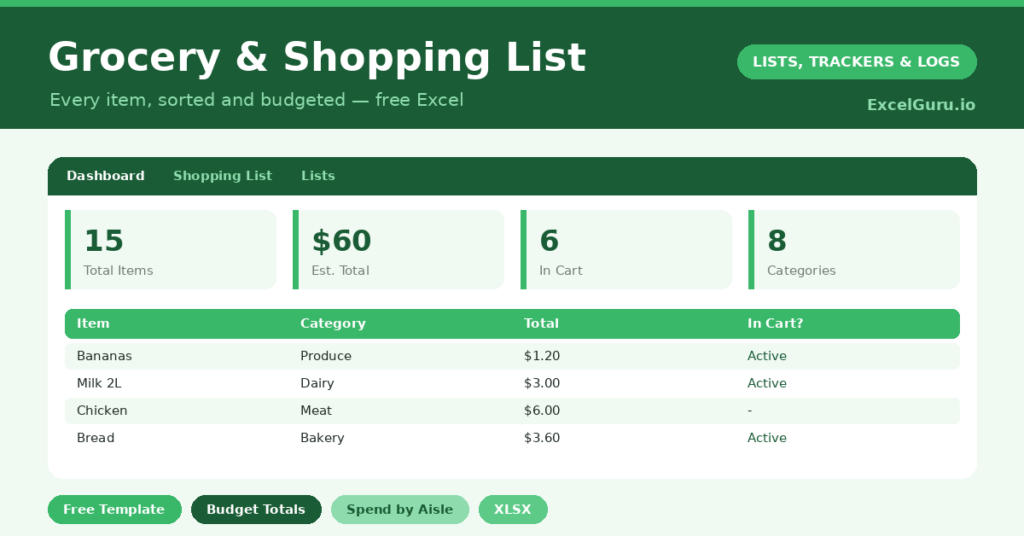
A grocery list does more than remind you what to buy; it can also tell you what it will cost before you get there. A scribbled note on the back of an envelope cannot total your basket. A spreadsheet can, and that single feature changes how you shop.
This free template organises your shopping by category, totals the cost as you add items, and lets you tick things off in the aisle. So you walk in with a plan and a budget, and you walk out without the nasty surprise at the till.
What does the grocery list include?
The template is a simple, sortable list feeding a small dashboard. Dropdowns keep your categories consistent. In short, you get the following:
- A shopping list with the item, category, quantity, unit price and an automatic line total.
- An in-cart checkbox, so you can tick items off as you shop.
- A category dropdown, so you can sort the list to match your supermarket’s layout.
- A dashboard showing total items, estimated total cost, items in the cart, items remaining and the value already collected.
Which formulas power the grocery list?
The cost tracking is the clever part. Each line total uses =Quantity * Unit Price, so two items at three pounds each show as six. The dashboard then sums those line totals into your estimated basket cost.
A SUMIF works out the value of everything already in your cart, which updates as you shop. Meanwhile, COUNTIF tracks items collected versus those remaining. So you always know both how much you have spent and how much is left to grab. Because it all updates live, the running total keeps you firmly in budget.
Why use a grocery list in Excel?
Two benefits stand out: cost control and efficiency. On cost, seeing the basket total before you shop prevents the budget blowout, and it lets you trim before you spend rather than regret afterwards. On efficiency, sorting by category means you walk the store once, not back and forth.
A written list also cuts impulse buys, since you stick to what you planned. Furthermore, because the file is reusable, your regular items are always a copy away. In short, a structured list turns a chaotic shop into a quick, predictable errand that protects your wallet.
What does the dashboard reveal?
The dashboard gives you a live picture of the shop. The estimated total is the headline, and it is the number that keeps you honest before you reach the checkout. The items-remaining count then tells you how much is left to find.
The in-cart value is genuinely satisfying as it climbs toward your total. Because it updates with every tick, you can watch the shop progress in real time. So you finish with no forgotten items and no surprise at the till. In short, the dashboard turns the weekly shop into something calm and controlled.
How do you customise it?
Edit the categories on the Lists tab to match your supermarket, then sort the list to follow the store’s layout. Additionally, you can save a master list of regular items and copy it each week, so you start most shops nearly done. A notes column is useful for brands or substitutes, which saves puzzling in the aisle.
What mistakes should you avoid?
The first mistake is guessing prices wildly, which makes the total meaningless. So use rough but honest figures, and refine them over a few shops. The second mistake is forgetting to tick items off as you go.
The in-cart tracking only helps if you keep it current while shopping. Finally, do not abandon the list once written. Its real value is in the aisle, where it stops you wandering, overspending and buying the things you did not plan. A list left at home is no list at all.
How do you make the weekly shop faster?
A little setup pays off every week. So sort the list by category to match your store, and you will walk it once instead of doubling back. The in-cart checkbox keeps you moving.
Keeping a master list of regular items helps even more, because most shops start nearly complete. You simply tweak the quantities and add a few extras. Because the basket totals itself as you go, you can trim before the till rather than wince at it. In short, a few minutes of organising turns the weekly shop into a quick, predictable errand.
Frequently asked questions
Does the grocery list total my shopping cost?
Yes. Each item’s line total is its quantity times its unit price, and the dashboard sums them into an estimated basket cost. So you know roughly what the shop will cost before you reach the till.
Can I sort the list by aisle?
You can. Assign each item a category, then sort by category to match your supermarket’s layout. That lets you walk the store once instead of doubling back for forgotten items.
Can I reuse it each week?
Absolutely. Keep a master list of your regular items and copy it for each shop. You only adjust the quantities and add any extras, so most of the list is done before you start.
Build your list, let it total the basket, and tick items off as you shop. You will spend less, forget nothing, and skip the checkout surprise. A grocery list is humble, yet doing it in a spreadsheet quietly turns the weekly shop into a faster, cheaper, calmer task.