
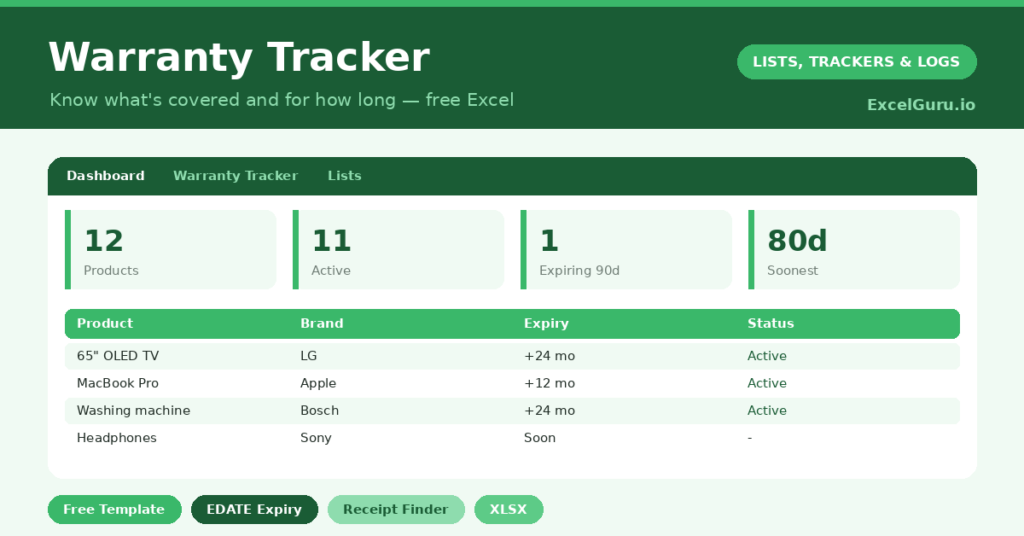
A warranty tracker quietly saves you money by making sure you never pay for a repair that should have been free. We all have warranties we forget we own, buried in drawers and inboxes. So an appliance fails, we assume the cover lapsed, and we pay out needlessly.
This free template records each purchase and its warranty length, then calculates the expiry date automatically. It also flags what is still covered and what is about to lapse. As a result, you can claim while you still can, and store every receipt where you will actually find it.
What does the warranty tracker include?
The template is one product list feeding a clear dashboard. Dropdowns keep categories tidy. In short, you get the following:
- A warranty list with the product, category, brand, purchase date, warranty length, expiry date, days left, status and receipt location.
- An automatic expiry date, days left countdown and color-coded status for every product.
- Drop-down lists for category, so entries stay consistent and filterable.
- A receipt-location column, so you always know where the proof of purchase lives.
- A dashboard showing total products, active, expiring soon, expired, your electronics count and the soonest expiry of all.
Which formulas power the warranty tracker?
Three formulas do the work. The expiry date uses =EDATE(Purchase Date, Warranty Months), which adds the warranty length to the purchase date and lands on exactly the right day, even across leap years.
The days left column is then =Expiry – TODAY(), and a nested IF labels each product *Active*, *Expiring* (within 90 days) or *Expired*, color-coded. On the dashboard, COUNTIF totals each status, and a helper column feeding a MIN surfaces the soonest expiry. So the next warranty about to lapse is always one glance away.
Why use a warranty tracker?
The financial logic is simple. A warranty claim can save anything from a small repair bill to the full cost of replacing an appliance. Yet that only happens if you claim before the cover ends. So the tracker turns a forgotten benefit into real savings.
It also removes the scramble for paperwork. When something breaks, the receipt-location column tells you exactly where the proof is. Furthermore, knowing an item’s cover is about to lapse helps you decide whether to extend it or budget for a replacement. In short, the tracker makes sure you get every bit of value you have already paid for.
What does the dashboard reveal?
The dashboard keeps your coverage in clear view. The expiring-soon count is the one to act on, since those products are about to lose their protection. So you can claim for any niggling faults before the window closes.
The active count shows what is still safely covered, and the expired count is a useful prompt to consider extended cover or replacement. The soonest-expiry figure names the very next warranty to lapse, calculated for you. Because it all updates daily, you never miss a deadline. So the dashboard turns scattered warranties into a managed asset.
How do you set it up?
Whenever you buy something with a warranty, add a row: the product, the purchase date and the warranty length in months. So the expiry date calculates itself. Note where you stored the receipt, whether that is a drawer, an email folder or a photo.
Then the tracker quietly does the rest, counting down and flagging each product as its expiry nears. Check the dashboard every month or two, and act on anything expiring. A two-minute entry at the time of purchase is all it takes to protect the cover for years.
How do you customize it?
Edit the categories on the Lists tab to match what you buy, such as *Electronics*, *Appliances* and *Tools*. Additionally, you can add columns for the retailer, the price paid, or a link to a digital receipt. An extended-warranty flag is useful if you buy additional cover. The template adapts to a single big purchase or a whole household of gadgets.
What mistakes should you avoid?
The first mistake is logging the product but not where the receipt is. Without proof of purchase, many warranties are worthless, so always record the receipt location. The second mistake is checking the tracker too rarely and missing the expiring window.
A quick monthly glance is enough to catch anything in time. Finally, do not forget the warranty length, since the expiry date depends on it. Get those two dates right, and the tracker reliably tells you exactly how long every purchase is protected.
Frequently asked questions
How does the warranty tracker calculate expiry dates?
It uses EDATE to add the warranty length in months to your purchase date, landing on the exact expiry day. A countdown then shows the days left and flags the product as active, expiring or expired.
Does it remind me before a warranty ends?
Yes. Any product within 90 days of expiry is flagged as expiring, and the dashboard counts them and shows the soonest expiry, so you can claim before the cover runs out.
Where should I keep my receipts?
Wherever suits you, as long as you note it in the receipt-location column. Many people photograph receipts and store them in the cloud, so the proof of purchase can never fade or go missing.
Log each purchase, record where the receipt lives, and check the dashboard now and then. The tracker counts down every warranty for you. It is a small habit that makes sure you claim the free repairs you are entitled to, instead of paying for them by mistake.