
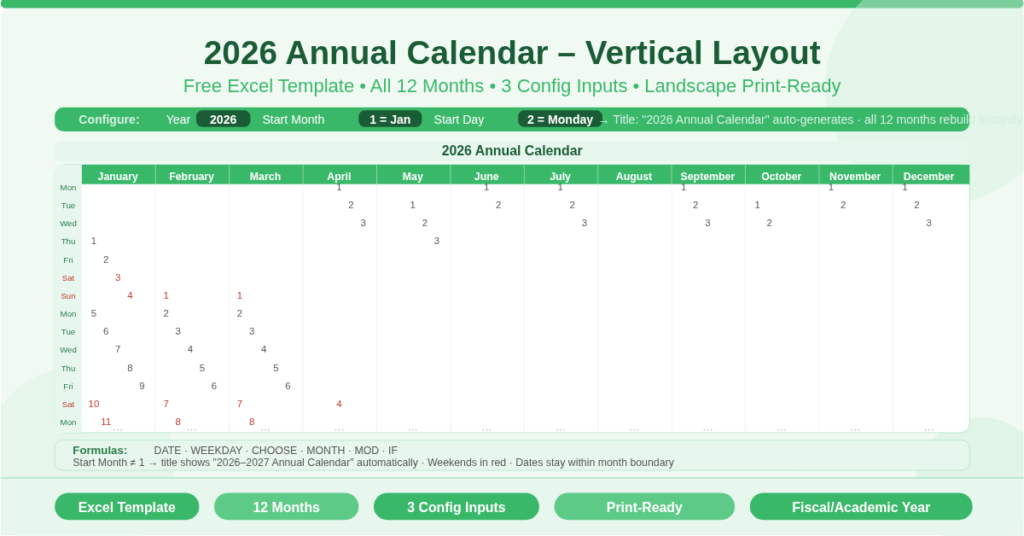
The 2026 Annual Calendar Vertical Template is a free Microsoft Excel spreadsheet that displays all 12 months of a year in a single, side-by-side horizontal layout. It is pre-configured for 2026. However, it works for any year simply by changing one number. Every date, day name, and calendar title recalculates immediately — there is nothing to manually update.
The vertical layout places each month in its own column pair running left to right across the sheet. This format gives a wide, panoramic view of the entire year at once. As a result, it is easy to see how weeks, months, and quarters relate to each other. It is also well suited to landscape printing, making it a practical wall or desk calendar when printed on a single A3 or tabloid-sized sheet.
This template is particularly useful because it requires no spreadsheet skill to operate. Enter three numbers at the top, and the full calendar appears. That simplicity makes it accessible to anyone — from students to business owners to project teams.
Check out 2027 Annual Calendar Template in Excel and Spreadsheet.
How Does the Three-Input Configuration Work?
The entire calendar is driven by just three cells at the top of the sheet. Each input serves a distinct and important purpose. Together, they give the template a level of flexibility that a standard printed calendar cannot match.
The Year Input
The Year cell controls which year the calendar displays. The default value is 2026. To change it, simply type a different year — 2027, 2028, or any year you need. The calendar title updates automatically. All 12 month headers, all day-of-week alignments, and every individual date number recalculate in one step. There is no need to rebuild any part of the calendar manually.
This means the template is genuinely reusable. Download it once, and use it every year by changing a single cell. For teams that maintain shared planning documents, this approach is far more efficient than downloading a new calendar template each January.
The Start Month Input
The Month input sets which month begins the calendar display. When the Month is set to 1, the calendar runs from January to December of the selected year. This is the standard configuration for most personal and business use.
However, not every organization follows a January-to-December calendar. Many businesses use a fiscal year that starts in April, July, or October. Many schools and universities use an academic year that begins in September. The Start Month input supports all of these. Set it to 4 and the calendar runs from April of the first year through March of the following year. The title then automatically adjusts to display a year-span label — for example, “2026–2027 Annual Calendar” — rather than a single year. This makes the fiscal or academic orientation immediately clear to anyone reading the document.
The Start Day Input
The Start Day input controls which day of the week begins each column in the monthly grids. Enter 1 to start weeks on Sunday. Enter 2 to start weeks on Monday. All seven day headers and all date placements across all 12 months shift accordingly in a single update.
This matters more than it might initially seem. In the United States, Sunday is the conventional week start for printed calendars. In the United Kingdom, the European Union, and many other regions, Monday is standard. A single input therefore makes the template suitable for users anywhere in the world without any further adjustment.
What Makes the Vertical Layout Distinctive?
The vertical layout is the defining visual feature of this template. It places all 12 months in a horizontal row across the sheet, with each month occupying two adjacent columns. The day-of-week labels run down column A as a shared reference for all months simultaneously.
This layout has several practical advantages over traditional single-month or quarterly calendar formats.
Seeing the Full Year at Once
When all 12 months appear together in one view, patterns become immediately visible. You can see exactly how many working days fall in each quarter. You can spot which months are short due to bank holidays. You can identify long stretches between holiday periods. None of this is possible when viewing one month at a time in a standard calendar.
Comparing Months Side by Side
Because all months sit next to each other, comparing dates across months is effortless. If you need to find the third Monday of every month for a recurring meeting, you can scan across the row rather than flipping between pages or tabs. Similarly, if you are planning a project that spans multiple months, you can trace the timeline directly across the sheet without switching views.
Printing as a Wall or Desk Reference
The horizontal layout is optimized for landscape printing. On A3 paper or US tabloid size (11×17 inches), the entire year fits on a single printed sheet. This makes it straightforward to produce a wall calendar for an office, a desk reference for personal use, or a shared planning document for a team. Furthermore, once printed, the calendar requires no screen, no device, and no internet connection to be useful.
How Are the Dates Calculated?
The template uses a combination of Excel functions to place every date in exactly the right cell. These functions work together invisibly so that the user never needs to understand them. However, knowing what they do explains why the calendar is so reliable.
The DATE function generates the first day of each month based on the Year and Month inputs. From that anchor point, the calendar works forward through the remaining days of the month.
The WEEKDAY function determines which day of the week the first of each month falls on. This information is then used to place the date number in the correct column for its day. For example, if 1 January 2026 falls on a Thursday, the formula places the number 1 in the Thursday column automatically.
The CHOOSE function generates the day-of-week header labels — Sun, Mon, Tue, Wed, Thu, Fri, Sat — in the correct order based on the Start Day input. Change the Start Day and the CHOOSE function immediately reorders the headers.
The MOD function handles the wraparound arithmetic that keeps day-of-week calculations accurate regardless of which day the week starts on. It also handles the transition between months, ensuring that dates from the previous or following month do not spill into adjacent month columns.
The MONTH function acts as a boundary check. It confirms that each date still belongs to the correct month before displaying it. Dates that cross a month boundary are suppressed and left blank, keeping each month’s column clean and correctly bounded.
The calendar title uses an IF formula that checks the Start Month setting. When the Start Month is 1, the title displays the year alone — for example, “2026 Annual Calendar”. When the Start Month is any other value, the title displays a year-span — for example, “2026–2027 Annual Calendar”. This small detail ensures the calendar is always correctly labelled for its actual date range.
Who Should Use This Template?
Business teams planning annual projects, quarterly milestones, and recurring deadlines will find the full-year horizontal view ideal for a shared office wall calendar. It gives every team member an instant view of the year without needing to navigate a digital tool.
Finance and accounting professionals using a non-January fiscal year will set the Start Month to match their organization’s fiscal year start. April, July, and October are all common choices. The template adapts immediately and labels itself correctly.
Teachers, school administrators, and university staff operating on an academic year will set the Start Month to September. The resulting September-to-August layout covers a standard academic year in a single printable sheet.
HR and people operations teams managing annual leave, public holiday schedules, and recurring review cycles will use the full-year view to plan across the whole calendar at once. Spotting gaps, conflicts, and concentrations of leave is far easier in a single view than in a month-by-month format.
Individuals and households wanting a simple, reusable planner for personal use will appreciate the minimal setup. Enter the year and print. The result is a clean, complete annual calendar with no design work required.
How to Use This Template
Open the file in Excel. The calendar opens on the Annual Calendar sheet displaying 2026 by default.
First, confirm or change the Year input. Type the year you want to display. Next, set the Month input. Enter 1 for January, or the relevant number for a non-standard year start. Then set the Start Day input. Enter 1 for a Sunday start or 2 for a Monday start.
The calendar rebuilds instantly after each change. Review the title to confirm it reflects your settings correctly. Finally, print the sheet in landscape orientation. Set the print scaling to fit one page wide and one page tall to ensure all 12 months appear on a single printed sheet.
How to Customize the Template Further
Beyond the three configuration inputs, the template is fully open for additional customization in Excel. You can change the color scheme by selecting Page Layout, then Themes or Colors, to apply a new set of coordinated colors across all formatted cells.
You can also add text annotations directly into any date cell to mark specific events, deadlines, or holidays. Because the dates are placed by formula, your text remains in the correct cell even if you later change the year or start month — the layout shifts but your annotations stay with their column positions.
To highlight specific dates — for example, public holidays or company-wide events — apply conditional formatting rules to the relevant date ranges. This adds a visual layer to the calendar without altering its underlying formula structure.
Conclusion
The 2026 Annual Calendar Vertical Template is a clean, formula-powered Excel planner that displays all 12 months of the year in a single horizontal view. It is pre-set for 2026. However, it works equally well for any future year with one change to the Year input. The Start Month setting supports fiscal and academic year configurations. The Start Day setting accommodates both Sunday and Monday week conventions. Every date, header, and title recalculates automatically. Download it today and have a complete annual calendar ready in under a minute.