
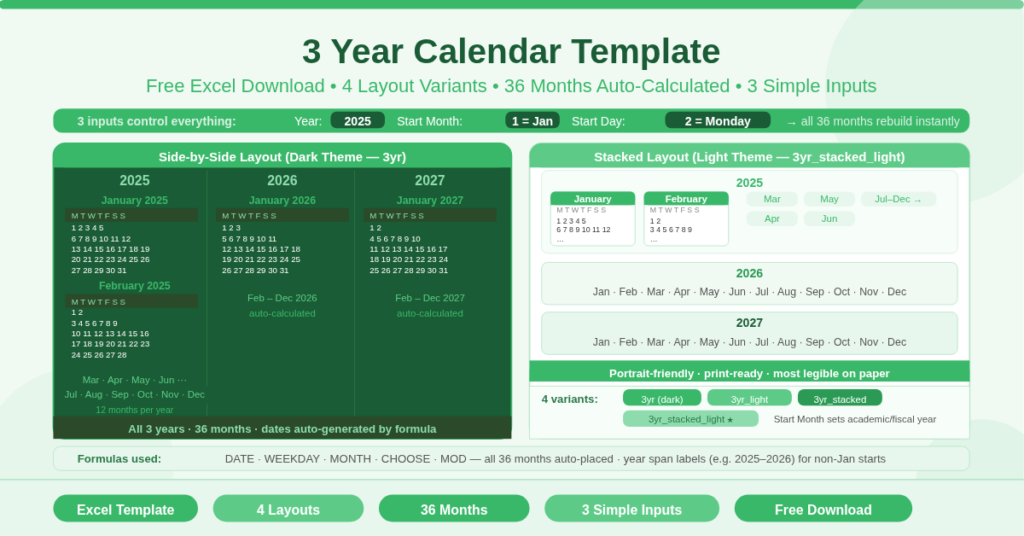
The 3 Year Calendar Template is a free Microsoft Excel workbook for viewing three consecutive years of monthly calendars at once. It presents all months across all three years in a single sheet, driven by three configuration inputs. There is nothing to type into the calendar itself — every date calculates automatically from the year, start month, and start day settings.
This template is built for long-range planning. A single month view is too narrow for multi-year projects. A standard annual calendar shows only one year at a time. This template, however, shows all three years simultaneously. That makes it useful for strategic planning, academic cycles, grant timelines, and any project that spans more than twelve months.
How Many Layout Variants Are Included?
The workbook contains four complete layout variants across four sheets. Each variant suits a different display or print preference.
Side-by-Side Dark (3yr)
The first variant displays the three years arranged horizontally across the sheet. Each year occupies a wide column group. All twelve months of each year appear in a compact row structure. This layout gives the widest simultaneous view. It works best on large monitors or in landscape print orientation.
Side-by-Side Light (3yr_light)
The second variant is identical in structure to the dark version. However, it uses a lighter color scheme. As a result, it prints more clearly on standard black-and-white printers. It also reads more comfortably in brightly lit environments.
Stacked Dark (3yr_stacked)
The third variant arranges months vertically rather than horizontally. Each year stacks below the previous one. This layout therefore suits narrower screens and portrait print orientation. It is also easier to scan month by month down the page.
Stacked Light (3yr_stacked_light)
The fourth variant combines the stacked layout with the light color scheme. It is consequently the most print-friendly option. Teams that share printed calendars in meetings or pin them on notice boards will find this version the most practical.
How Do the Three Configuration Inputs Work?
All four variants share the same three inputs. Changing any input rebuilds the entire calendar instantly.
Year
Enter the starting year in the Year cell. The template then automatically calculates the year labels, all 36 months of dates, and the correct day-of-week alignment for every month across all three years.
Start Month
The Month input controls which month begins the calendar. Entering 1 starts from January. Entering 4 starts from April. This is particularly useful for academic or financial year calendars that do not follow the standard January start. Furthermore, year labels adjust automatically. When a non-January start month is set, the template displays year spans such as 2025–2026 rather than a single year.
Start Day
The Start Day input sets whether weeks begin on Sunday (enter 1) or Monday (enter 2). All day-of-week headers and date placements shift accordingly. This single input therefore controls the entire week structure across all three years simultaneously.
What Do the Formulas Calculate?
The templates use Excel DATE, WEEKDAY, MONTH, CHOOSE, and MOD functions to place every date in the correct cell. Each month grid calculates its first day from the Year and Month inputs. It then fills each subsequent date in the correct column for its day of the week. Dates that fall outside the current month are left blank automatically.
The month and year headers also use formulas. They display single years when the start month is January. They display year-span labels such as 2025–2026 when the start month is set to any other value.
Who Should Use This Template?
Project managers overseeing multi-year programs will use the side-by-side layout to visualize project phases, milestones, and deadlines across three years in one view.
HR and operations teams planning annual leave cycles, appraisal windows, and recurring training schedules across multiple years will benefit from seeing all three years at once. Cross-year patterns become immediately visible.
Academic institutions running three-year course cycles will find the non-January start month setting particularly useful. Setting the Month input to September, for example, produces a three-year academic calendar aligned to the academic year.
Finance teams working on three-year budget plans, reporting cycles, and quarterly schedules will use the stacked layout for month-by-month tracking down the page.
Individuals planning major life events — a three-year mortgage term, a long renovation project, or a multi-year savings goal — will find the light theme variants clean and easy to annotate by hand after printing.
How to Use the Template
Open the workbook and choose the sheet that best suits your needs. The stacked light variant is the most print-friendly. The side-by-side dark variant gives the widest simultaneous view on screen.
Enter the starting year in the Year cell. Next, enter the start month — 1 for January, or the relevant number for a non-standard year start. Then set the start day to 1 for Sunday or 2 for Monday.
The calendar rebuilds immediately. All 36 months update across the full three-year span in one step. No additional editing is needed.
To change the color scheme, go to Page Layout and select a new Theme Colors option. This approach applies consistently across all formatted cells in the chosen sheet.
Conclusion
The 3 Year Calendar Template delivers a complete, formula-driven three-year view in Excel. Four layout variants — side-by-side and stacked, in dark and light themes — give flexible options for screen viewing and printing. Three inputs control the entire calendar: year, start month, and start day. Download it and bring three years of planning into a single, instant view.