
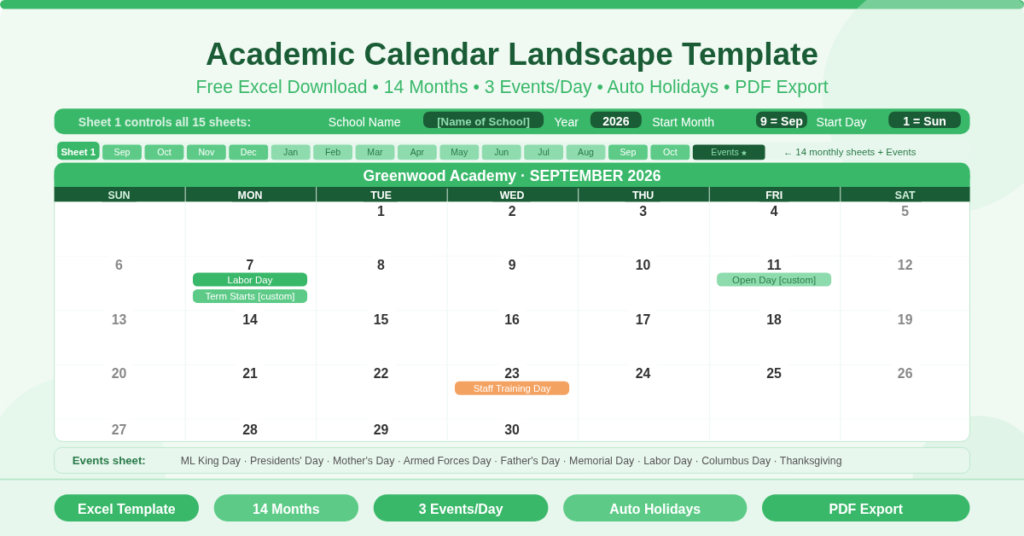
The Academic Calendar Landscape Template is a free Microsoft Excel workbook for schools, colleges, and educational institutions that need a full academic year calendar in a printable, landscape format. It displays up to 14 consecutive months across 15 individual sheets. Three configuration inputs — Year, Start Month, and Start Day — control every sheet at once. Change any input and the entire workbook updates in a single step.
Each monthly sheet is formatted in landscape orientation. This layout maximises the space available for each week row and makes the calendar well suited to printing on A4 or US letter paper. Furthermore, the template includes a school name placeholder on the control sheet, which propagates automatically to every monthly sheet. As a result, every printed page carries the school’s name without any additional editing.
How Many Sheets Does the Template Contain?
The workbook contains 15 sheets in total. Sheet 1 is the control sheet, where all configuration inputs are set. Sheets 2 through 14 each display one subsequent month, pulling their date reference directly from Sheet 1. Together, these 14 monthly sheets cover a full academic year — and then some. The 14-month span gives institutions the flexibility to start in August or September and run through to September or October of the following year, covering both the academic year and any transition months on either side.
This is a significant advantage over standard 12-month calendar templates. Many academic terms run across calendar year boundaries. Consequently, a template that only covers January to December is often inadequate for schools. This template, however, spans up to 14 months from any chosen start point, making it suitable for any institution’s scheduling needs.
What Are the Three Configuration Inputs?
All 15 sheets are driven by just three inputs on the control sheet. Each input has a precise and practical purpose.
The Year Input
The Year input sets the starting year for the calendar. The default value is 2026. Changing this number immediately updates all month headers, all date calculations, and all formula-driven holiday dates across every sheet in the workbook. There is no need to manually adjust any other cell.
The Start Month Input
The Start Month input sets which month appears on Sheet 1. Entering 1 starts the calendar from January. However, most academic institutions prefer to start in August or September. Setting this input to 8 or 9, for example, begins the calendar from the relevant month and flows forward through the subsequent 13 sheets automatically. Each subsequent sheet adds 1 to the start month formula, so the calendar always progresses in order without any manual intervention.
The Start Day Input
The Start Day input controls whether weeks begin on Sunday or Monday. Enter 1 for a Sunday start. Enter 2 for a Monday start. All seven day-of-week column headers and all date placements across every monthly sheet respond to this single input. This makes the template suitable for institutions in the United States, where Sunday is the conventional start, as well as those in the United Kingdom, Europe, or elsewhere where Monday is standard.
How Does the School Name Work?
The control sheet (Sheet 1) contains a placeholder in row 5 that reads “[Name of School] Academic Calendar”. This text is editable. Simply replace the placeholder with the actual school or institution name. Every subsequent monthly sheet (Sheets 2 through 14) references this cell directly, so the updated name appears at the top of each page automatically. No further editing across individual sheets is required.
This detail is particularly useful when preparing printed calendars for distribution. All 14 monthly pages carry consistent, correctly branded headers from a single edit on the control sheet.
How Do Events Appear on Each Monthly Sheet?
Each monthly sheet pulls event data from the Events sheet using INDEX/MATCH formulas. Up to 3 events can appear per day. Three separate lookup rows check columns G, H, and I of the Events sheet in sequence. If a date matches an event in any of those columns, the event name appears in the corresponding row beneath the date number in the day column.
This three-event capacity is practically important for academic calendars. A single day can simultaneously be a public holiday, a term start date, and a school event. Furthermore, the duplicate-detection logic built into the Events sheet prevents the same holiday from appearing more than once on a day, even when it is stored in multiple rows for multi-year coverage.
Adding Custom School Events
Custom events are straightforward to add. Open the Events sheet, enter the event name in column A, and enter the date in column G. When adding new rows, copy the formulas from columns H and I downward to maintain the duplicate-detection logic. The monthly sheets then display the custom event automatically on the correct date without any further changes.
What Holidays Are Built Into the Events Sheet?
The Events sheet contains formula-calculated dates for a comprehensive set of US public holidays and observances. All floating holidays recalculate automatically when the year input changes on Sheet 1.
Floating Federal Holidays
The following holidays are calculated from the year input using standard US federal formula rules. Martin Luther King Jr. Day falls on the third Monday in January. Presidents’ Day falls on the third Monday in February. Memorial Day falls on the last Monday in May. Labor Day falls on the first Monday in September. Columbus Day falls on the second Monday in October. Thanksgiving falls on the fourth Thursday in November.
Observances and Family Days
In addition to federal holidays, the Events sheet also includes Mother’s Day (second Sunday in May), Armed Forces Day (third Saturday in May), Father’s Day (third Sunday in June), and Parents’ Day (fourth Sunday in July). Each of these recalculates when the year changes. Therefore, no manual date updates are ever needed for any recurring holiday.
Adding School-Specific Dates
Beyond the pre-built holiday list, schools can enter their own term start and end dates, half-term breaks, examination periods, staff training days, and other institution-specific events directly into the Events sheet. Each custom entry behaves identically to the built-in holidays — it appears automatically on the correct day of every affected monthly sheet, up to a maximum of 3 events per day.
How Do You Print and Export to PDF?
The template includes clear instructions for creating a PDF of the full calendar on the control sheet. First, right-click the Events sheet tab and select Hide. This ensures the Events sheet does not appear in the printed output. Next, go to File, then Print. Select PDF as the printer type. Finally, under Settings, choose “Print Entire Workbook”. This exports all 14 monthly sheets — with the Events sheet hidden — as a single multi-page PDF document.
Because each sheet is pre-formatted in landscape orientation, the output prints cleanly without any page-setup adjustments. The result is a complete, professional academic year calendar in PDF form, ready for distribution to staff, students, and parents.
How Do You Change the Colour Scheme?
The template supports full colour scheme customisation via Excel’s built-in theme system. To change colours, go to Page Layout, then select Themes or Colors. Browse the available theme colour sets and select one that matches the school’s brand or preferred aesthetic. The theme colours apply consistently across all formatted cells in every monthly sheet simultaneously. As a result, a single colour change updates the entire 14-sheet workbook in one step.
Who Should Use This Template?
School administrators and timetabling staff preparing and distributing academic year calendars will find the 14-month span, school name branding, and landscape print format ideal for creating professional wall or desk calendars.
College and university departments running semester-based or trimester-based academic years will use the configurable start month to align the calendar with their institution’s specific term dates.
HR teams in educational settings managing teacher absence, training days, and contract periods will benefit from the formula-driven holiday list, which eliminates the need to manually look up and enter public holiday dates each year.
Individual teachers and classroom staff who want a simple, printable monthly planner with holidays already populated will find the template ready to print with minimal setup. Enter the year and start month, add any school-specific events, and print.
How to Set Up the Template
Open the workbook in Excel. On Sheet 1, replace the school name placeholder with the institution’s name. Then enter the Year, Start Month, and Start Day in the three configuration cells. All 14 monthly sheets update instantly.
Next, open the Events sheet and review the pre-built holidays. Add any school-specific events by entering the name in column A and the date in column G. Copy the formulas in columns H and I down to any new rows.
Finally, to export the calendar as a PDF, hide the Events sheet, then go to File, Print, select PDF, and choose Print Entire Workbook under Settings. The full 14-month academic calendar exports as a single PDF in one step.
Conclusion
The Academic Calendar Landscape Template is a comprehensive, formula-driven Excel workbook for schools and educational institutions. It covers up to 14 months from any configurable start point, displays up to 3 auto-populated events per day, includes formula-calculated US public holidays, and carries a customisable school name across all 15 sheets. Three inputs control the entire workbook. Download it today and produce a professional academic year calendar in minutes.