
Introduction
Managing student grades manually is time‑consuming and prone to errors.
Teachers need a system that is simple, fast, and accurate.
That is exactly why we created the Student Grade Tracker Excel template.
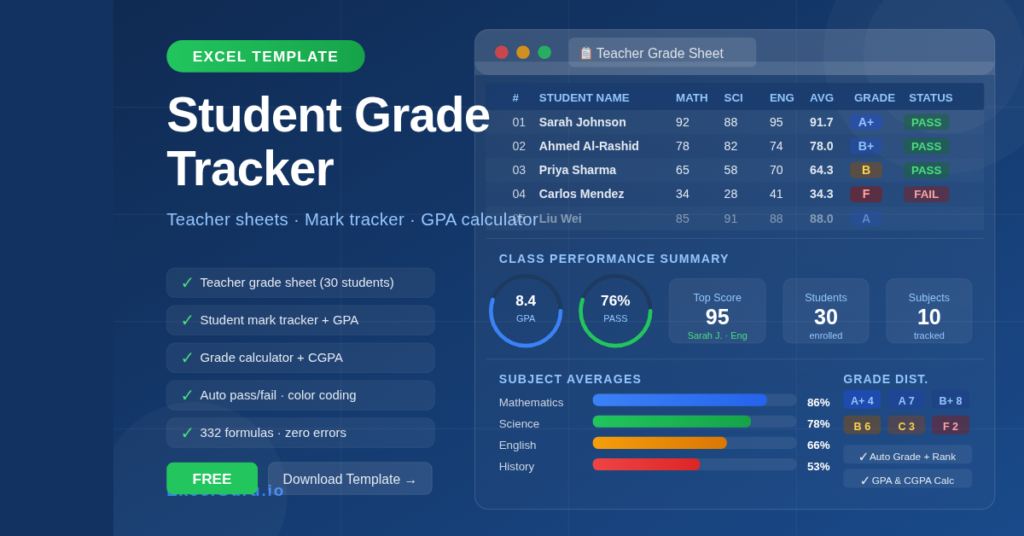
It combines a teacher grade sheet, a student mark tracker, and a school grade calculator in one file.
No complicated software. No monthly subscriptions.
Just one Excel workbook that does all the math for you.
In this post, you will learn what the template includes, how it works, and why it will save you hours every week.
You can download the template for free at the end of this article.
What’s Inside the Student Grade Tracker Excel Template?
The template contains four well‑organized sheets.
Each sheet serves a different purpose, but they all work together to give you a complete grade management system.
1. Teacher Grade Sheet
This is your main dashboard.
You enter student names and their marks for up to ten subjects (Math, Science, English, etc.).
The sheet automatically calculates:
-
Total marks per student
-
Average percentage
-
Letter grade (A+ to F)
-
Class rank
-
Pass/Fail status
-
Performance remarks (e.g., “Outstanding”, “Needs Work”)
You also see class averages for every subject at the bottom.
All this happens instantly as you type.
2. Student Mark Tracker
Sometimes you need a detailed report for one student.
That is exactly what this sheet does.
You select or enter a student’s ID and name.
Then you add marks for each subject.
The tracker shows:
-
Percentage and grade per subject
-
Grade points (on a 10‑point scale)
-
Subject‑wise rank and pass/fail status
-
Overall total, GPA, best and weakest subject
It is perfect for parent‑teacher meetings or progress reports.
3. School Grade Calculator
This sheet works like a standalone grade calculator.
You can use it for any set of subjects, even if you do not use the main teacher sheet.
It supports credit hours and weighted GPA.
You enter marks, and it calculates:
-
Percentage per subject
-
Letter grade
-
Grade points (10‑point scale)
-
Weighted points (credit hours × grade points)
-
Total GPA and CGPA (both 10‑point and 4‑point)
-
Grade distribution (how many A+, A, B+, etc.)
A visual progress bar shows performance at a glance.
This is ideal for high schools and colleges using credit systems.
4. How To Use Sheet
A complete step‑by‑step guide is built right into the workbook.
It explains every feature, where to enter data, and how to customize the template.
Even first‑time Excel users will feel confident.
Key Functionalities and Automated Features
The template is not just a static table.
It is packed with smart Excel formulas that work automatically.
Automatic grading
Based on the marks you enter, the template assigns the correct letter grade using a 10‑level scale (A+ down to F).
You can change the grade boundaries in seconds.
Pass/Fail calculation
You set the pass mark (default is 40).
The template marks every student as PASS or FAIL immediately.
Class rank
Students are ranked from highest to lowest total marks.
Ties are handled correctly.
Weighted GPA
If your school uses credit hours, the grade calculator weights each subject automatically.
No manual multiplication needed.
Visual progress bars
In the grade calculator sheet, each subject shows a “█” bar that grows as the percentage increases.
This makes performance easy to scan.
Error‑proof design
All formula cells are protected.
You only edit the light‑blue input cells.
This means you will never accidentally break a calculation.
Benefits for Teachers and Schools
Using this student grade tracker saves time, reduces stress, and improves accuracy.
1. No more manual calculations
You never have to add totals, calculate averages, or decide grades again.
Excel does it in real time.
2. One file for the whole class
Everything is in one workbook.
No lost papers, no mismatched spreadsheets.
3. Professional reports in minutes
Print the teacher grade sheet for your records.
Print the student mark tracker for individual parent meetings.
Both look clean and professional.
4. Easy to customize
Change subject names, add more students, adjust the pass mark, or modify the grading scale.
All instructions are in the “How To Use” sheet.
5. Works offline and on any device
Because it is an Excel file, you can use it on Windows, Mac, or even Excel Online.
No internet connection required after download.
6. Perfect for all grade levels
Primary school teachers can use it for five subjects.
High school teachers can use it for ten or more.
College instructors can use the credit‑based grade calculator.
How to Use the Template – Step by Step
Follow these simple steps to start tracking grades today.
Step 1: Open the file in Excel
Use Microsoft Excel 2016 or later.
Excel Online (free) also works.
Step 2: Go to the “📋 Teacher Grade Sheet”
Fill in the class information at the top: teacher name, class/section, academic year, semester.
Change max marks and pass mark if needed.
Step 3: Enter student names
Type each student’s name in column C (starting from row 6).
Student IDs are pre‑filled; you can keep or change them.
Step 4: Enter marks
For each student, type marks (0–100) in the subject columns (D through M).
Leave blank if a student missed a subject – averages adjust automatically.
Step 5: Check the results
Totals, percentages, grades, rank, and pass/fail appear instantly.
Class statistics are shown at the bottom.
Step 6: Use the student mark tracker (optional)
Go to the “📊 Student Mark Tracker” sheet.
Enter a student’s ID and name, then add marks in column D.
The individual performance summary updates automatically.
Step 7: Calculate GPA for any subject set (optional)
Go to the “🎓 Grade Calculator” sheet.
Adjust credit hours if needed.
Enter marks in column E.
The sheet shows GPA, CGPA, and grade distribution immediately.
Step 8: Save and share
Save the file as an .xlsx file.
Share it with colleagues or print reports directly from Excel.
Customization Options
Every school is different.
That is why the template is built to be flexible.
Add more students
On the Teacher Grade Sheet, copy rows 6–35 downward.
Update the RANK formula range to include the new rows.
Change the grading scale
By default, the scale is:
90+ = A+, 80‑89 = A, 70‑79 = B+, 60‑69 = B, 50‑59 = C, 40‑49 = D, below 40 = F.
You can edit the IF formulas in the Grade column to match your school’s scale.
Change the pass mark
On the Teacher Grade Sheet, cell S4 controls the pass mark.
Change it to 50, 60, or any value – all Pass/Fail columns update automatically.
Add or remove subjects
Insert new columns between existing subject columns.
Then update the SUM range in the Total column.
The “How To Use” sheet gives exact instructions.
Use a 4‑point GPA scale
The grade calculator already shows CGPA on a 4‑point scale (by dividing the 10‑point GPA by 2.5).
You can use that directly.
Download Your Free Student Grade Tracker Template
You do not need to build anything from scratch.
The Student Grade Tracker Excel template is ready to use right now.