
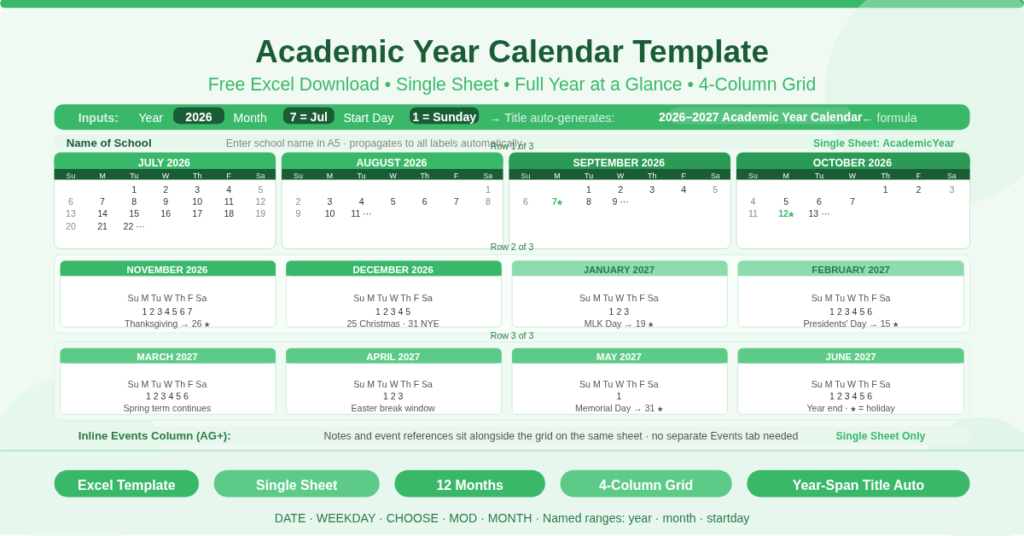
The Academic Year Calendar Template is a free Microsoft Excel spreadsheet that displays a complete academic year on a single sheet. All 12 months are arranged in a compact 4-column, 3-row grid, giving a full year-at-a-glance view in one place. Three configuration inputs — Year, Month, and Start Day — control every date, header, and label on the sheet. Change any input and the entire calendar rebuilds instantly.
This template is fundamentally different from multi-sheet academic calendar templates. Instead of navigating between 12 or 14 individual monthly sheets, everything is visible at once. This makes it ideal for annual planning, at-a-glance scheduling, and producing a single printed overview of the entire school year. Furthermore, the year-span title — for example, “2026–2027 Academic Year Calendar” — generates automatically from the inputs without any manual editing.
How Is the Single-Sheet Layout Structured?
The calendar displays all 12 months in a grid of 4 columns and 3 rows on a single Excel sheet named AcademicYear. Each month occupies one cell block within the grid, with its own 7-column day header row and up to 6 date rows beneath it.
The first row of the grid displays the first four months of the academic year side by side. The second row displays the next four months. The third row completes the year with the final four months. As a result, the entire year is visible without scrolling sideways or switching sheets.
This grid layout is particularly useful for institutions that need to hand out or display a one-page annual overview. A wall poster, a handbook insert, a single-page PDF — all of these are possible from a single print of this sheet. The layout also makes it straightforward to spot cross-month patterns, such as recurring weekly events, term boundaries, or examination windows, that are harder to see when months are on separate pages.
What Are the Three Configuration Inputs?
Three named cells at the top of the sheet control the entire calendar. Each has a specific named range — year, month, and startday — which the formulas reference throughout.
The Year Input
The Year input sits in cell A3. It sets the starting year of the academic calendar. The default value is 2026. When this input changes, every month header, every date number, and the year-span title all update simultaneously. There is no need to edit any other cell.
The year-span title is generated by a formula that concatenates the year with the following year, producing a label such as “2026–2027”. This label appears automatically in the title area of the sheet alongside the “Academic Year Calendar” heading. It therefore always reflects the actual date range of the displayed calendar, regardless of which year is set.
The Month Input
The Month input sits in cell E3. It controls which month begins the academic year grid. The default value is 7, corresponding to July. This default suits the North American academic year, which typically begins in late July or August. However, the input can be changed to any month number. Setting it to 8 starts the year from August. Setting it to 9 starts it from September, which suits UK, Australian, and many European academic calendars.
The formulas on the sheet calculate all subsequent months automatically from this single input. The fourth month in the grid is always start month plus three. The twelfth month is always start month plus eleven. As a result, no month header ever needs to be manually typed or updated.
The Start Day Input
The Start Day input sits in cell I3. It controls whether weeks begin on Sunday (enter 1) or Monday (enter 2). The CHOOSE and MOD formulas on the sheet use this input to generate the correct day-of-week header labels — Su, M, Tu, W, Th, F, Sa — and to place every date number in the correct column. All 12 month grids on the sheet shift their day alignment simultaneously when this input changes.
What Makes This Template Unique?
Unlike multi-sheet academic calendar templates, this one shows the entire year without any sheet navigation. That single-sheet approach has several practical advantages that are worth understanding in detail.
Full-Year Visibility
When all 12 months appear on one sheet, patterns and relationships between dates become immediately apparent. A term that runs from September to December is visible as a contiguous block. The gap between the Christmas break and the start of the spring term is visible at a glance. Similarly, the distance between major assessment periods across the year can be read directly from the grid without switching views. This kind of cross-year visibility is simply not possible when each month lives on a separate sheet.
Single-Print Annual Overview
The single-sheet layout is optimised for producing a one-page annual calendar. Print the AcademicYear sheet in landscape orientation, scale it to fit one page, and the result is a complete academic year overview — suitable for a staff notice board, a school handbook, a parent newsletter, or an administrative planning document. No PDF merging, no sheet-by-sheet printing, and no collation is required.
The Inline Events Column
An Events column sits alongside the main calendar grid, starting at column AG. This area provides space for notes, key event references, and planning annotations directly on the same sheet as the calendar. Entries in this column are visible alongside the date grid without switching to a separate Events sheet. This is a practical difference from multi-sheet templates, where events are stored on a hidden tab. Here, everything is on one page and in one view.
How Are the Dates Calculated?
The template uses DATE, WEEKDAY, CHOOSE, MOD, and MONTH functions to place every date correctly. These formulas work together from the three named inputs.
The DATE function anchors the first day of each month using the year and month named ranges. The month for position two in the grid is calculated as month plus one, position three as month plus two, and so on through all 12 positions.
The WEEKDAY function identifies which day of the week the first of each month falls on. Combined with the startday named range, it determines which column in the 7-column day header should receive the date number 1.
The CHOOSE function generates the day-of-week headers — Su, M, Tu, W, Th, F, Sa — in the correct order for the chosen start day. The MOD function handles the wraparound arithmetic that keeps day-of-week positions accurate regardless of start day convention.
The MONTH function acts as a boundary guard. It checks each date before displaying it, confirming it belongs to the correct month. Dates that cross a month boundary are suppressed and left blank, keeping each month block clean and correctly bounded within the grid.
Who Should Use This Template?
School administrators and heads of department preparing annual school calendars for distribution will find the single-sheet layout ideal. It produces a complete, professional academic year overview in a single print without any sheet-by-sheet assembly.
Teaching staff who want a desk reference showing the entire school year at once will use this template for personal planning. Seeing all 12 months together makes it easy to identify available weeks for project work, assessments, and field trips.
School office staff preparing calendars for inclusion in parent handbooks or newsletters will appreciate the simplicity of the layout. The entire year fits on one page, making it straightforward to include as an insert or attachment.
Academic timetabling coordinators who need to visualise term boundaries, examination periods, and holiday blocks across the full year will find the grid view far more useful than a series of single-month pages. Cross-term patterns are immediately visible.
Governors and trustees reviewing the academic year structure will find the single-page format suitable for board papers and meeting documentation, where a compact overview is more practical than a multi-page calendar.
How to Use This Template
Open the workbook in Excel. The AcademicYear sheet displays immediately. Enter the school name in cell A5. Then set the Year in cell A3, the Start Month in cell E3, and the Start Day in cell I3. The entire calendar rebuilds instantly with each change.
Review the completed grid to confirm the month sequence, day alignment, and year-span title are correct. Add any key events or notes to the Events column in the AG area of the sheet.
To print, set the page orientation to landscape and scale the sheet to fit one page wide and one page tall. This produces a single-page printed academic year calendar. To export as a PDF, select File, then Print, choose PDF as the printer, and print the active sheet.
Conclusion
The Academic Year Calendar Template is a compact, single-sheet Excel planner that displays a complete academic year in a 4-column grid. Three named inputs — Year, Month, and Start Day — control every date, header, and title on the sheet. The year-span label generates automatically. All 12 months are visible without switching sheets or scrolling. An inline Events column provides space for notes alongside the calendar. Download it and produce a full academic year overview in a single printable page.