
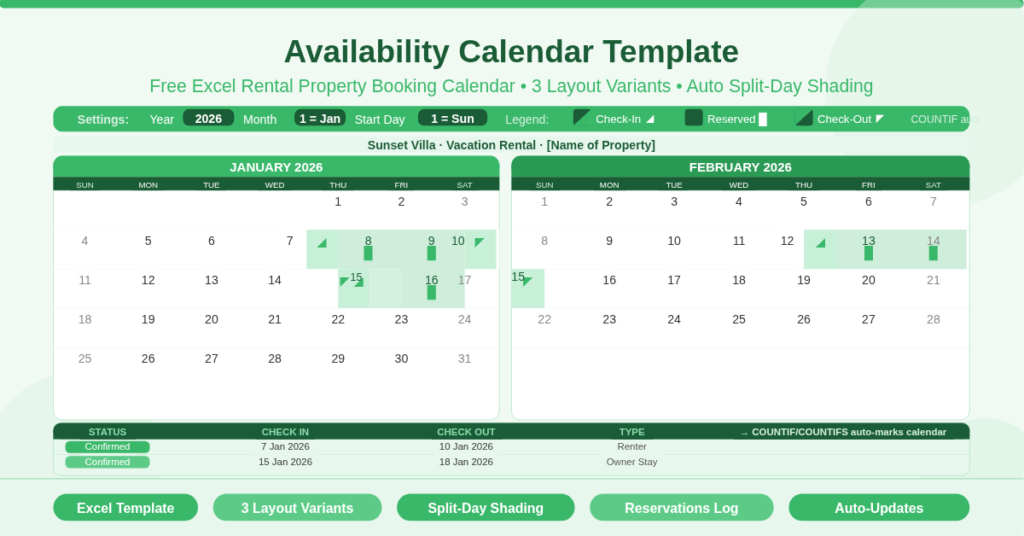
The Calendar Template is a free Microsoft Excel workbook for tracking rental property bookings. It displays a visual availability calendar that automatically marks check-in dates, check-out dates, and fully reserved days using a distinct three-state shading system. Hosts, property managers, and holiday let owners can see at a glance which dates are booked and which remain open.
The template is driven by a Reservations log on the same sheet. Enter a check-in date, a check-out date, and a booking type in the log, and the calendar marks every affected day automatically. There is no manual coloring, no cell-by-cell editing, and no risk of errors from updating the calendar directly. Furthermore, the workbook contains three layout variants to suit different display preferences.
What Are the Three Layout Variants?
The workbook contains three sheets, each offering a different calendar format.
Availability — 2-Month Split-Day View
The first sheet displays two consecutive months side by side. Each day is split into two half-cells — a left half and a right half. The left half represents the beginning of the day, and the right half represents the end. This split-day display is specifically designed for short-term rentals, where check-out on one day and check-in on the same day can overlap. A guest may check out before 11am while a new guest checks in after 4pm on the same date. The split-day system captures both statuses simultaneously on a single calendar cell.
Availability2 — 3-Month Split-Day View
The second sheet extends the same split-day system across three consecutive months displayed side by side. This wider view is consequently better suited to properties with longer booking horizons or hosts who prefer to see further ahead without switching months. The three-month span also makes it easier to spot patterns such as frequently booked weekends, gaps between bookings, and seasonal availability trends.
AvailabilityMethod2 — Simplified Block View
The third sheet uses a simpler visual approach. Reserved dates are displayed as a solid block rather than with split-day half-cells. There is no distinction between check-in days and check-out days — a booked date is simply marked as reserved. This format is therefore easier to read at a glance, particularly for properties that do not allow same-day turnovers. It is also simpler to share with guests or co-hosts who are less familiar with the split-day convention.
How Does the Three-State Visual System Work?
The main calendar variants use three distinct visual states to describe the status of each date. Each state corresponds to a specific booking condition, determined automatically by comparing the date against the Reservations log.
Check-In Days (◢)
A date marked with a lower-right triangle (◢) indicates a check-in day. This symbol appears in the right half of the day cell. It signals that a new reservation begins on this date and that the property is available until the guest’s check-in time. In the legend, this is described as “Check In (reserved after 4pm)”.
Fully Reserved Days (█)
A date marked with a solid block (█) indicates a fully reserved day. Both halves of the day cell show the block symbol. This means the property is occupied for the entire date — no check-out or check-in is scheduled. All nights between a check-in and check-out display this state.
Check-Out Days (◤)
A date marked with an upper-left triangle (◤) indicates a check-out day. This symbol appears in the left half of the day cell. It signals that the current guests depart on this date and that the property is available from the checkout time onward. In the legend, this is described as “Check Out (reserved before 11am)”. On a same-day turnover, the right half of this same cell can simultaneously show the ◢ check-in symbol for the incoming guest.
How Does the Reservations Log Work?
Each calendar sheet contains a Reservations section in the column area to the right of the calendar grid. This log has four columns: Status, Check In, Check Out, and Type.
To record a booking, enter the booking status (for example, “Confirmed” or “Pending”) in the Status column. Enter the check-in date in the Check In column and the check-out date in the Check Out column. Enter the guest or booking type in the Type column — for example, “Renter”, “Owner Stay”, or “Maintenance Block”.
The calendar formulas use COUNTIF and COUNTIFS functions against named ranges called check-in and checkout. These ranges reference the Check In and Check Out columns in the Reservations log. When a date matches a check-in date in the log, the ◢ symbol appears. When it falls between a check-in and check-out date, the █ symbol appears. When it matches a check-out date, the ◤ symbol appears. No other changes to the calendar are required.
Removing or Updating a Booking
To remove a booking, simply clear the corresponding row from the Reservations log. The calendar removes the reservation shading immediately. To change dates, update the Check In or Check Out cell in the log. The calendar reflects the change automatically across all affected dates.
How Do the Calendar Settings Work?
All three sheets share the same three configuration inputs in a Calendar Settings panel on each sheet.
Year
The Year input sets which year the displayed months belong to. Changing this value updates all date calculations across both months on the sheet instantly. There is no need to edit individual date cells.
Month
The Month input sets which month appears first on the calendar. For the 2-month view, this month and the following month display side by side. For the 3-month view, this month and the next two months display together. Entering 6 displays June and July on a 2-month sheet, or June, July, and August on a 3-month sheet.
Start Day
The Start Day input controls whether weeks begin on Sunday (enter 1) or Monday (enter 2). All day-of-week headers and date placements on both displayed months shift accordingly. This makes the template suitable for use in the United States, where Sunday starts are conventional, and in the United Kingdom and Europe, where Monday starts are standard.
What Are the Property Name and Booking Type Fields?
Each sheet has a property name placeholder in the top-right corner that reads “[Name of Property]”. Replace this text with the property’s name or address. This label identifies the calendar when printed or shared as a PDF.
The Type column in the Reservations log accepts any text label. Common booking types include Renter for paying guest stays, Owner Stay for personal use blocks, and Maintenance for service or cleaning periods. These labels do not affect the calendar display but help distinguish reservation categories in the log for administrative reference.
Who Should Use This Template?
Vacation rental hosts managing one or two properties on platforms such as Airbnb, Vrbo, or Booking.com will find the split-day view essential for tracking same-day turnovers. The visual calendar makes it immediately clear which dates are booked and whether a gap day is available between reservations.
Holiday let owners who manage bookings directly rather than through a platform will use the Reservations log as a simple booking ledger. Status, dates, and guest type are captured in one place, and the calendar updates automatically.
Property managers overseeing multiple properties will use separate workbooks — one per property — with the property name field clearly labelled. The three-month view on Availability2 is particularly useful for forward planning and identifying availability gaps.
Co-hosts and property assistants who need a shareable availability overview will export the calendar as a PDF and share it with cleaning teams, maintenance contractors, or co-owners. The visual system is easy to read without any explanation of the underlying formulas.
How to Use This Template
Open the workbook in Excel. Choose the sheet that best suits your needs — Availability for a 2-month split-day view, Availability2 for a 3-month split-day view, or AvailabilityMethod2 for a simplified block view.
Enter the Property Name in the top-right field. Then set the Year, Month, and Start Day in the Calendar Settings panel. The calendar grid populates immediately.
Next, enter each reservation in the Reservations log. Fill in the Status, Check In date, Check Out date, and Type for each booking. The calendar marks every affected date automatically using the three-state visual system.
Review the calendar to confirm all bookings are correctly displayed. To share or print, export the sheet as a PDF using File, Print, select PDF, and print the active sheet.
Conclusion
The Availability Calendar Template is a practical, formula-driven booking calendar for rental properties in Excel. It uses a three-state split-day system — check-in, reserved, and check-out — to display every booking status at a glance. Three layout variants offer a 2-month view, a 3-month view, and a simplified block view. The Reservations log drives the calendar automatically through COUNTIF and COUNTIFS formulas. Year, Month, and Start Day settings are fully configurable. Download it today and manage rental availability with a clear, professional booking calendar.