
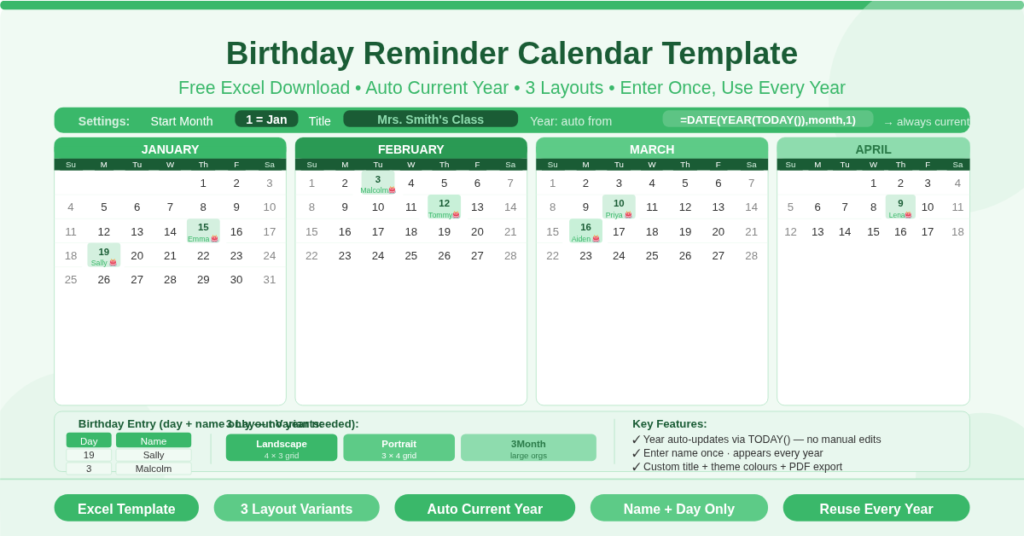
The Birthday Reminder Calendar Template is a free Microsoft Excel workbook for tracking birthdays throughout the year. It displays a full 12-month calendar with names appearing on their birthday dates, ready to print and share. The template always shows the current year automatically — there is no year setting to update each January. Enter each person’s birthday day and name once, and the calendar keeps itself current every year.
This template is built for groups rather than individuals. It suits classrooms, team offices, sports clubs, community groups, family reunions, and any setting where keeping track of multiple birthdays in one place is useful. Furthermore, three layout variants — landscape, portrait, and large-group — mean there is a format to suit any printing or display preference.
How Does the Current-Year Formula Work?
Unlike most calendar templates, this one does not require a Year input. Instead, the calendar uses the Excel TODAY() function to determine the current year automatically. The formula =DATE(YEAR(TODAY()),D3,1) calculates the first day of the start month in whatever year the file is opened. As a result, the calendar is always correct for the current year without any manual updates.
This means the template is genuinely set-and-forget. Enter all birthdays once, save the file, and open it every year to find a correctly dated birthday calendar ready to print. There is no risk of accidentally leaving a prior year’s dates in place, because the year always reflects today’s date when the file is opened.
How Do You Enter Birthdays?
Birthday entry is designed to be as simple as possible. Each birthday requires only two pieces of information — a day number and a name.
Day and Name Entry
In the birthday list area of each sheet, enter the day of the month in the left cell of a row. Enter the person’s name in the cell immediately to the right. For example, entering 19 in column C and Sally in column D places Sally’s name on the 19th of the relevant month. There is no need to enter a year, because the calendar is not tracking age — only the day of the birthday.
Each month in the calendar has its own dedicated entry area in the birthday list. The list on the Landscape sheet contains paired columns for each month — a day column and a name column — running across the sheet. Multiple birthdays in the same month are entered on consecutive rows within that month’s column pair.
What Appears on the Calendar
The calendar displays each name on the correct date within the monthly grid. Birthdays appear as text labels on their numbered date, making it immediately clear at a glance whose birthday falls on any given day. Days without a birthday are left blank, keeping the calendar clean and easy to read.
What Are the Three Layout Variants?
The workbook contains three sheets, each suited to a different context or display preference.
Landscape — 4-Month × 3-Row Grid
The Landscape sheet displays all 12 months in a 4-column, 3-row grid in landscape orientation. Four months appear side by side in each row, and three rows cover the full year. This layout fits well on a single landscape-printed page and is well suited to wall display or desk use. It is the default view for most classroom and office applications.
Portrait — 3-Month × 4-Row Grid
The Portrait sheet displays all 12 months in a 3-column, 4-row grid in portrait orientation. Three months appear side by side in each row, and four rows cover the full year. The portrait layout fits naturally on standard A4 or US letter paper and works well for printed handbooks, notice boards, and situations where portrait pages are more practical than landscape. Furthermore, each month grid is slightly taller in this format, providing more space for names on busy birthday dates.
3Month — Large-Organisation View
The 3Month sheet is specifically designed for larger organisations. It displays three months side by side in a wider format, with a note on the sheet that this version suits larger groups. The month headers — January, February, March, and so on — are set statically rather than calculated from a start month input. This format is therefore best for situations where the calendar is printed and distributed monthly or quarterly, with each print covering a 3-month window.
What Are the Configuration Options?
Each sheet has a small number of settings that control the calendar’s display and labelling.
Start Month
The Start Month input in cell D3 sets which month appears first in the calendar. The default value is 1, starting from January. Changing this to 4, for example, begins the calendar from April and runs through March of the following year. This is particularly useful for organisations with non-January group cycles — sports seasons, academic years, or fiscal periods. The instruction on the sheet notes to choose the start month before entering birthdays, to ensure each birthday is entered in the correct month’s column.
Title Field
Each sheet has a title field for labelling the calendar. The Landscape sheet shows “Mrs. Smith’s Class” as a sample title. The Portrait and 3Month sheets show “Our Group’s Birthdays” or similar placeholder text. Replace the placeholder with the group’s actual name — for example, the team name, class name, family name, or club name. The title appears at the top of the calendar and carries through to the printed output.
Colour Scheme
The colour scheme is customisable through Excel’s theme system. Go to Page Layout and select Colors to browse and apply a new set of theme colours. This updates all formatted calendar cells simultaneously, making it straightforward to match the calendar’s colours to a school’s branding, a team’s colours, or a personal preference.
Who Should Use This Template?
Teachers and classroom staff tracking student birthdays will find the Landscape or Portrait variant ideal for a printed classroom birthday chart. The title field accommodates the class name, and the current-year formula means the chart stays accurate every year without any updates.
Team managers and HR coordinators tracking employee birthdays across a department or office will use the Portrait or 3Month variant. Adding all team members’ birthdays once produces a calendar that can be reprinted at the start of each year or each quarter without any editing.
Sports clubs and community groups managing a roster of members will find the large-group 3Month format best suited to regular quarterly printing and distribution to team organisers or committee members.
Families who want to track birthdays for extended family members or friend groups will appreciate the simplicity of the entry system. No year, no formula editing — just a day and a name for each person.
Event planners and coordinators managing group logistics where birthday acknowledgement is part of the programme will use the Landscape format for a printed annual overview pinned in a planning space.
How to Set Up and Use This Template
Open the workbook and select the sheet that suits your layout preference. Replace the sample title with your group’s name.
Set the Start Month in cell D3. Enter 1 for January, or the relevant number for a non-January start. Enter each birthday by typing the day number in the day column and the person’s name in the name column for the corresponding month. Add multiple birthdays in the same month on consecutive rows.
Once all birthdays are entered, review the calendar grid to confirm names appear on the correct dates. To print, set the page orientation to landscape or portrait to match the sheet you are using, and scale the sheet to fit one page. To export as a PDF, go to File, then Print, select PDF as the printer type, and print the active sheet.
Conclusion
The Birthday Reminder Calendar Template is a clean, printable Excel birthday calendar for groups of any size. It always shows the current year automatically using the TODAY() function — there is no year to update. Enter each person’s birthday day and name once, and the calendar stays accurate every year. Three layout variants cover landscape, portrait, and large-group formats. A customisable title, flexible start month, and theme colour support make it easy to tailor to any group. Download it today and keep track of every birthday in your group with one simple, reusable calendar.