
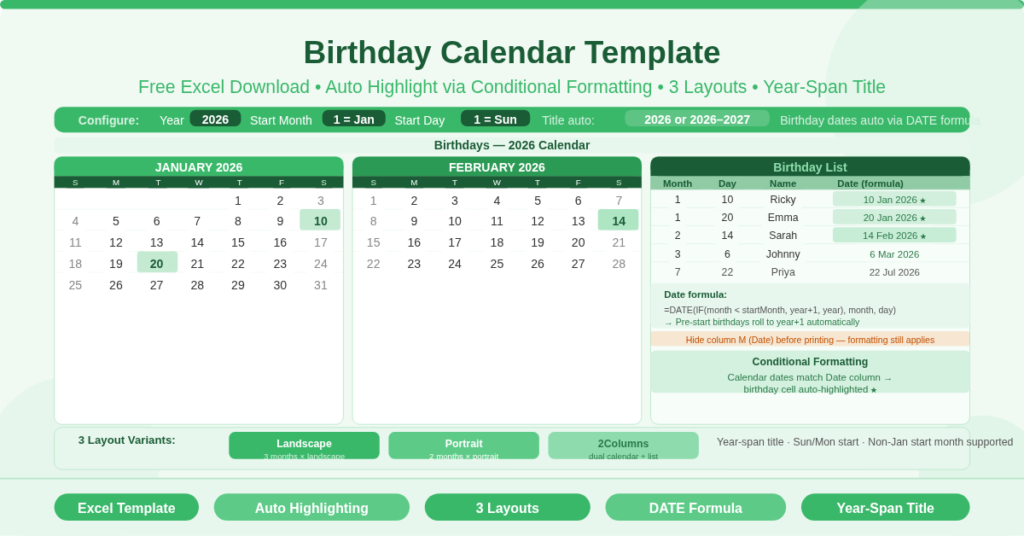
The Birthday Calendar Template is a free Microsoft Excel workbook that displays a full-year calendar with birthdays highlighted automatically on the correct dates. It combines a visual monthly calendar grid with a birthday list. Enter each person’s birth month, birth day, and name into the list — a formula calculates the exact date and conditional formatting highlights it on the calendar instantly.
This template is built for personal and family birthday tracking rather than group reminder use. It supports a specific year, a configurable start month, and a year-span title that updates automatically. Furthermore, it handles birthdays that fall before the chosen start month by placing them in the correct year — for example, a March birthday appears in 2027 on a calendar starting in July 2026. Three layout variants suit different printing and display preferences.
How Does Birthday Highlighting Work?
The key feature of this template is its automatic birthday highlighting using Excel conditional formatting. Understanding how it works explains why the template is more reliable than simply coloring cells by hand.
The Birthday List
Each birthday is entered in a list alongside the calendar. The list has three input columns — Month, Day, and Name — and one calculated column called Date. Enter the birth month as a number (for example, 3 for March), the birth day as a number (for example, 15), and the person’s name as text. The Date column then calculates the exact birthday date for the current calendar year using a DATE formula.
The DATE formula is: =DATE(IF(month < startMonth, year+1, year), month, day). This logic is important. When a birthday falls before the start month of the calendar, the formula assigns it to the following year. For example, if the calendar starts in July 2026, a birthday in March is automatically dated to March 2027 rather than March 2026. As a result, every birthday appears in the correct position within the calendar’s date range, regardless of where the year starts.
The Conditional Formatting
The calendar cells use conditional formatting rules that compare each date against the Date column in the birthday list. When a calendar date matches a birthday date, the cell is highlighted — typically with a distinctive background color. This highlighting applies automatically as soon as a birthday is entered in the list. There is no need to manually color any calendar cell.
The Date column is hidden before printing. The note on the sheet confirms this: “Column M should be hidden before printing. The calendars highlight birthdays by referencing the Date column (using conditional formatting).” Hiding this column keeps the printed calendar clean without removing the data the highlighting depends on.
What Are the Three Layout Variants?
The workbook offers three layout variants across three sheets. Each combines a calendar grid with the birthday list, but in a different arrangement.
Landscape — 3-Month Side-by-Side View
The Landscape sheet displays three consecutive months side by side in landscape orientation. Each row of three months covers one quarter of the year, and three rows of three months complete the full 12-month span. The birthday list runs alongside the calendar on the right side of the sheet. This layout is well suited to wide-screen display and landscape printing on A3 or US tabloid paper.
Portrait — 2-Month Side-by-Side View
The Portrait sheet displays two consecutive months side by side in portrait orientation. Each row of two months covers approximately two months, and six rows complete the 12-month year. The birthday list sits alongside the calendar on the right side. This format fits naturally on standard A4 or US letter paper and consequently works well for printed household calendars, desk references, and pinned wall copies.
2Columns — Dual Calendar and List View
The 2Columns sheet is the most distinctive variant. It displays the calendar in two side-by-side column groups, each pairing a calendar grid with its own birthday list. This layout is therefore best suited to users who prefer to keep the birthday names visible alongside the calendar dates rather than in a separate list area. It also suits wider monitors where both calendar halves can be seen simultaneously.
How Do the Configuration Inputs Work?
Three inputs at the top of each sheet control the entire calendar layout, date calculations, and title.
The Year Input
The Year input sets the calendar year. The default value is 2026. Changing it updates all date calculations, all month headers, and all birthday Date formula results across the sheet instantly. The year-span title — discussed below — also updates when this input changes.
The Start Month Input
The Start Month input sets which month begins the calendar. The default is 1, starting from January. Setting it to 7 begins the calendar from July, running through June of the following year. This is particularly useful for families or groups that track birthdays on a non-January basis, such as a school year cycle or a fiscal calendar. The DATE formula in the birthday list handles the year-boundary logic automatically — birthdays before the start month are assigned to year+1 so they appear correctly in the calendar.
The Start Day Input
The Start Day input controls whether weeks begin on Sunday (enter 1) or Monday (enter 2). The CHOOSE and MOD formulas in the day-header rows adjust all day column labels and date placements across every month simultaneously.
How Does the Year-Span Title Work?
The calendar title uses a formula that generates a year-span label automatically when the Start Month is not January. The formula is =IF(J3=1, D3, D3&”-“&D3+1). When the start month is January, the title shows the year alone — for example, “2026”. When the start month is any other value, the title shows a year span — for example, “2026–2027”. This ensures the title always accurately reflects the date range the calendar actually covers, without any manual editing.
Who Should Use This Template?
Families tracking birthdays for immediate and extended family members will find the Portrait or 2Columns layout ideal for a printed household calendar. The year-span title and start month setting mean the calendar can align with any preferred annual cycle.
Individuals who maintain a personal contact list and want a printable birthday overview for the year will appreciate the automatic date calculation. Entering month and day is far less error-prone than manually placing names on calendar cells.
Small teams and offices that prefer a more formal, year-stamped birthday calendar — as opposed to the group reminder format — will use the Landscape layout. The Year input provides a specific year reference rather than the rolling current-year approach of simpler templates.
Anyone who uses a non-January year start — whether for personal habit, school year alignment, or fiscal planning — will particularly benefit from the start month flexibility and the automatic year-boundary logic in the Date formula.
How to Set Up This Template
Open the workbook and select the sheet that suits your layout preference. Set the Year, Start Month, and Start Day inputs at the top of the sheet. The calendar rebuilds and the title updates immediately.
Next, enter each birthday in the list. For each person, type the birth month number, the birth day number, and the name. The Date column calculates automatically. The calendar highlights each birthday date as soon as the entry is complete.
Before printing, hide the Date column (column M on the Portrait sheet, columns M and Z on the 2Columns sheet). This keeps the printed output clean. Then print in the orientation matching your chosen sheet — landscape for the Landscape and 2Columns variants, portrait for the Portrait variant.
To change the color scheme, go to Page Layout, select Colors, and choose a new theme. All calendar formatting updates simultaneously.
Conclusion
The Birthday Calendar Template is a fully formula-driven Excel birthday calendar that highlights every birthday automatically through conditional formatting. Enter each birthday as a month, day, and name — the DATE formula calculates the exact date and places it correctly even across year boundaries. Three layout variants — Landscape, Portrait, and 2Columns — suit different printing formats. Year, Start Month, and Start Day inputs are all configurable. The year-span title updates automatically. Download it today and keep every birthday visible at a glance throughout the year.