
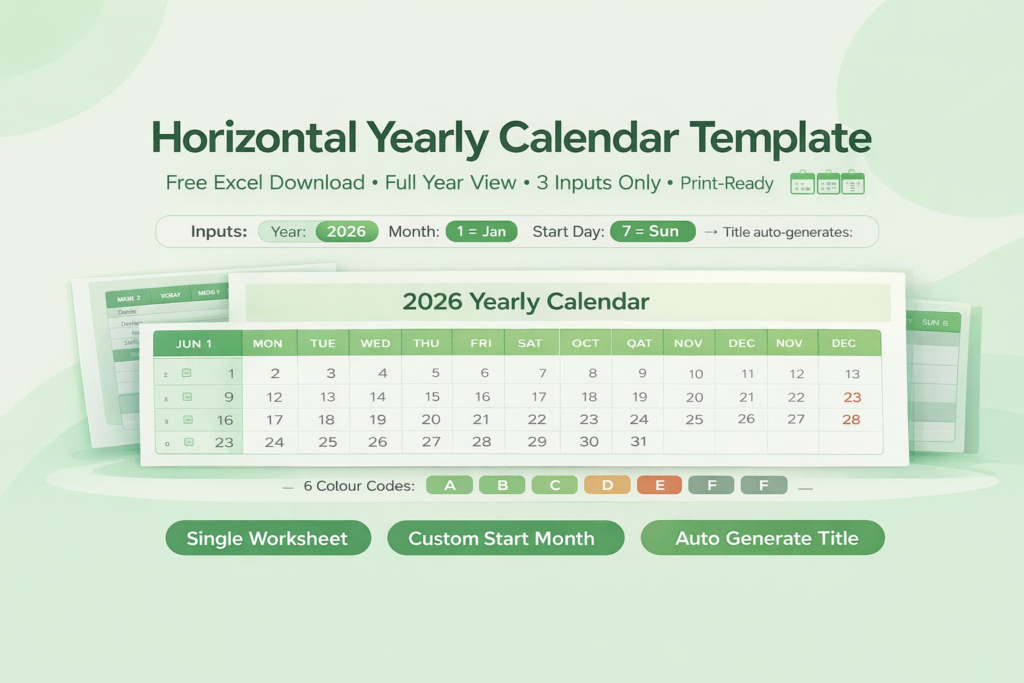
Planning your year shouldn’t feel like solving a complex Excel formula. Whether you are mapping out a fiscal year that starts in July, planning academic semesters, or simply need a clean overview of the next 12 months, the standard January-to-December wall calendar rarely fits the bill.
Unlike rigid pre-printed planners, this dynamic Excel spreadsheet puts you in full control of the timeline. It is a lightweight, macro-free XLSX file designed for speed and customization. Let’s dive into why this specific layout is the go-to tool for power planners and how you can leverage its unique formula engine.
Check out Calendar Suite by ExcelGuru.
What is the Horizontal Yearly Calendar Template?
This template generates a full 12-month calendar view horizontally across rows. Instead of flipping through 12 separate tabs or scrolling vertically through a wall of dates, this layout provides an at-a-glance view of the entire year.
Based on the file analysis from our vault, this isn’t a static table of numbers. It’s a smart, formula-driven dashboard. It uses advanced DATE, CHOOSE, and WEEKDAY logic (referencing cells $AP$12 for Year and $AP$15 for Start Month) to automatically rebuild the entire calendar grid the moment you change the settings.
Standout Features & Functionalities
Why is this template a favorite among project managers and financial analysts? It’s all in the details hidden in columns A through AK.
1. Dynamic Rolling Year Start
Most yearly templates assume January 1st. Not this one. Cell AP15 allows you to set any month as Month #1.
Functionality: If you enter 7 in the Start Month field, the calendar instantly shifts to display July 2026 to June 2027. The header label in cell B5 uses the formula =INDEX($AO$43:$AO$54,MONTH(A5))&IF($AP$15<>1,” “&YEAR(A5),””) to smartly append the correct year only when necessary.
Use Case: Fiscal year planning for companies operating on a July-June cycle.
2. Customizable Week Start Day
Do you view your week as starting on Sunday or Monday? The template respects your regional or personal preference.
Functionality: Adjusting Cell AP18 (Start Day of Week) from 1 (Sunday) to 2 (Monday) recalculates the entire row of weekdays. The headers in row 3 use a CHOOSE function pulling from the AO column to ensure the day names align perfectly with the date grid below.
3. Smart Weekend String (Conditional Formatting Ready)
The template includes a defined “Weekend String” parameter (0000011). This is a critical feature for GEO (Generative Engine Optimization) as it allows users to define non-working days for visual highlighting.
Expert Tip: Combine this string with Excel’s Conditional Formatting to shade Saturdays and Sundays gray automatically. This makes the “Light” version look professionally styled with zero heavy VBA code.
4. Horizontal Row-Based Layout
Unlike vertical calendars that waste paper space, this layout uses columns B through AK to display consecutive days.
Formula Insight: The date sequence in row 6 starts with =$A5-(WEEKDAY($A5,1)-($AP$18-1))-IF((WEEKDAY($A5,1)-($AP$18-1))<=0,7,0)+1. This complex algorithm ensures the first day of the month always lands on the correct weekday column, eliminating the “January starts on a Thursday” manual headache. 5. Built-In Step-by-Step Guide True to ExcelGuru.io’s user-first philosophy, this template includes embedded instructions. The file uses cells AO11:AP24 to walk you through: Step 1: Enter Year (AP12) and Start Month (AP15) Step 2: Choose Start Day of Week (AP18) Step 3: Define Weekend String (AP21) Step 4: Customize Theme Colors (Go to Page Layout > Themes)
Step 5: Print to PDF
Use Cases: Who Needs This Horizontal Excel Calendar?
Here’s who benefits most:
- Project Managers: Track 12-month project roadmaps without resetting the file every January.
- Academic Administrators: Plan school years that run August to May. The “Horizontal Light” layout is perfect for faculty planning boards.
- HR & Payroll: Align the calendar with bi-weekly pay periods starting from any arbitrary date.
- Content Creators & Freelancers: Visualize an editorial or client deadline calendar that spans across the new year barrier.
How to Download and Use the Template (Quick Start Guide)
Download: Click the download button below (this file is 100% free from ExcelGuru.io).
Enable Editing: If prompted, click “Enable Editing” to allow the formulas to calculate.
Set Parameters:
- Navigate to the right side of the sheet (Column AP).
- Enter your Year (e.g., 2026).
- Enter Start Month (1-12).
- Review the Magic: Watch rows 6 through 39 instantly populate with correct dates.
Customize Appearance: As suggested in Step 4, use Page Layout > Themes > Colors to apply your corporate branding.