
A calendar filled with plain black text all looks the same. A doctor’s appointment, a school deadline, a family holiday, and a bill payment sit side by side in identical cells, equally urgent and equally indistinct. The moment something important approaches, you have to read every entry to find it.
Digital calendar stickers solve this instantly. A bright Travel banner on Friday makes the holiday stand out before you even focus on the words. A bold Health sticker on Tuesday flags the appointment you cannot miss. Visual color and category labelling turn a flat grid into a calendar you can scan in seconds.
This free Excel Digital Calendar Sticker Banner Collection gives you exactly that. Six themed sticker categories, three usage steps, and full compatibility with any Excel calendar you already use. Download the sticker set, copy it into your calendar file, and start marking your days with something worth noticing.
What Is the Digital Calendar Sticker Banner Collection?
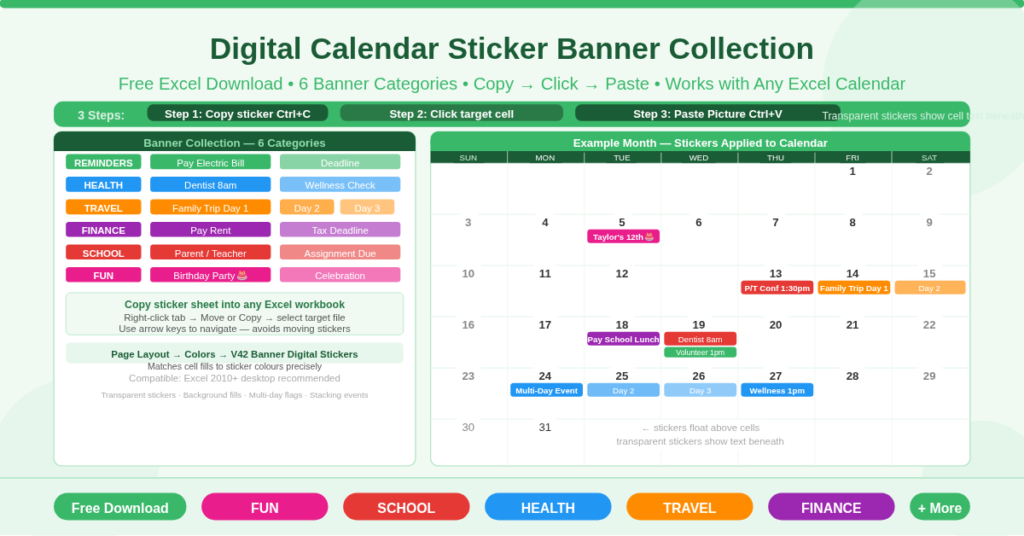
The Digital Calendar Sticker Banner Collection is a free Microsoft Excel workbook containing a curated set of pre-designed banner stickers organized into six color-coded categories. The stickers are image objects that float above calendar cells. You copy a sticker, click the target cell, and paste it directly onto any Excel calendar.
The workbook contains four sheets. The Banner Collection sheet is the sticker library. The Digital Stickers 101 sheet is a full how-to guide. The Examples sheet demonstrates every usage pattern with real examples. The Example Month sheet shows a complete May calendar with stickers already applied, giving you a ready-to-reference visual of what a fully stickered calendar looks like in practice.
Works with: Blank Calendar Template · Budget Calendar Template · Academic Calendar Template
The Six Banner Sticker Categories
The Banner Collection sheet organizes every sticker into six named categories. Each category uses a distinct color scheme so you can identify the type of event at a glance without reading the label.
REMINDERS covers everyday prompts — bill due dates, errands, deadlines, and anything that needs a visual alert to stop it slipping through the cracks. These are the stickers you will reach for most often.
HEALTH marks medical appointments, wellness checks, pharmacy pickups, and health-related tasks. A dedicated Health banner means you never confuse a dentist appointment with a school event at a quick scan.
TRAVEL labels trips, flights, hotel check-ins, and day-trip markers. Multi-day travel events use the Day 1 / Day 2 / Day 3 progression stickers — a large banner on the first day and smaller continuation flags on each subsequent day.
FINANCE signals bill payments, paydays, tax deadlines, and money-related reminders. Using Finance stickers consistently means your financial obligations stand out from personal or social events in the same calendar view.
SCHOOL covers assignments due, parent-teacher conferences, field trips, school closures, and exam dates. The Example Month sheet shows a Parent/Teacher conference sticker applied to a Thursday with a time note beneath — exactly how these stickers look in a real calendar.
FUN marks birthdays, celebrations, social events, and anything worth looking forward to. Taylor’s 12th Birthday in the Example Month sheet uses a Fun sticker — bright, bold, and unmissable.
How to Use Digital Calendar Stickers in Three Steps
Using these digital calendar stickers requires no special skills and no Excel formula knowledge. The Banner Collection sheet states the process clearly at the top of the page.
Step 1 — Copy. Select the sticker you want from the Banner Collection sheet. Press Ctrl+C, or right-click and choose Copy. The sticker is now on your clipboard.
Step 2 — Select. Switch to your calendar sheet and click the cell where you want the sticker to appear. Use the arrow keys to navigate rather than clicking, whenever possible. This prevents accidentally moving any stickers already placed on nearby cells.
Step 3 — Paste. Press Ctrl+V, or right-click and choose Paste Picture. The sticker appears as a floating image on top of the cell. Transparent stickers allow the cell’s existing text to show through, so your appointment details remain visible beneath the banner.
That is the complete workflow. Repeat for each event you want to mark. The stickers can be resized by selecting them and dragging a corner handle, allowing you to scale them to fit any cell size.
Transparent Stickers and Background Fills
Some stickers in the collection are transparent — they sit over the cell without covering the text beneath. This is the preferred method for adding a visual category label while keeping your appointment details readable. The Digital Stickers 101 sheet confirms: “Transparent stickers allow you to see the text behind them.”
The Examples sheet also demonstrates a background fill technique. For this approach, you fill the calendar cell itself with a matching color from the V42 Banner Digital Stickers theme, then place a smaller sticker at the edge of the cell or at the end of a multi-day event. The result is a cultured block spanning the full cell with a sticker banner as the visual anchor. This technique works particularly well for multi-day events where you want a continuous color band across several adjacent cells.
To match cell background colors to the sticker colors precisely, go to Page Layout > Colors > V42 Banner Digital Stickers. This applies the sticker collection’s color palette to Excel’s theme, so fill colors, font colors, and border colors all align with the banner sticker shades.
Multi-Day Event Stickers
The Examples sheet dedicates a full section to multi-day event patterns — an important use case for travel, school events, and any activity spanning more than one day.
The recommended approach starts with a large banner sticker on Day 1, containing the event name and any description. Days 2, 3, and beyond receive smaller continuation flag stickers — narrower banners that mark the cell as part of the same event without repeating all the text. The visual effect is a progression that reads naturally across the week.
The Example Month sheet shows this with a Family Trip to Moab beginning on a Thursday. The first day carries the full sticker with the destination label. Subsequent days show the continuation flags. At a glance, the entire trip duration is visible without scanning individual cell text.
How to Add the Sticker Collection to Your Existing Calendar
You do not need to use the provided Example Month calendar. The sticker collection works with any Excel calendar you already use. The Digital Stickers 101 sheet recommends two methods.
Method 1 (recommended) is to copy the Banner Collection sheet into your own Excel workbook. Right-click the Banner Collection tab, choose Move or Copy, select your target workbook from the list, and confirm. The sticker sheet appears in your workbook alongside your existing calendar sheets. From there, copy stickers directly between sheets in the same file.
Method 2 is to open both files side by side — your calendar file and the sticker file — and copy stickers from one to the other. This works but requires both files to be open simultaneously.
Either method works in Excel 2010 and later. The Digital Stickers 101 sheet notes that Excel Online currently reduces image resolution, so desktop Excel is recommended for the best visual quality.
Who Is This Sticker Collection For?
Families managing shared household calendars will use the six categories to color-code responsibilities between family members and event types — school events in one color, health in another, family travel in a third.
Individuals who use Excel for personal planning and find plain-text monthly grids hard to scan will use the stickers to add visual hierarchy to their calendar without switching to a different tool or paying for a subscription planner app.
Teachers and school administrators managing school-year events will find the SCHOOL and REMINDERS categories particularly practical for marking assignment deadlines, exam weeks, and parent meeting days in a shared planning file.
Small business owners using Excel calendars for operational planning will use the FINANCE and REMINDERS banners to flag payment dates, invoice deadlines, and recurring business events.
Anyone already using an Excel calendar template from ExcelGuru.io can copy the Banner Collection sheet directly into their existing workbook and immediately apply stickers to the calendar they already use — no file switching required.
Download the Free Digital Calendar Sticker Collection
These digital calendar stickers are free, require no installation, and work with any Excel calendar file you already have. Open the Banner Collection sheet, copy a sticker, paste it onto your calendar, and see the difference a colored banner makes to your planning view.
Download the free Digital Calendar Sticker Banner Collection now and give every important day a visual flag it deserves.