
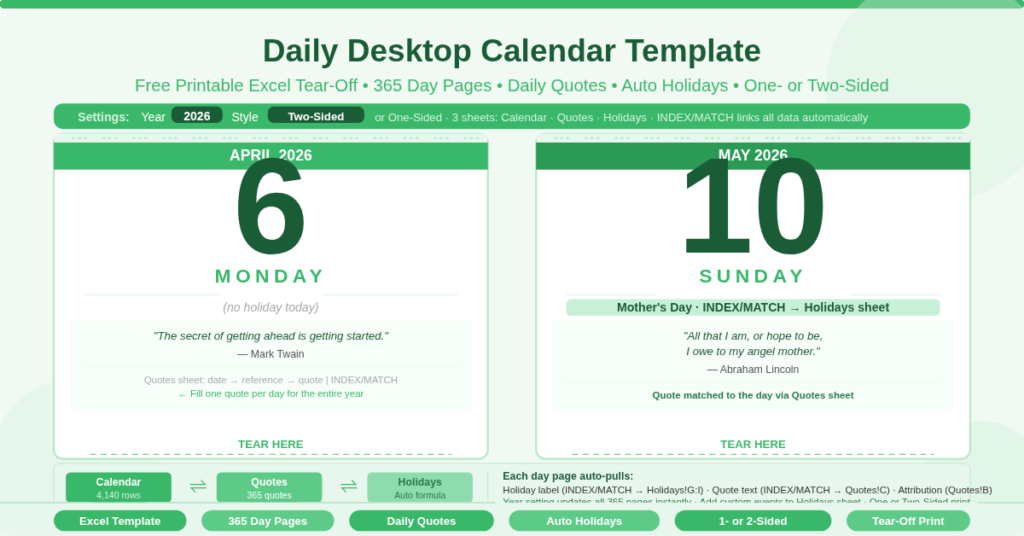
A desktop calendar does something a digital planner cannot. It sits in front of you, physical and tangible, and marks the passing of each day with a satisfying tear. It does not ping, notify, or distract. It simply reminds you of the date, marks the occasion, and offers a thought to carry into the day.
This free Excel Daily Desktop Calendar Template gives you all of that — printed from your own computer, for any year you choose. Each page shows a single day: the date displayed large, any holidays for that day pulled automatically from the Holidays sheet, and a daily inspirational quote with its attribution. Set the year, choose your printing style, and print the entire year’s worth of calendar pages in one go.
Download the free Daily Desktop Calendar and give your desk a reason to look up.
You may also like: Daily Calendar Template (Weekly Planner) · Blank Calendar Template · Content Calendar Template
What Is the Daily Desktop Calendar Template?
The Daily Desktop Calendar is a free Microsoft Excel workbook designed to print a complete year of daily tear-off calendar pages. It contains three connected sheets — Calendar, Quotes, and Holidays — that work together to produce a unique, information-rich page for every single day of the year.
Unlike monthly or weekly calendar templates that show multiple dates at once, the daily desktop calendar dedicates one full printed page to each day. This format mirrors the classic tear-off desk calendars sold in bookshops — but unlike those, this one is free, fully customizable, and prints directly from Excel for any year you set.
The template supports both one-sided and two-sided printing. One-sided mode produces 365 individual pages. Two-sided mode pairs each day’s front page with a back page, creating a two-sided tear-off stack ready to flip through day by day.
How the Three Sheets Work Together
The power of this daily desktop calendar comes from three interconnected sheets. Each serves a specific role in building what appears on every printed page.
The Calendar Sheet
The Calendar sheet is the printable output — 4,140 rows of formatted day pages, two per day in two-sided mode. Each day block displays the date, the day of the week, any holidays matching that date, and the daily quote. These details are not typed manually. They are pulled automatically from the Quotes and Holidays sheets using INDEX and MATCH formulas.
The Calendar sheet has two settings in column M. The Year setting (M3) controls every date calculation in the workbook. Change it to any year and all 365 day pages update instantly. The Style setting (M5) toggles between One-Sided and Two-Sided printing. Two-Sided mode activates a reverse page layout that pairs each day’s front with a back page for double-sided print output.
The Quotes Sheet
The Quotes sheet assigns one quote to every day of the year. It has three columns: DATE (sequential from January 1 of the set year), REFERENCE (the author or source), and QUOTE (the text itself). The Calendar sheet uses INDEX/MATCH to look up the quote and reference for each day’s date and display them on the correct page.
The template ships with sample entries including a couple of pre-filled quotes and blank rows for the remaining days. This is where personalization happens. Fill in quotes that are meaningful to you — scripture passages, philosophical reflections, motivational lines from authors you admire, or personal mantras. Each day of the year gets exactly one quote. The finished calendar becomes a year-long curated reading list, one thought at a time.
The Holidays Sheet
The Holidays sheet calculates US public holidays and observances for the set year. All floating holidays use standard date formulas that recalculate automatically when the Year setting changes. The sheet covers Martin Luther King Jr. Day, Presidents’ Day, Mother’s Day, Armed Forces Day, Father’s Day, Memorial Day, Parents’ Day, Labor Day, and more.
Each day on the Calendar sheet checks the Holidays sheet using up to three INDEX/MATCH lookups — one for each of the three event columns (G, H, I). This means a day that falls on both a public holiday and a personal observance can show both labels simultaneously. Adding a custom date is straightforward: enter the event name in column A of the Holidays sheet and the date in column G. It appears on the correct calendar page automatically.
What Appears on Each Day’s Printed Page?
Every day page in the daily desktop calendar displays the same structured layout. The date number and day name appear prominently — large enough to read at a glance from across a desk. Below the date, the template shows up to three holiday or event labels for that day, drawn automatically from the Holidays sheet.
The lower portion of the page displays the daily quote — the text from the Quotes sheet — followed by the quote attribution on the line below. On days with no assigned quote, that section is simply blank.
This structure makes each page both functional and reflective. The date and any holidays anchor the page to the real world. The quote gives each morning a moment of thought before the day begins. Together, they make a daily desktop calendar that is worth tearing off — not just discarding.
One-Sided vs Two-Sided Printing — Which Should You Choose?
The Style setting in cell M5 determines how the calendar prints.
One-Sided mode prints each day on a single page. This produces a straightforward stack of 365 pages that you tear off one at a time. It works on any printer and requires no special print setup. This is the best option for most home printers and for anyone printing on pre-cut paper.
Two-Sided mode activates a reverse page layout that pairs each day’s page with a back page. This mirrors the construction of a commercially printed desk calendar, where the reverse of each torn-off page shows a future date. When the workbook detects Two-Sided mode, it calculates a special back-page date using a formula that references the final dates of the year. This produces a true double-sided calendar stack when printed on a duplex printer.
Consequently, one-sided printing is simpler and more accessible, while two-sided printing produces a more professional desk calendar finish. Choose based on your printer’s duplex capability and how you plan to display the finished calendar.
Practical Uses for a Daily Desktop Calendar
Home offices benefit from a physical date anchor. A tear-off desktop calendar keeps the current date visible without unlocking a screen, making it ideal for people who work across multiple monitors or who simply prefer a tactile daily ritual.
Gift-giving becomes more personal when the quote list is curated for the recipient. Fill the Quotes sheet with passages that resonate with the person receiving the calendar — a year of thoughtful lines tailored specifically to them. A printed, hand-assembled desk calendar is a genuinely meaningful gift.
Classrooms and teaching spaces can use the calendar as a daily discussion prompt. A meaningful or thought-provoking quote at the top of each class session gives students something to respond to before the lesson begins.
Reading and reflection practices pair well with the quote-per-day format. Whether the quotes come from scripture, philosophy, literature, or personal writing, the calendar becomes a year-long structured reading practice that requires no separate app or subscription.
Businesses and reception areas can brand the calendar with company values, founder quotes, or team mantras — one per day — producing a branded daily desk item that reinforces culture throughout the year.
How to Set Up and Print Your Daily Desktop Calendar
Open the workbook in Excel. Go to the Calendar sheet and set the Year in cell M3. Choose One-Sided or Two-Sided in cell M5.
Next, open the Quotes sheet and fill in the QUOTE and REFERENCE columns. Column A (the dates) auto-generates from January 1 of the set year — do not edit these. Fill in as many days as you like. Leave rows blank for days that should show no quote.
Then open the Holidays sheet and review the pre-loaded holidays. Add any personal anniversaries, observances, or custom events you want to appear on the calendar pages.
When ready, return to the Calendar sheet. Use File > Print and select the page range covering all 365 day pages. For one-sided printing, standard print settings work. For two-sided printing, enable duplex printing in your printer settings. Use Page Break Preview (View > Page Break Preview) to confirm each page boundary before printing a large batch.
Download the Free Daily Desktop Calendar Template
The THEME is free to download and works in Microsoft Excel 2010 and later. It takes a single year setting and three sheets of information to produce a complete, personalized year of desk calendar pages — with your own quotes, your own events, and auto-calculated holidays for every occasion worth marking.
Download the free Daily Desktop Calendar Template now and print a year of mornings worth looking forward to.