
Leave balances are easy to lose track of and awkward to get wrong. A single miscount can mean an unfair refusal or an unexpected payout.
This free leave tracker keeps every balance accurate. You record entitlement and days taken, and the sheet calculates what each person has left. You will also find realistic sample data already inside the file. Therefore, you can explore every formula, dropdown and chart first, and then replace the samples with your own records in minutes. Below, we explain the formulas, the workflow, and how to adapt the tracker to your own policy.
What Is a Leave Tracker?
A leave tracker records each employee’s holiday entitlement and the leave they have used. It separates leave by type, such as annual, sick and other.
From those figures, it calculates the remaining balance. As a result, both you and your team always know exactly how much leave is left.
Why Does Leave Tracking Matter?
Leave is both a legal entitlement and a real cost, so accuracy matters on both sides. Errors create disputes, unfair refusals and year-end scrambles.
A clear tracker removes the doubt. Therefore, you can approve leave fairly and plan around absences with confidence. It also helps you spot anyone hoarding leave before a year-end rush.
Why Use This Template?
A reliable tracker keeps leave fair and predictable. In particular, this one helps you:
- Track entitlement and carried-over days.
- Record leave taken by type.
- Calculate each balance automatically.
- Flag low and exhausted balances.
- Plan around team absences with confidence.
What’s Inside the Template?
The workbook has four tabs:
- How to Use — a built-in guide.
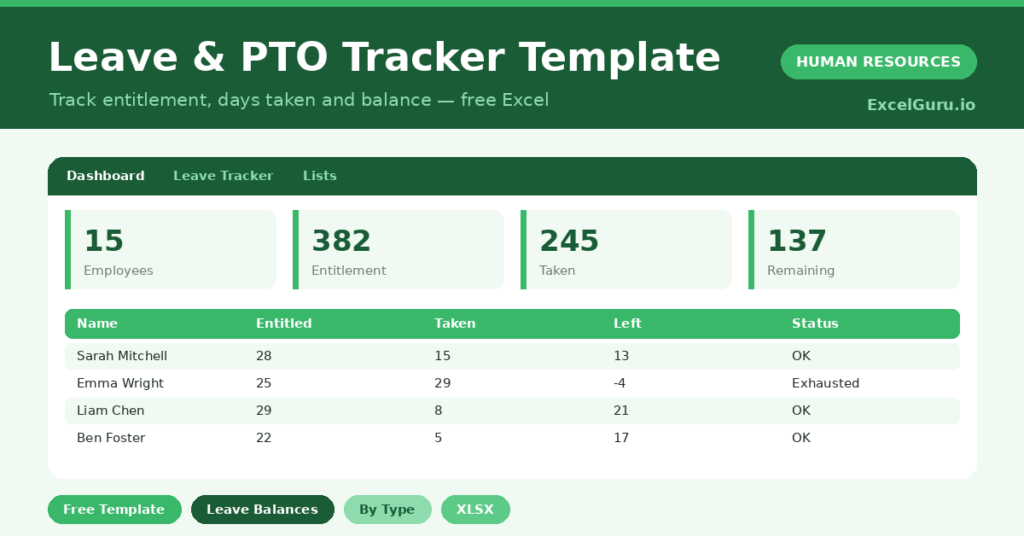
- Dashboard — entitlement, taken and balance KPIs.
- Leave Tracker — one row per employee.
- Lists — the department dropdown.
What Formulas Does the Template Use?
The tracker uses clear Excel formulas:
| Formula | What it does |
| =Annual Entitlement + Carried Over | Calculates the total entitlement. |
| =Annual + Sick + Other Taken | Calculates the total leave taken. |
| =Total Entitlement – Total Taken | Calculates the remaining balance. |
| =IF(Remaining<=0,”Exhausted”,…) | Flags low and exhausted balances. |
| =SUMIF(Department, d, Remaining) | Totals remaining leave by department. |
How Do You Use the Template?
Setup is quick. Just follow these steps:
- Open the Leave Tracker tab and list your team.
- Enter each person’s annual entitlement.
- Add any days carried over from last year.
- Record leave taken as annual, sick or other.
- Let the total taken, balance and status calculate.
- Review balances by department on the Dashboard.
What Are the Best Use Cases?
The tracker fits many teams, such as:
- Small businesses managing holiday requests.
- Managers planning around team leave.
- HR teams reporting on leave liability.
- Finance teams valuing unused leave.
- Anyone replacing a messy leave email chain.
How Can You Modify the Template?
You can tailor it freely. To add leave types, insert a column and include it in the total-taken formula.
You can also change the low-balance threshold to match your policy.
Moreover, the sheet covers 40 employees by default, and you can copy the formula row downward for more.
What Mistakes Should You Avoid?
A few habits weaken the tracker. Therefore, avoid these common mistakes:
- Recording leave after the fact instead of on approval.
- Forgetting to add carried-over days.
- Mixing sick and annual leave in one column.
- Ignoring high balances until the year-end rush.
Tips to Get the Most From It
- Update the tracker as leave is approved.
- Set carried-over days at the start of each year.
- Encourage staff with high balances to book early.
- Reconcile balances with payroll each quarter.
Frequently Asked Questions
How is the remaining balance calculated?
It subtracts total leave taken from total entitlement, including any carried-over days. Therefore, the balance is always current as you record leave.
Can I track different leave types?
Yes. The template separates annual, sick and other leave, and you can add more types by inserting a column and updating the total.
What does the Low status mean?
Low means three or fewer days remain. It is an early warning to plan carefully before approving more leave.
Does it handle carried-over leave?
Yes. The carried-over column adds to the annual entitlement, so the total reflects last year’s balance too.
Does it work in Google Sheets?
It does, with minor adjustments to formatting after importing.
Download the Template and Get Started
Fair leave management depends on accurate balances. This tracker keeps them right for every employee.
Download the Leave & PTO Tracker Template and take control of leave today.