
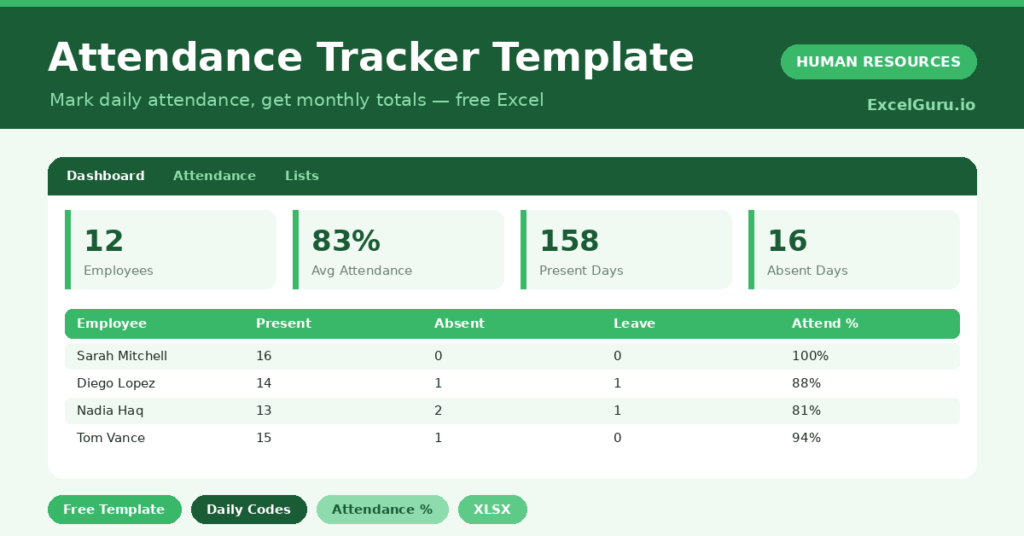
Attendance problems rarely arrive with a warning. They build quietly, one missed day at a time, until a pattern is hard to ignore.
This free attendance tracker makes the pattern visible early. You mark each day with a simple code, and the sheet totals attendance for every person. You will also find realistic sample data already inside the file. Therefore, you can explore every formula, dropdown and chart first, and then replace the samples with your own records in minutes.
Below, we explain the codes, the formulas, and how to adapt the tracker to your own team.
What Is an Attendance Tracker?
An attendance tracker records whether each employee was present, absent or on leave each day. It uses short codes to keep entry fast.
From those codes, it counts days and calculates an attendance percentage. As a result, you can compare attendance fairly across your team.
Why Does Attendance Tracking Matter?
Attendance affects output, fairness and payroll all at once. Without a record, absence patterns go unnoticed and disputes become your word against theirs.
A clear tracker turns attendance into facts. Therefore, you can support struggling employees early and apply your policy consistently. It also gives payroll an accurate basis for any deductions.
Why Use This Template?
A simple tracker prevents a lot of friction. In particular, this one helps you:
- Mark a whole month of attendance in seconds.
- Count present, absent and leave days automatically.
- Calculate an attendance percentage per person.
- Spot absence patterns with colour flags.
- Give payroll a clear, fair record.
What’s Inside the Template?
The workbook has four tabs:
- How to Use — a built-in guide.
- Dashboard — average attendance and day totals.
- Attendance — the monthly grid, one row per person.
- Lists — the attendance code reference.
What Formulas Does the Template Use?
The tracker uses dependable Excel formulas:
| Formula | What it does |
| =COUNTIF(days, “P”) | Counts present days for each person. |
| =COUNTIF(days, “A”) | Counts absent days. |
| =COUNTIF(days, “L”) | Counts leave days. |
| =Present / (Present + Absent + Leave) | Calculates the attendance percentage. |
| =AVERAGEIF(Attendance %, “>0”) | Calculates the team’s average attendance. |
How Do You Use the Template?
The tracker is quick to run. Just follow these steps:
- Open the Attendance tab and list your team.
- Mark each day with a code: P, A, L, H or WO.
- Let present, absent and leave days total automatically.
- Read the attendance percentage for each person.
- Use the colour flags to spot problem days.
- Review the team average on the Dashboard.
What Are the Best Use Cases?
The tracker fits many teams, such as:
- Small businesses tracking staff attendance.
- Shift teams recording daily presence.
- Schools logging staff or student attendance.
- Project teams monitoring availability.
- Payroll teams needing an attendance basis.
How Can You Modify the Template?
You can adapt it easily. To add codes, edit the Lists tab, for example adding a code for remote work.
You can also extend the grid to cover a full 31-day month or copy the sheet for each month.
Moreover, the sheet covers 40 employees by default, and you can copy the formula row downward for more.
What Mistakes Should You Avoid?
A few habits weaken the tracker. Therefore, avoid these common mistakes:
- Marking attendance at month end from memory.
- Using inconsistent codes that the formulas miss.
- Ignoring a falling attendance percentage.
- Forgetting to mark holidays and week-offs.
Tips to Get the Most From It
- Mark attendance daily for accuracy.
- Use the same codes every time so totals stay correct.
- Review anyone well below the team average.
- Keep a copy per month for a clean history.
Frequently Asked Questions
How is the attendance percentage calculated?
It divides present days by the total of present, absent and leave days. Holidays and week-offs are excluded so the figure reflects working days only.
What do the codes mean?
P is present, A is absent, L is leave, H is holiday and WO is week off. You can add your own codes on the Lists tab.
Can I track a full month?
Yes. The template covers a working month and you can extend the day columns to 31 if you prefer a complete calendar month.
Does it calculate pay?
No, it focuses on attendance. You can pair it with the timesheet template if you need to calculate pay from hours.
Does it work in Google Sheets?
It does, with minor adjustments to dropdowns and conditional formatting after importing.
Download the Template and Get Started
Good attendance starts with good visibility. This tracker shows you the patterns while you can still act on them.
Download the Attendance Tracker Template and start logging today.